
Actions
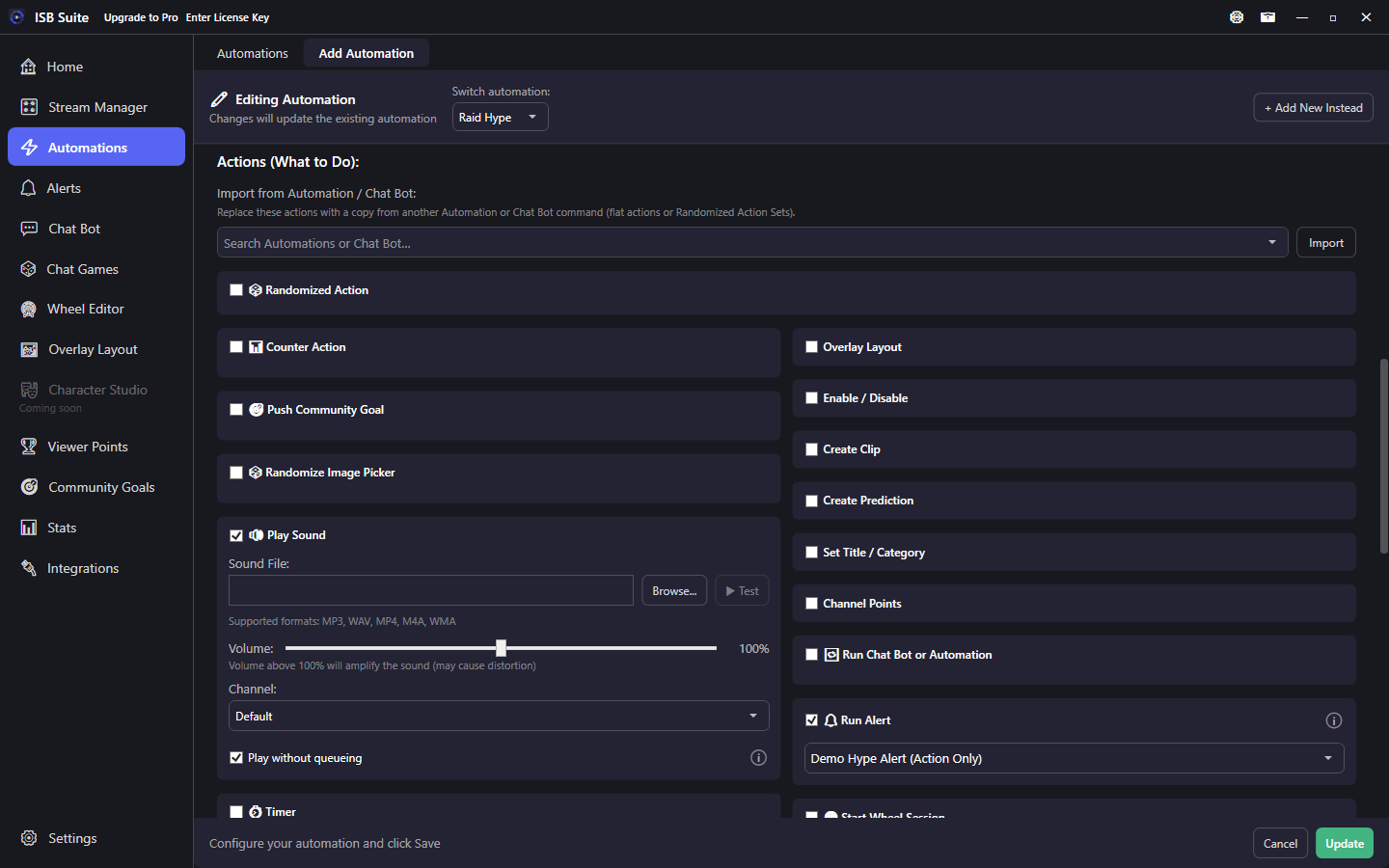
The same Actions editor appears on Automations, Chat Bot, Viewer Points shop items, Chat Games, and related surfaces. Pick what should happen when a rule fires; each action has its own options and Test controls where it makes sense.
At a glance
- One shared Actions control - not a separate app feature with its own Free limit.
- Used from Automations, Chat Bot, shop items, and Chat Games.
- Many actions support message variables (
{user},{amount}, and so on). - Open a card below for how each action works, options, and pitfalls.
Where Actions appear
Whenever you configure what happens after a trigger or redeem, you get this Actions list. Labels match the checkboxes in the app.
- Automations and Chat Bot: full action set on each rule.
- Viewer Points shop: redeem runs the item Actions.
- Chat Games: phase Actions (open, join, win, and so on).
- Wheel entries: a smaller per-entry set (sound, chat, counter, run automation). See Wheel - Per entry actions.
How Actions run together
- You can enable several actions on one rule. They share the same trigger context (
{user}, amounts, and so on). - Timer is special: Counter Action and Push Community Goal still apply immediately so
{count}stays correct; sound, chat, TTS, wheel, giveaway, and alerts wait until the countdown ends. - Live Timer updates a Live Clock immediately (like counters), even when a delay Timer is also on the rule.
- Enable / Disable flips Overview on/off lights immediately (like counters), even when a delay Timer is also on the rule.
- Channel Points updates ISB-managed rewards (cost, pause, cooldown) when the other delayed actions run.
- OBS Studio talks to OBS when the other delayed actions run (same timing as Send Message / Spotify).
- Streamlabs Desktop talks to Streamlabs when the other delayed actions run (same timing as Send Message / OBS). Volume is 0-100%, not OBS dB.
- Send Keybind taps one key combination on this PC when the other delayed actions run, after Streamlabs. The focused app, or the app that owns that hotkey, receives it.
- Overlay Layout switches the live ISB overlay and shows or hides widgets immediately, just before OBS / Streamlabs on the same rule, so both transitions start together.
- Randomized Action replaces the flat action list with named Action Sets - each run picks one set.
- Free limits apply to the parent feature (automations, chat games, chat bot commands, shop items), not per action type.
Action catalog
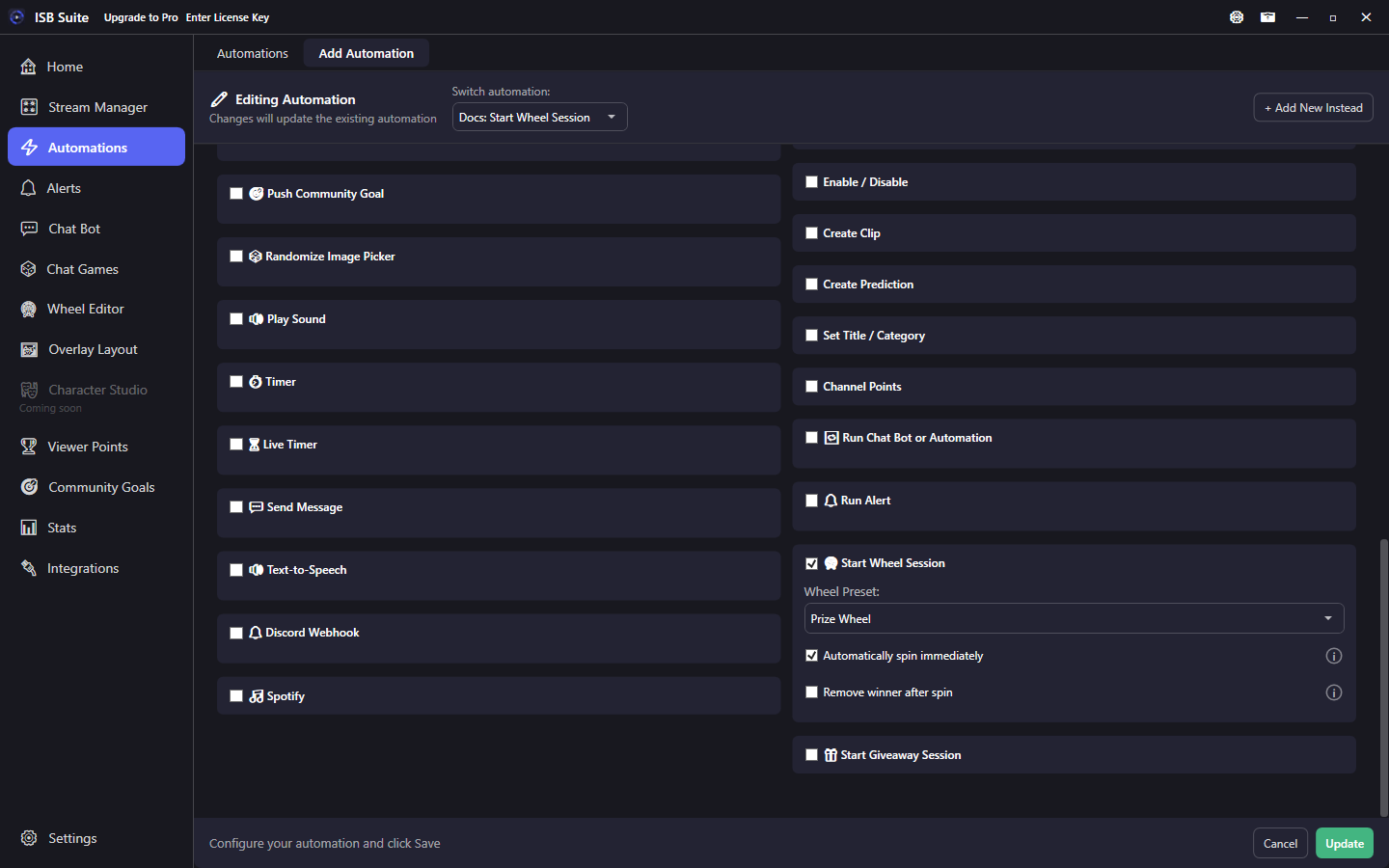
Start Wheel Session
Load a preset; auto-spin on by default.
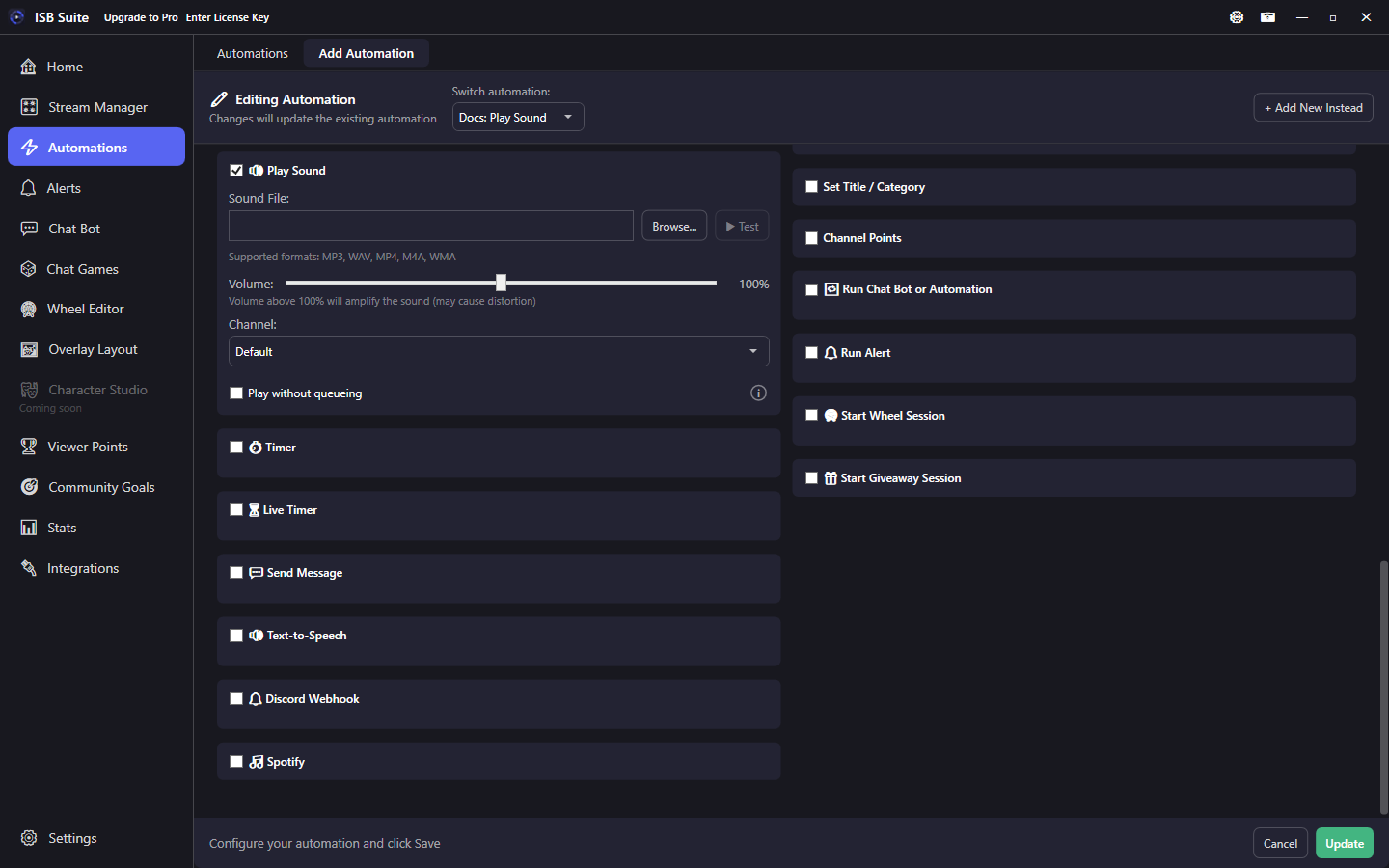
Play Sound
Queue audio, volume, bypass queue.
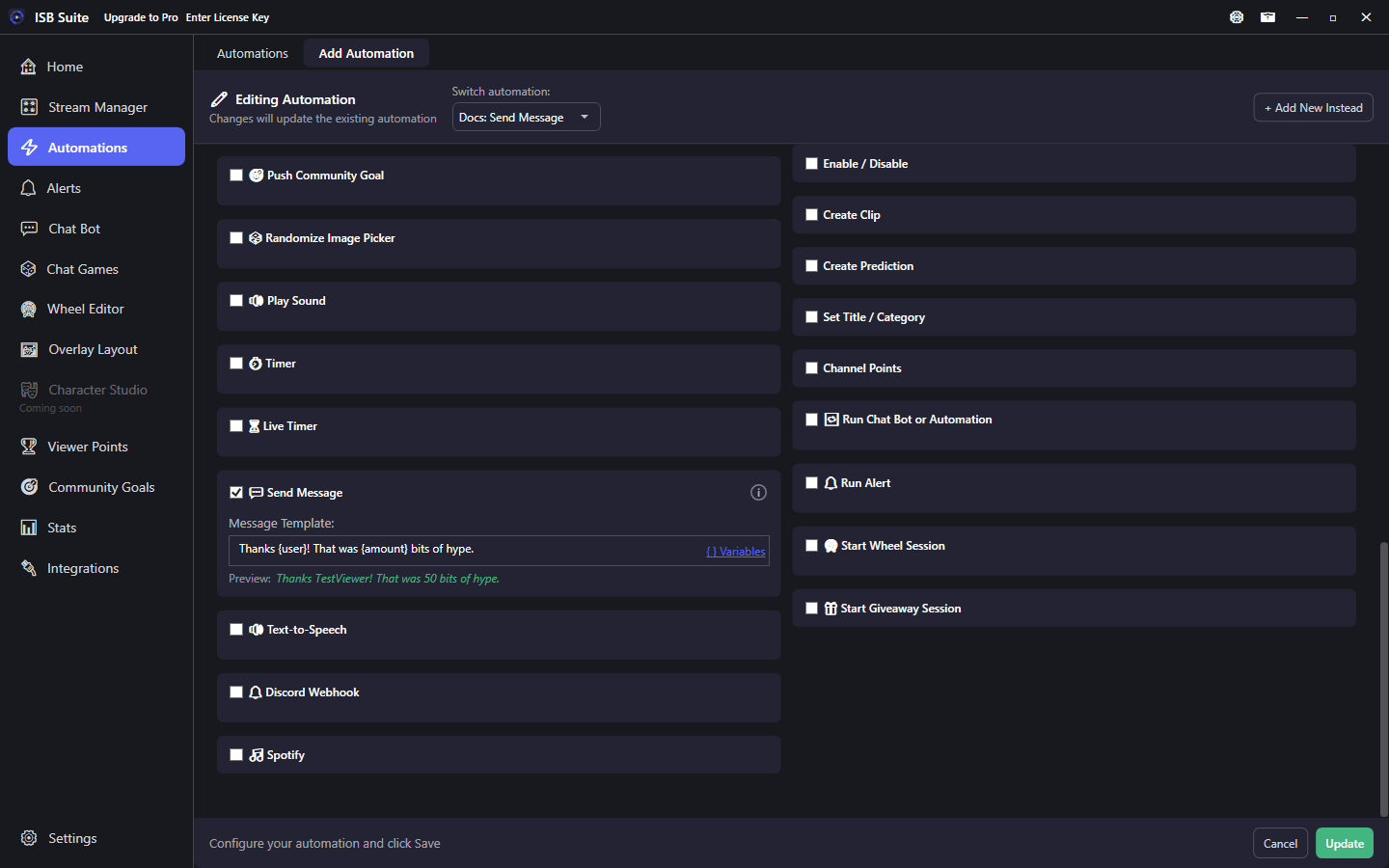
Send Message
Twitch and YouTube chat with variables.
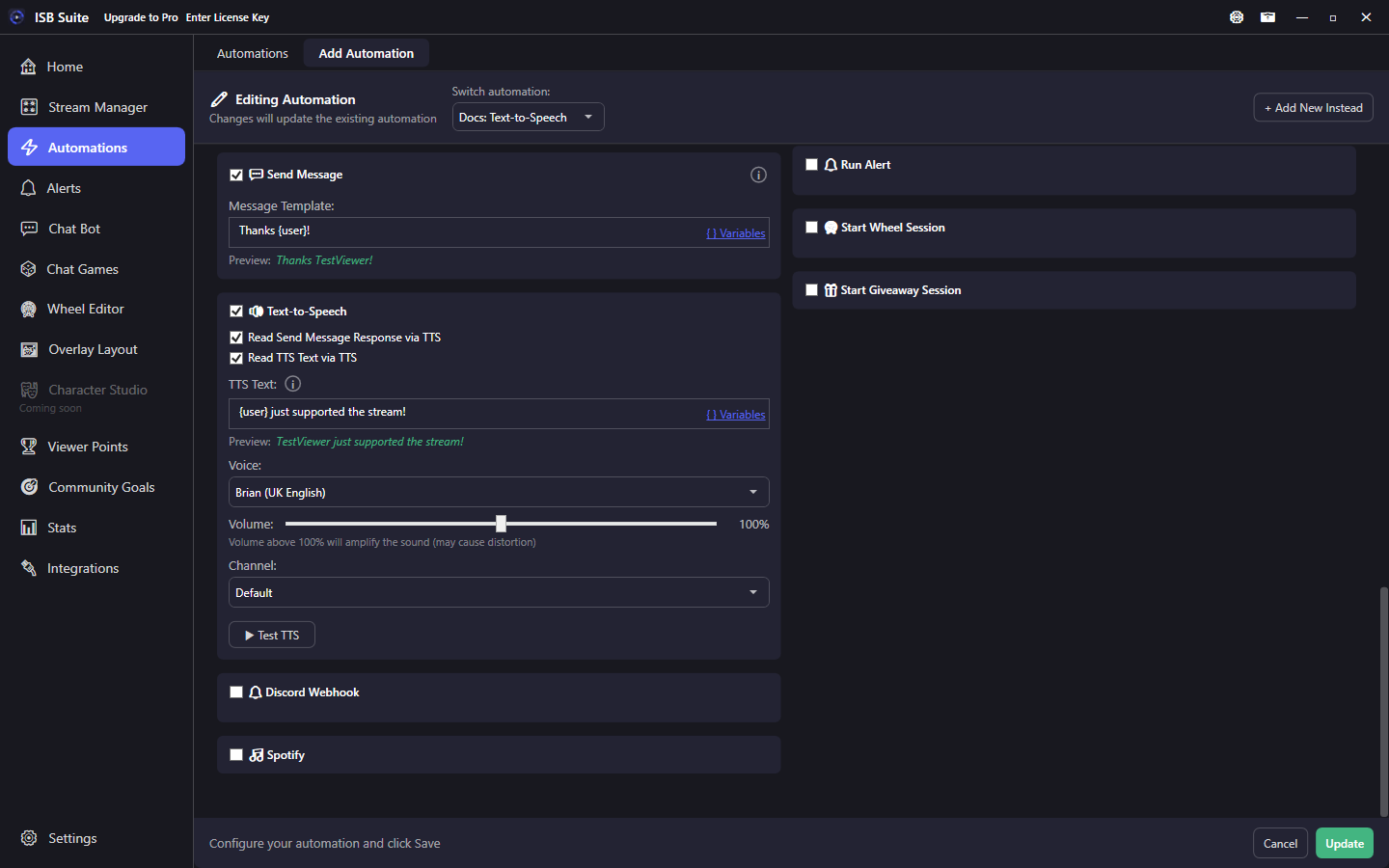
Text-to-Speech
Speak chat text or custom TTS.
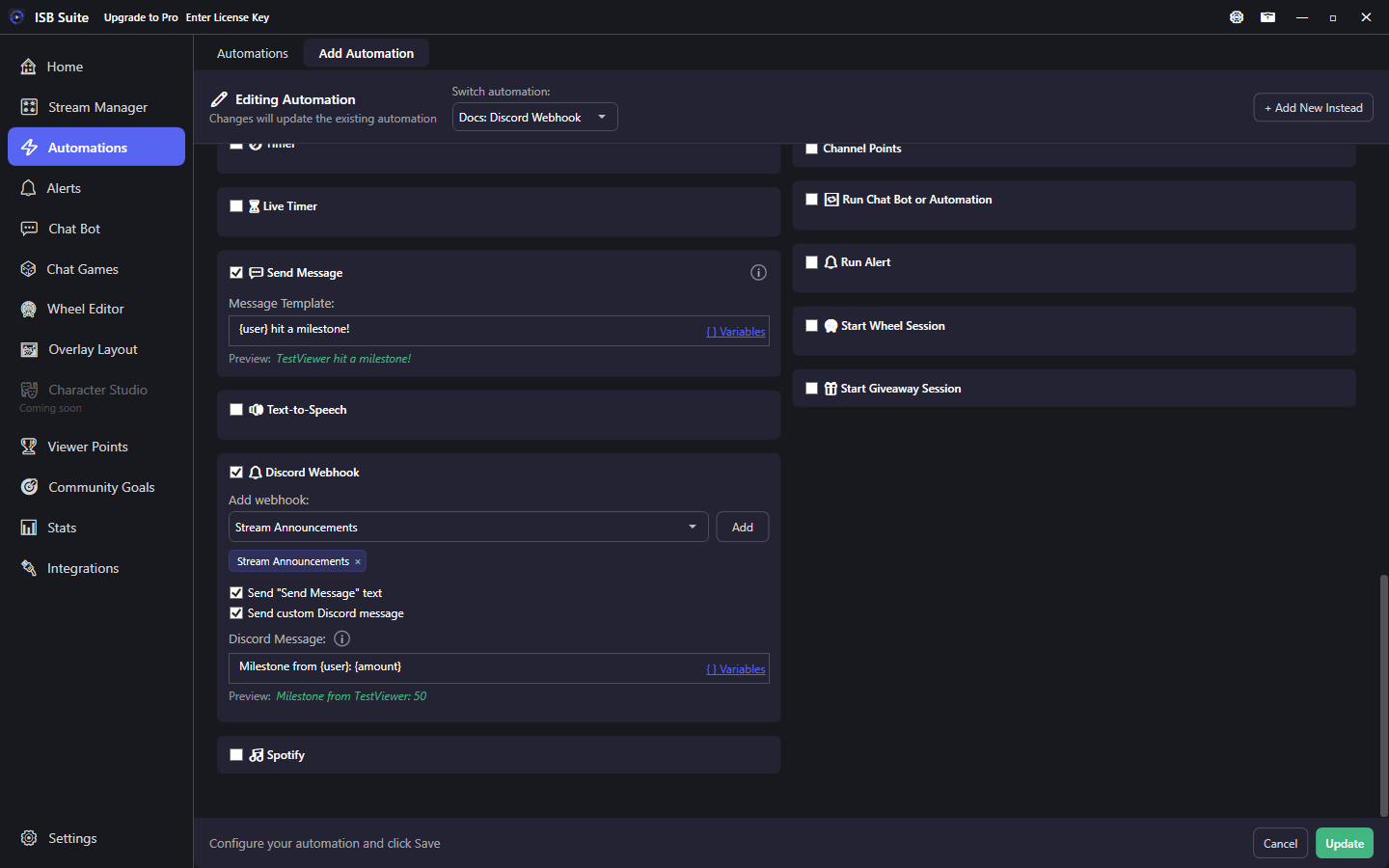
Discord Webhook
Post to named webhooks.
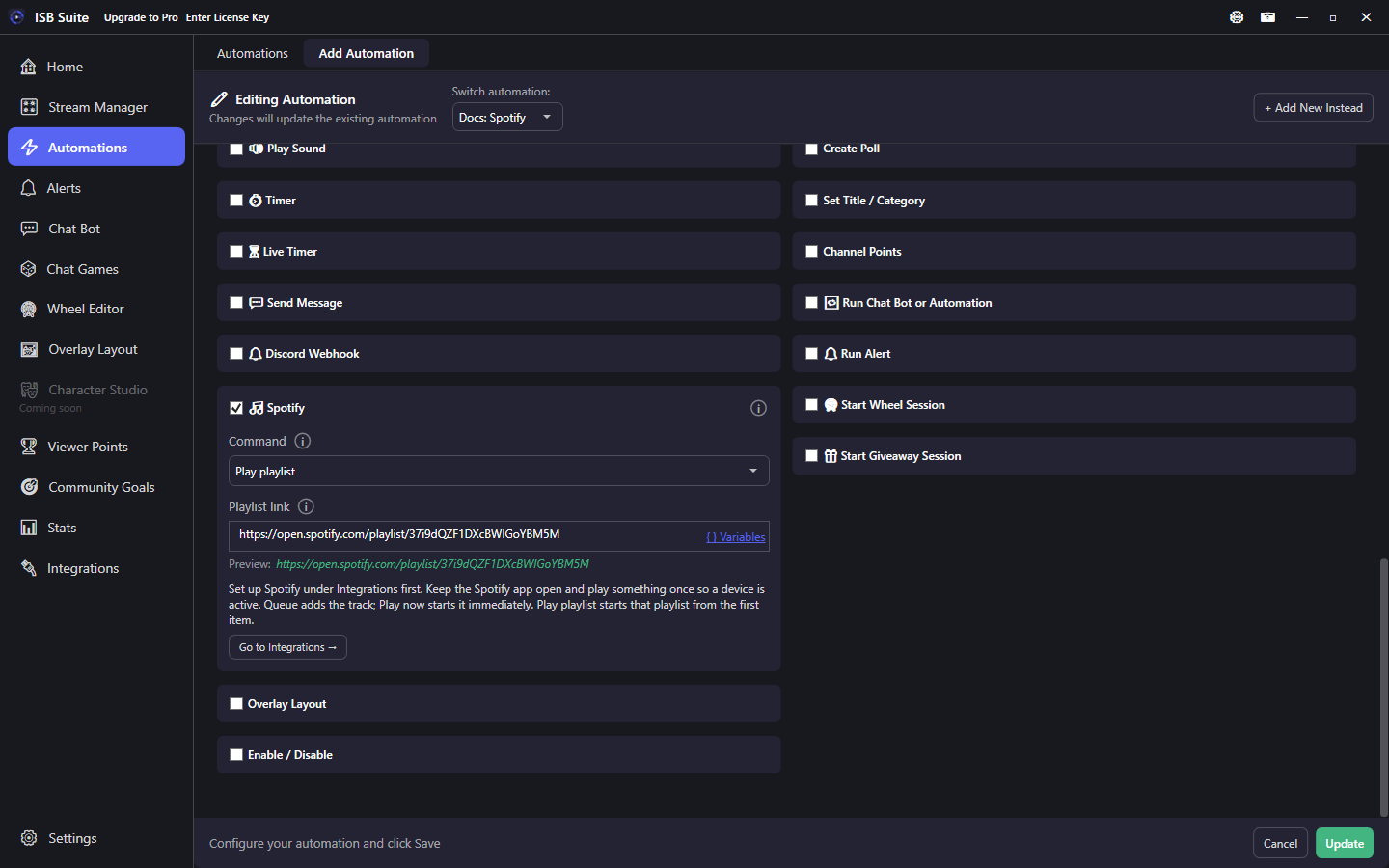
Spotify
Pause, skip, queue, play now, play a playlist, or Pause Then Resume At End.
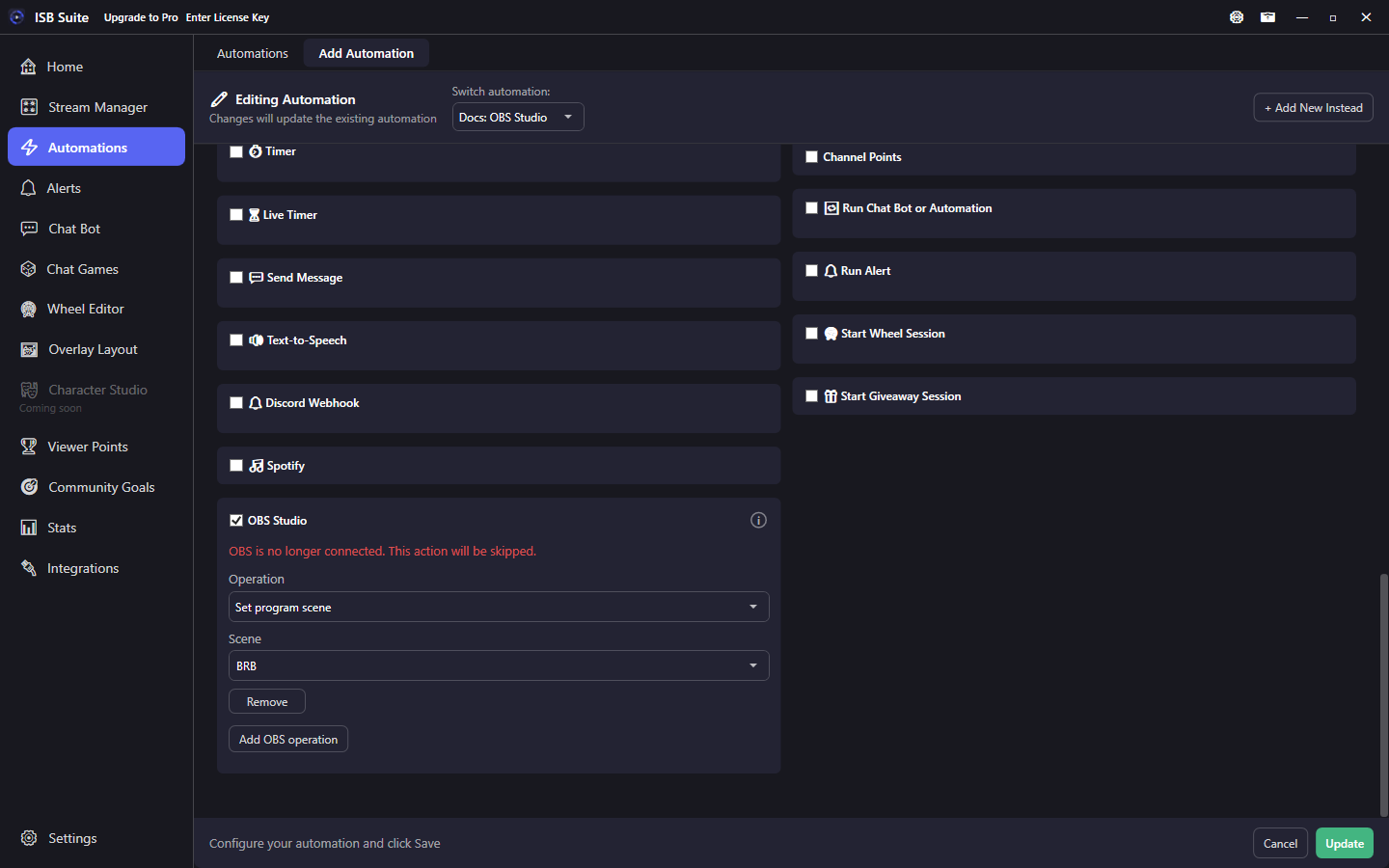
OBS Studio
Switch scenes, show or hide sources, mute, stream, or record.
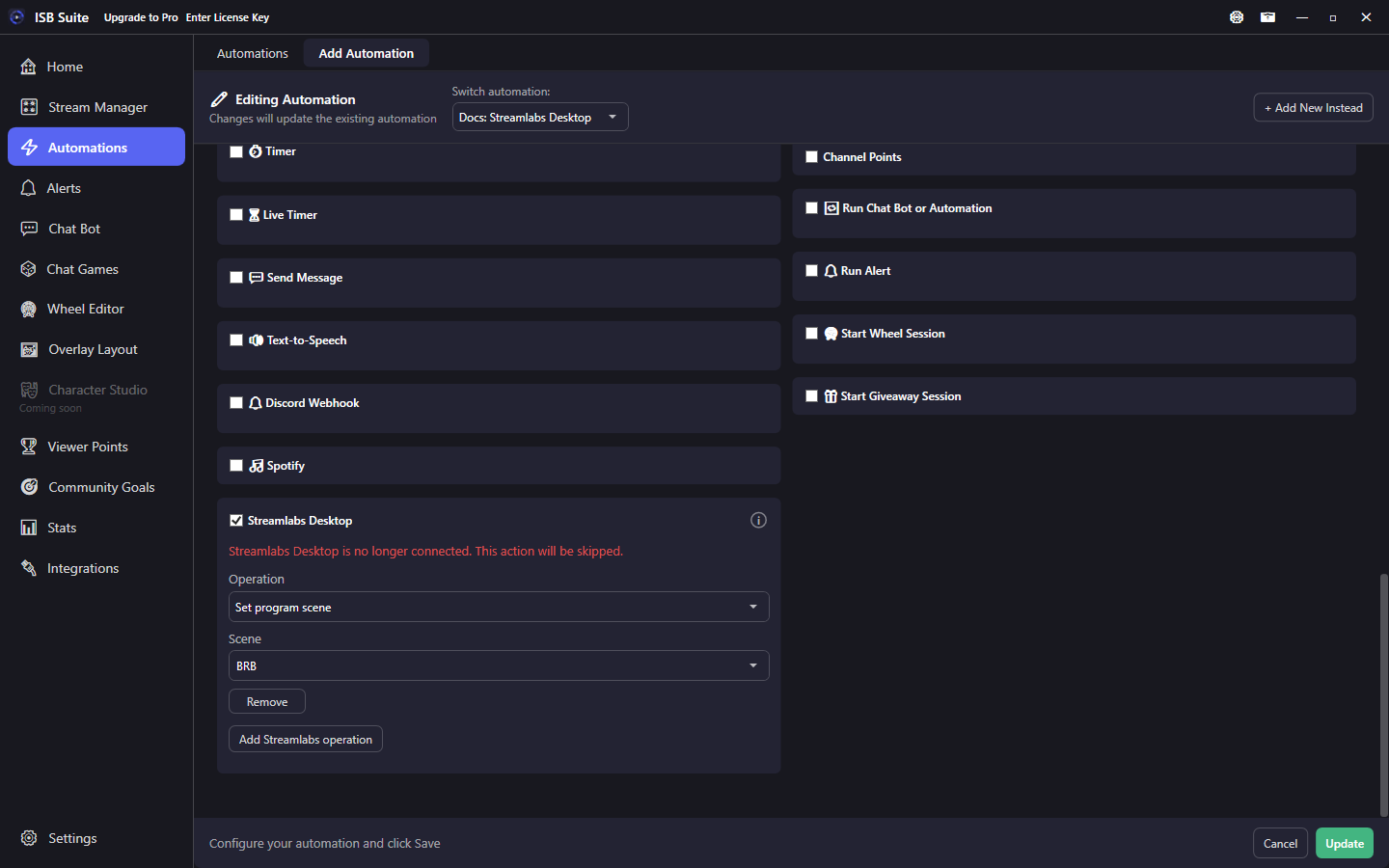
Streamlabs Desktop
Switch scenes, show or hide sources, mute, stream, or record.
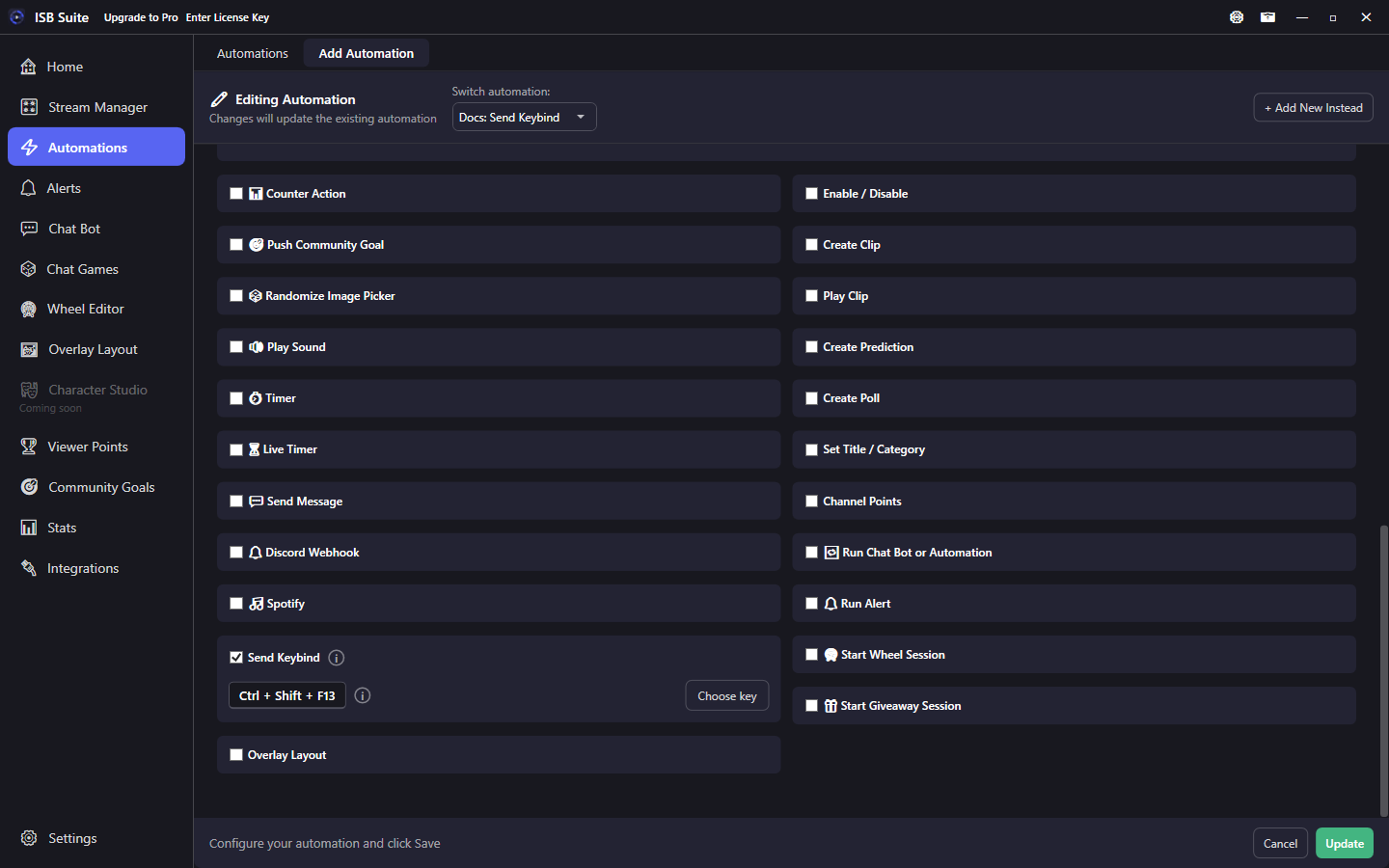
Send Keybind
Tap a key combination in the focused app or the app that owns that hotkey.
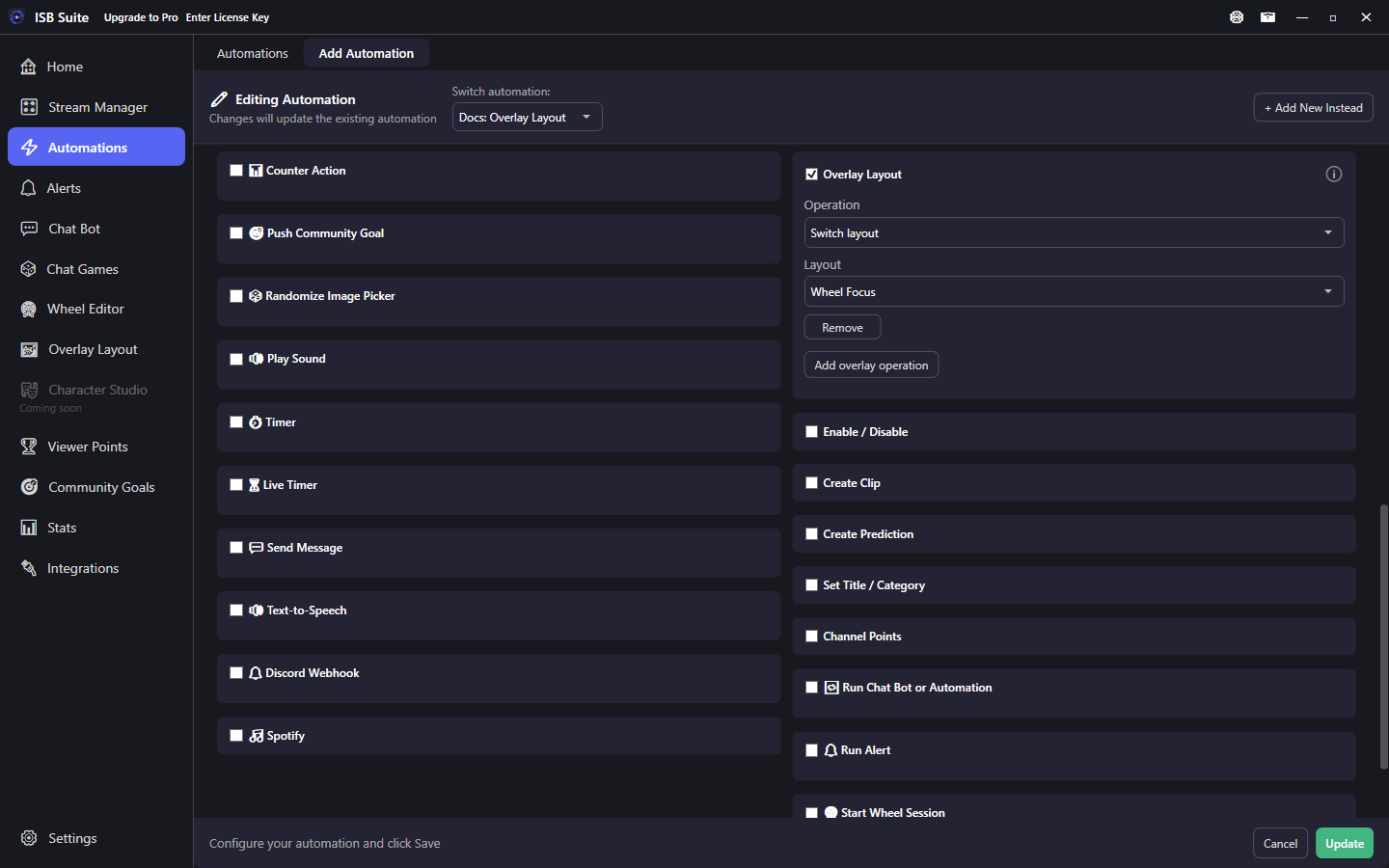
Overlay Layout
Switch layouts or show / hide widgets on a saved overlay.
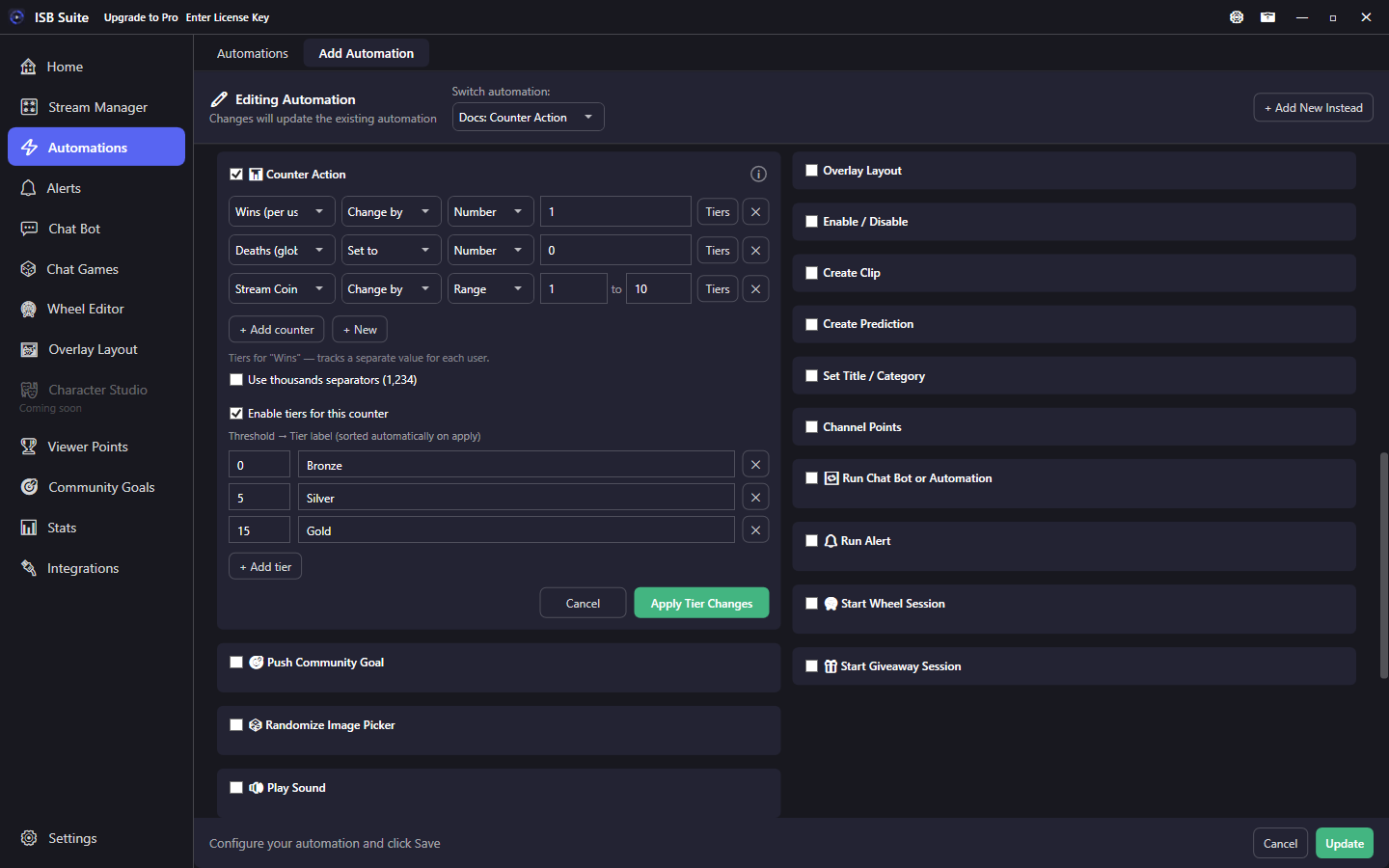
Counter Action
Change by or Set to; tiers optional.
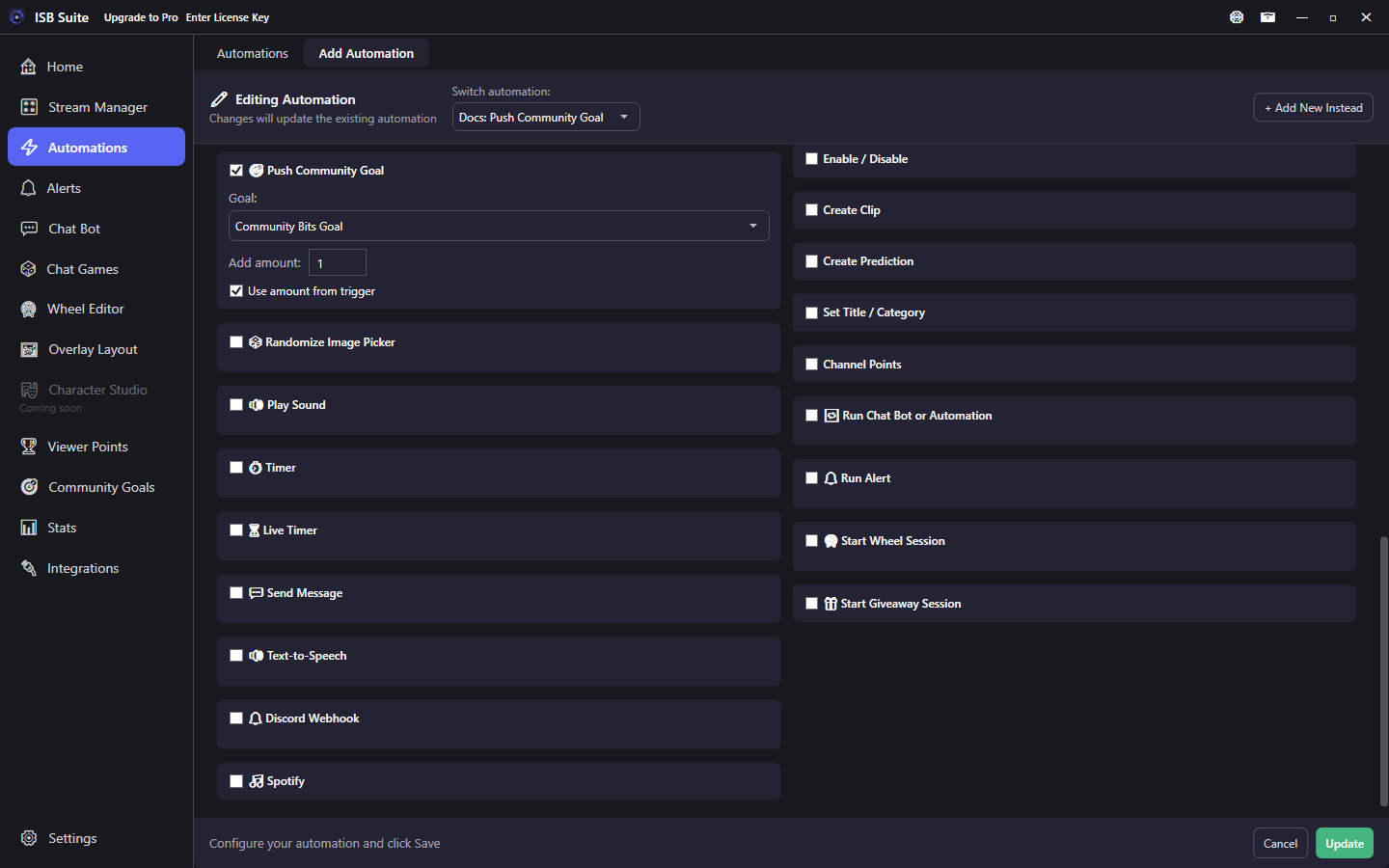
Push Community Goal
Add progress; optional trigger amount.
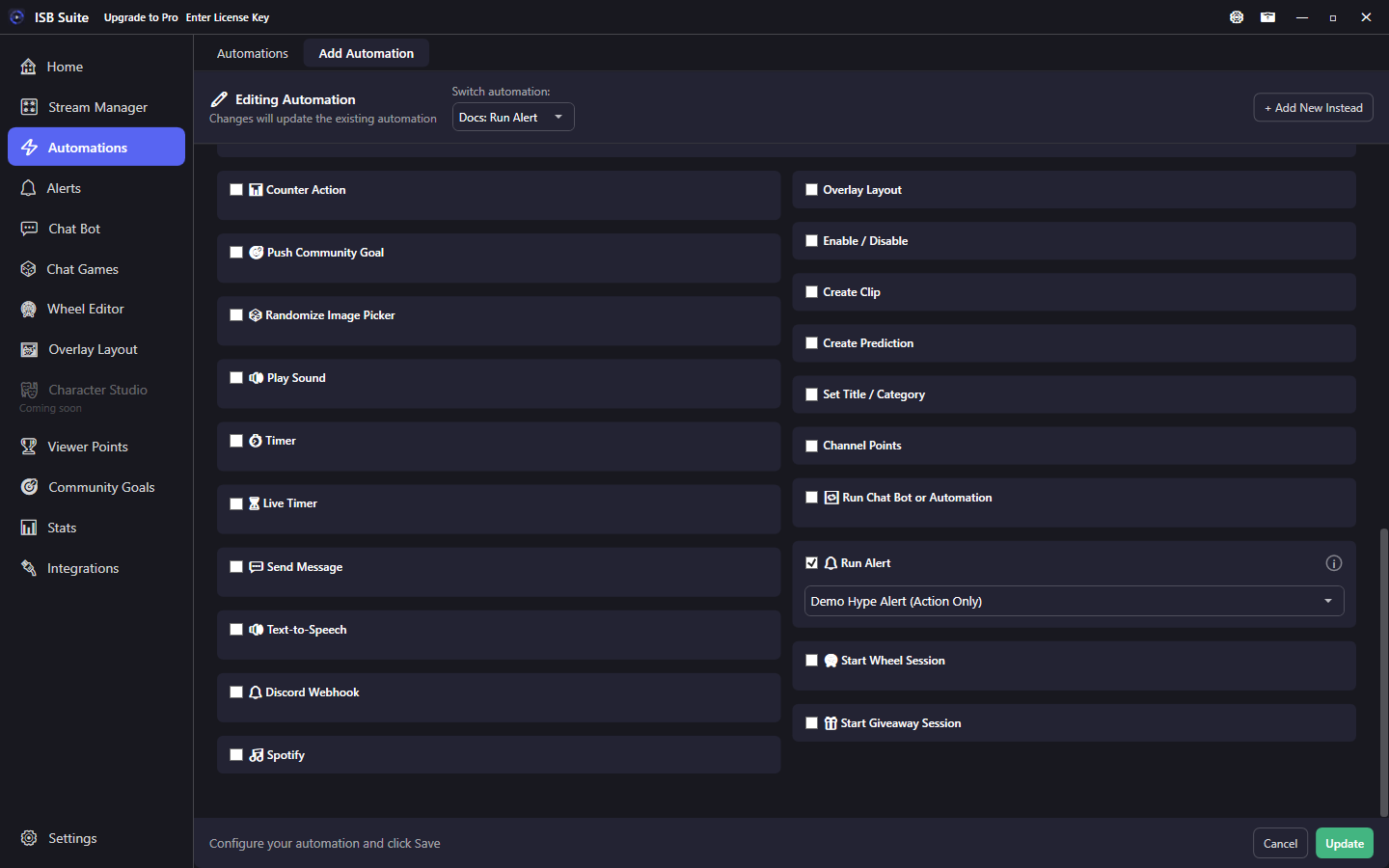
Run Alert
Play a managed Alerts-page alert.
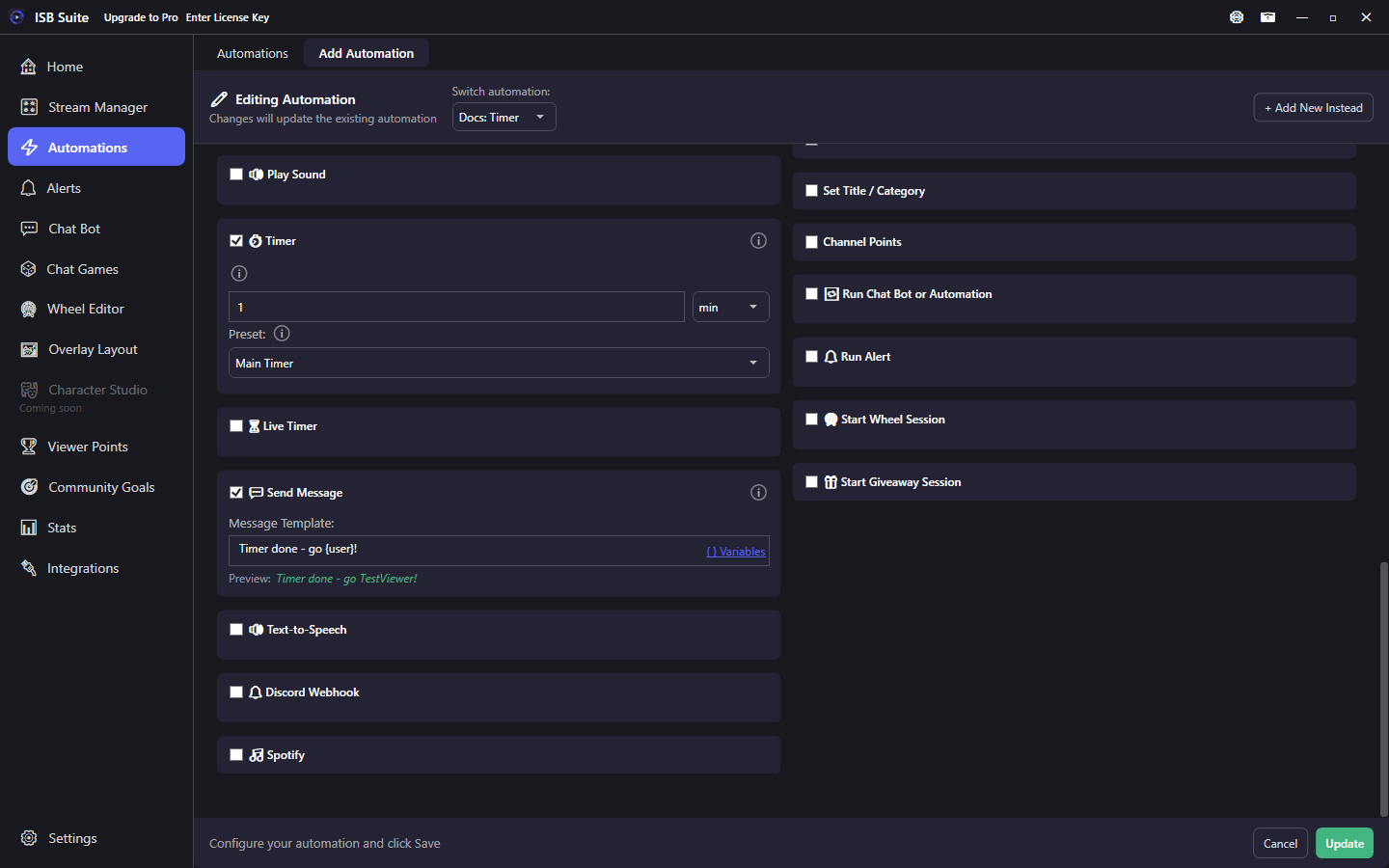
Timer
Delay other actions; optional overlay.
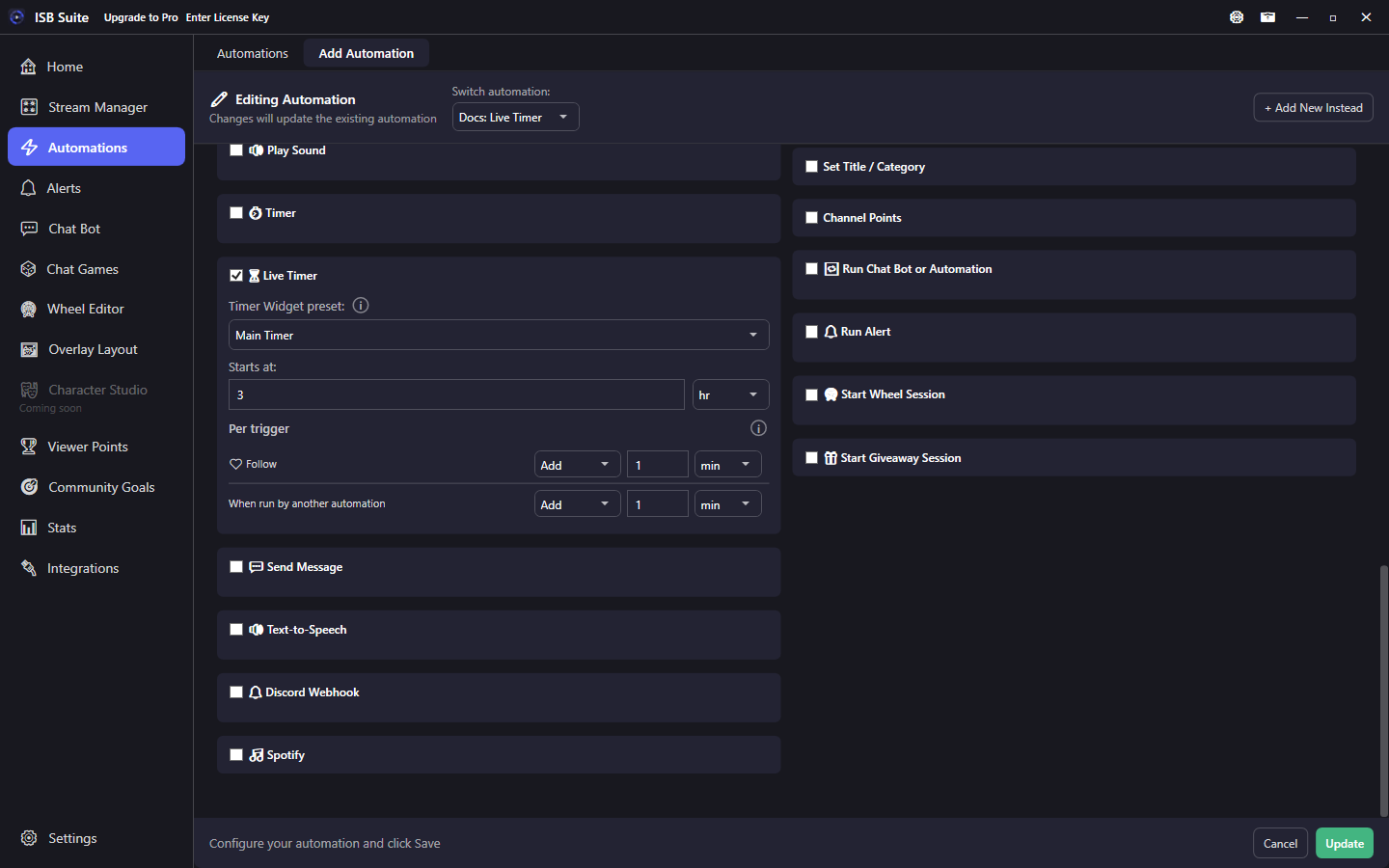
Live Timer
Drive a Live Clock. Countdown or count up.
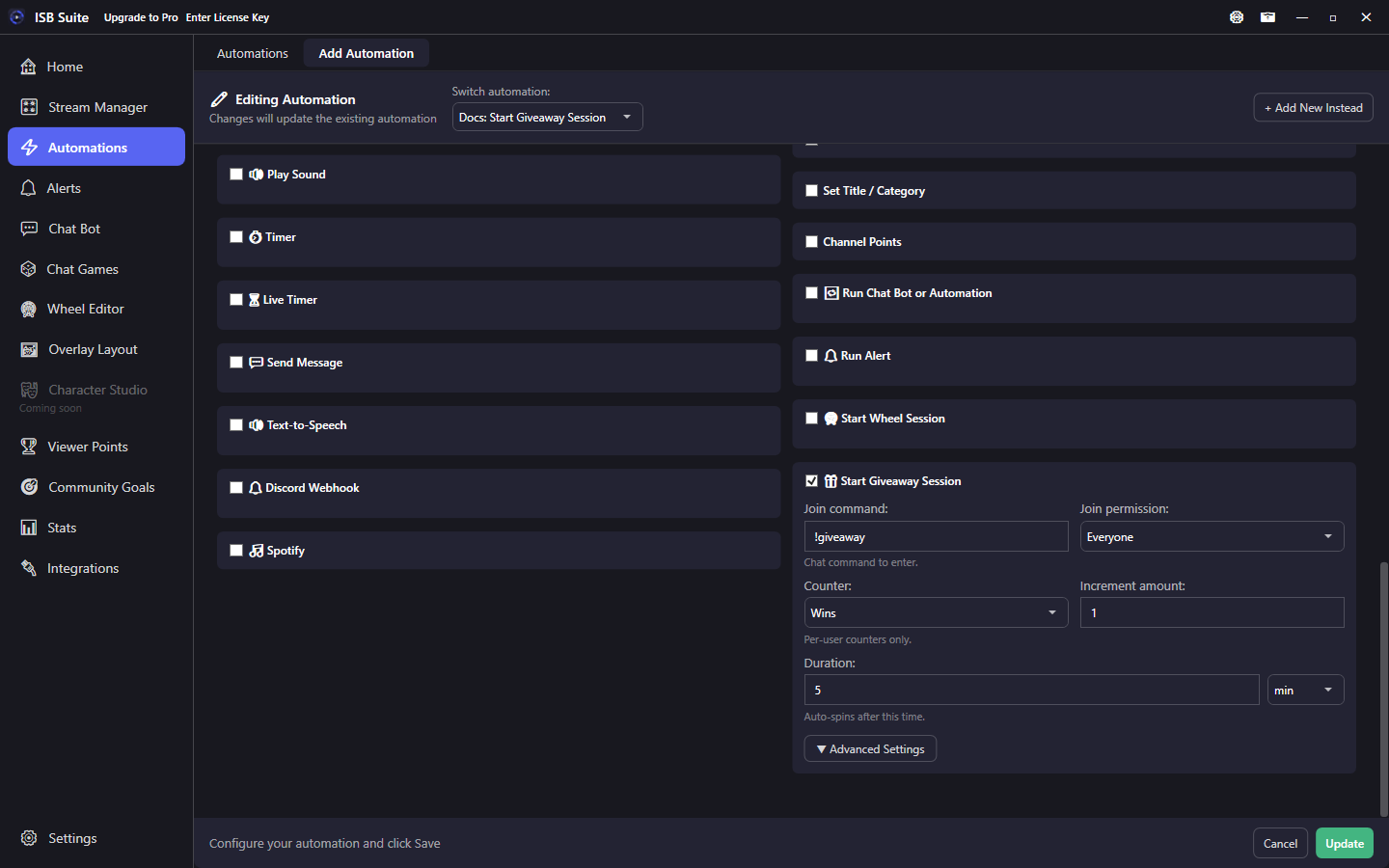
Start Giveaway Session
Timed chat entry giveaway.
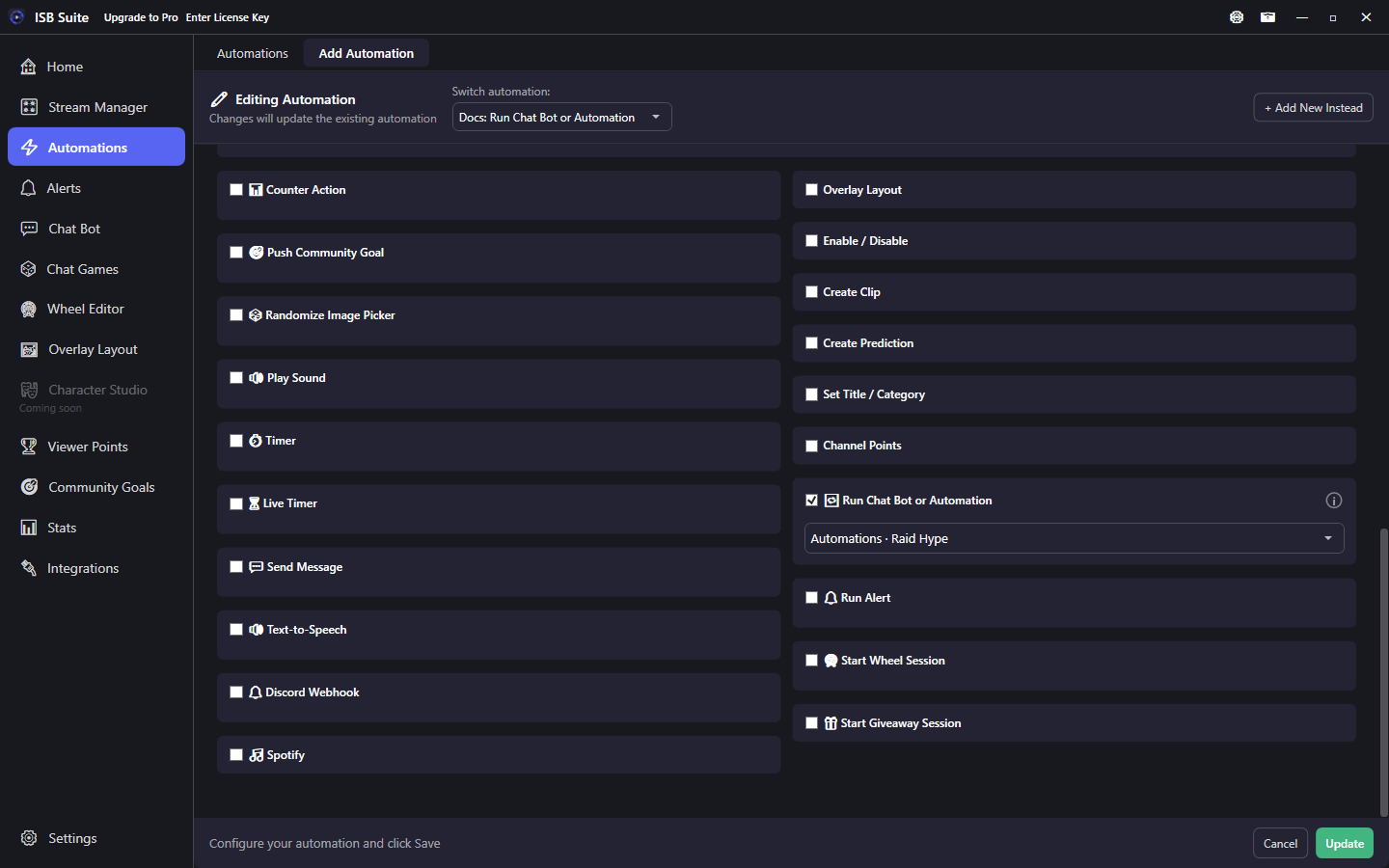
Run Chat Bot or Automation
Chain into another rule.
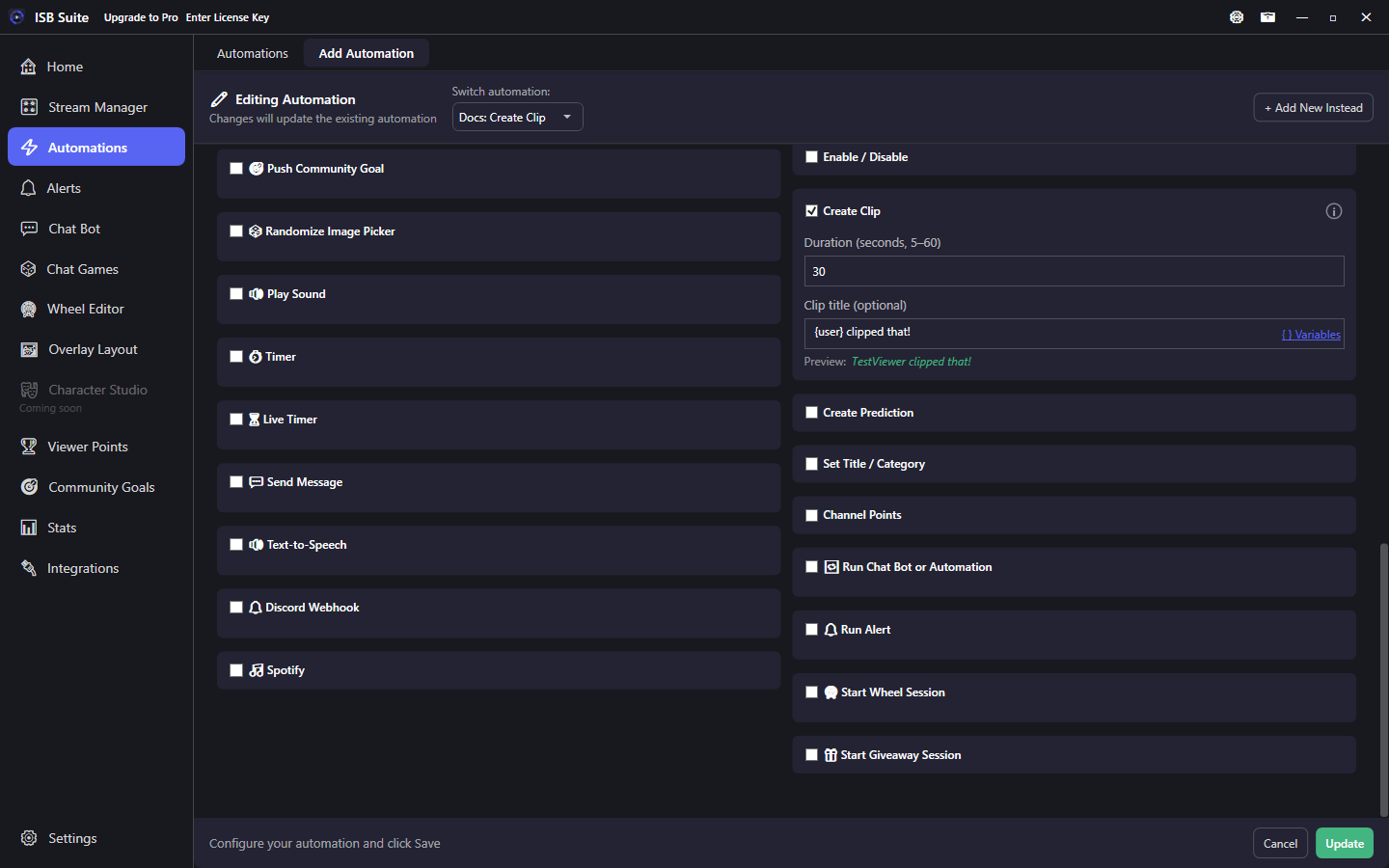
Create Clip
Clip the live broadcast; announce with {clipUrl}.
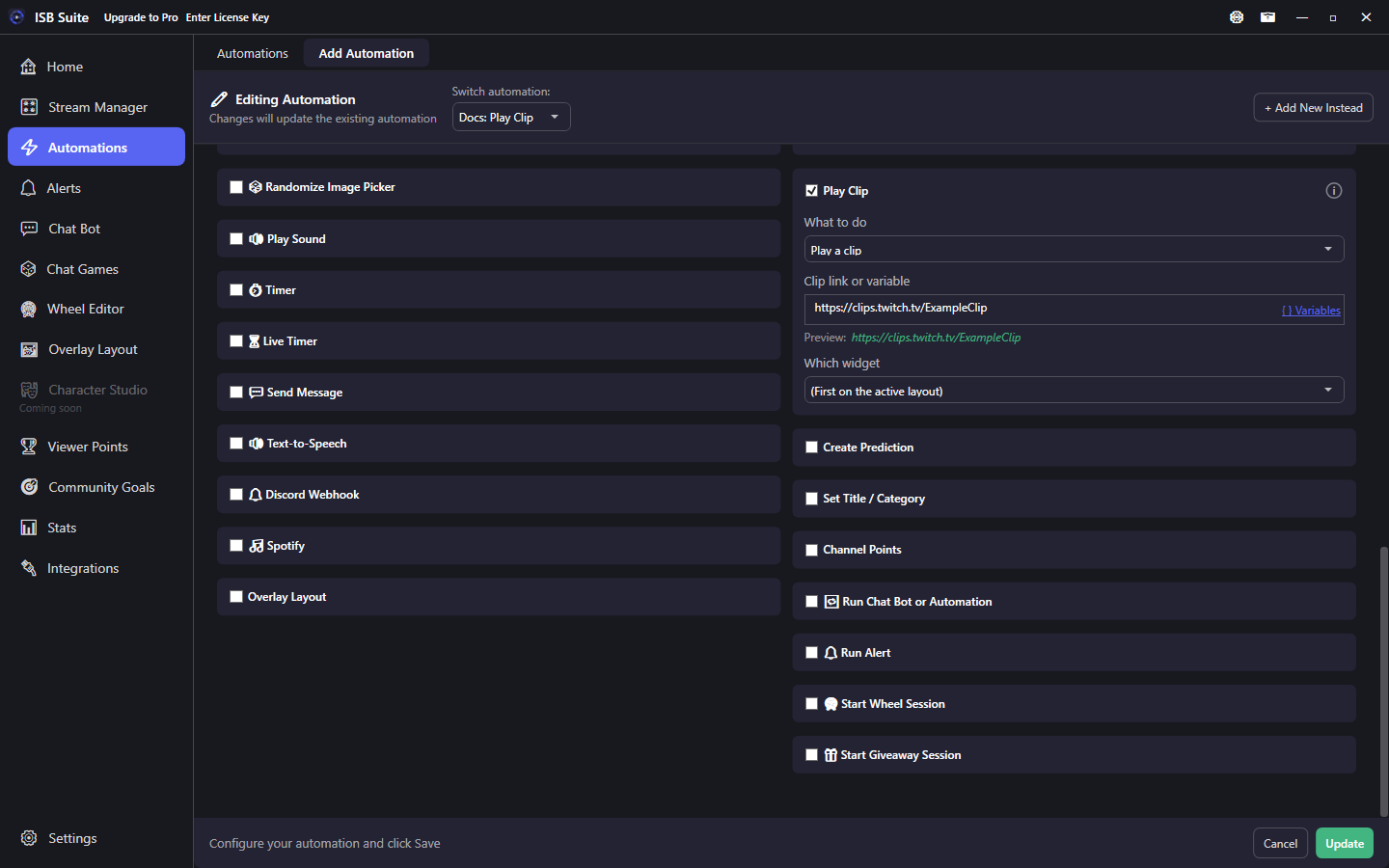
Play Clip
Play a Twitch clip in an overlay widget, or stop the one showing.
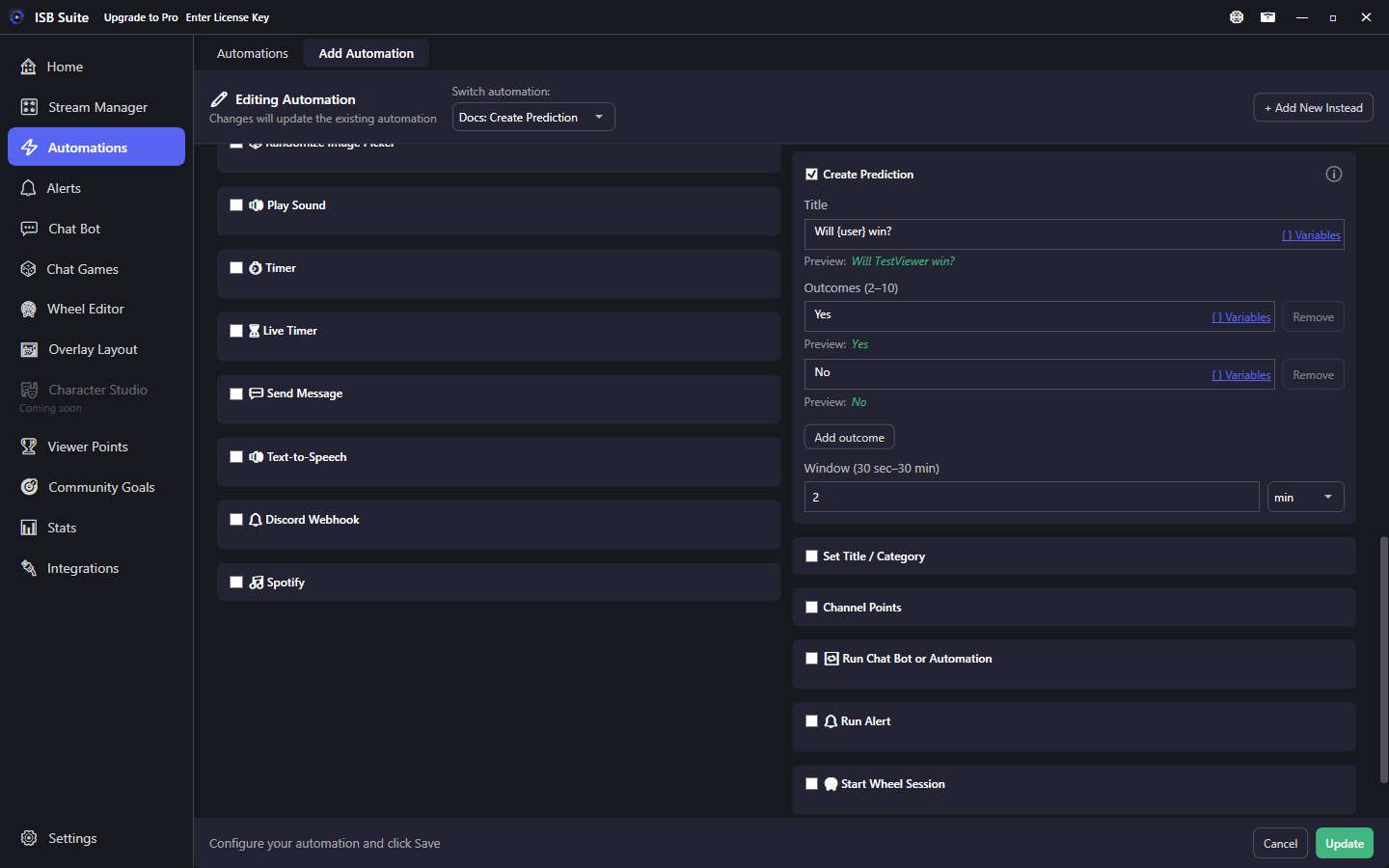
Create Prediction
Start a Twitch Prediction; announce with {predictionTitle}.
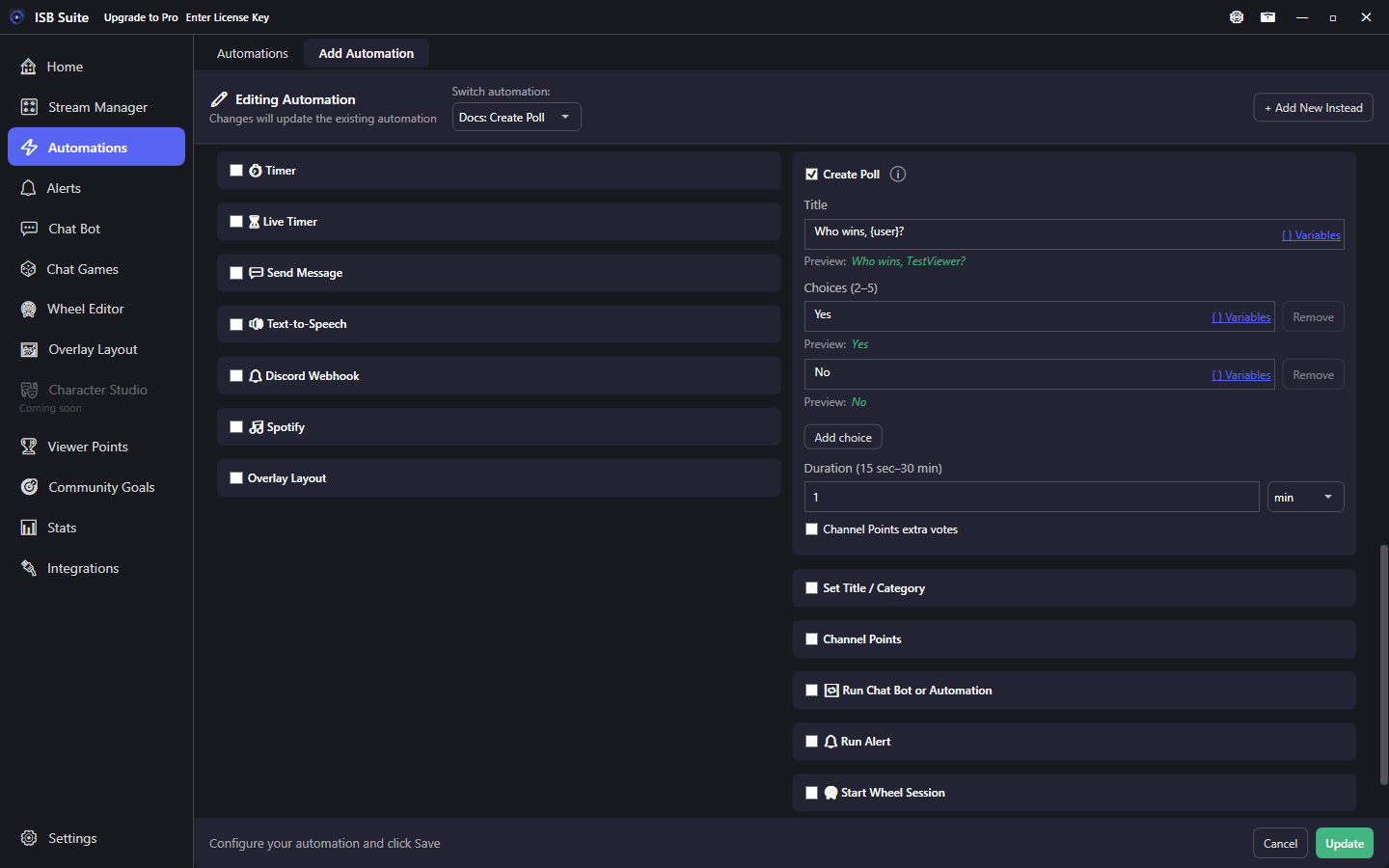
Create Poll
Start a Twitch poll; announce with {pollTitle}.
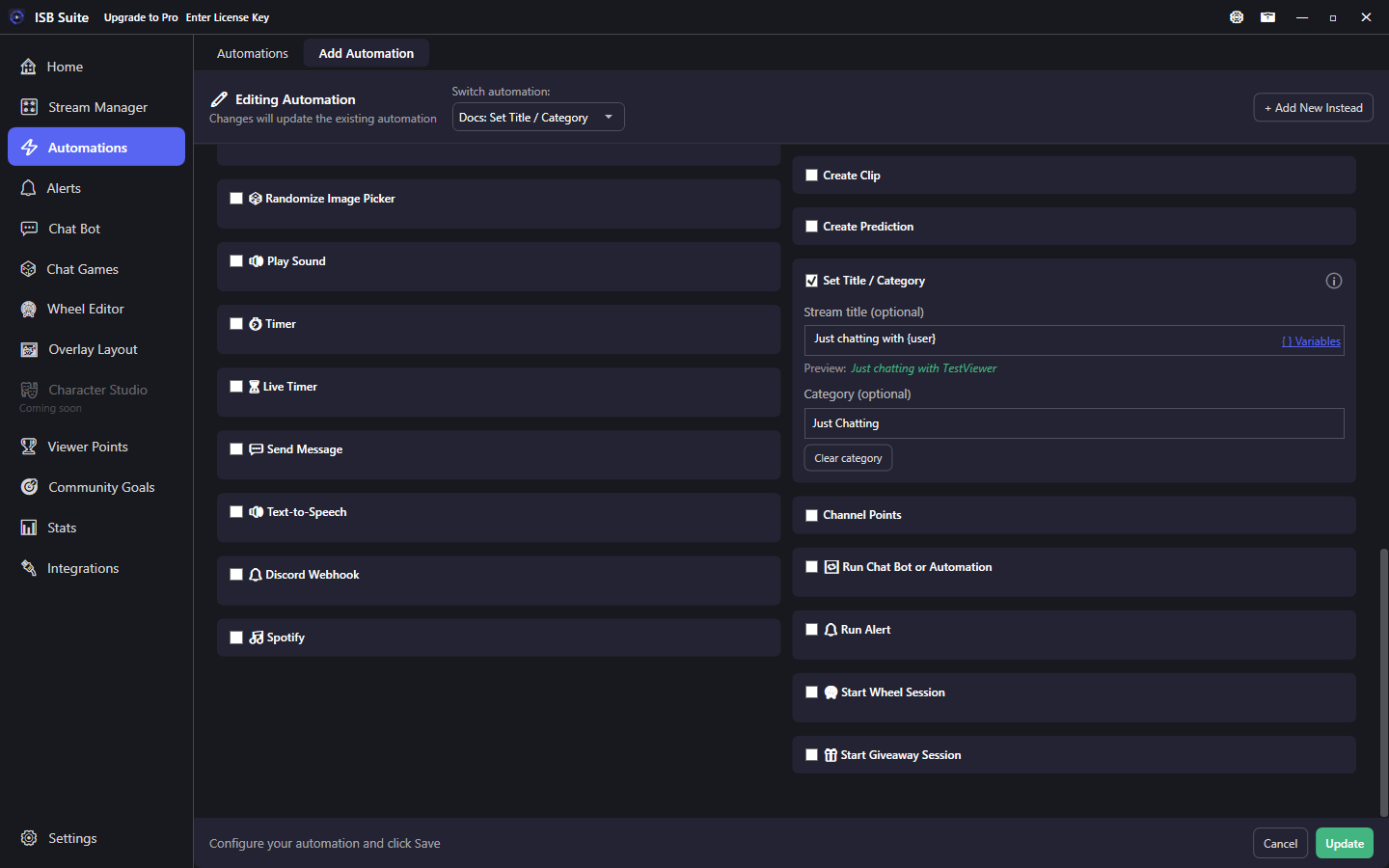
Set Title / Category
Change stream title and/or category from a rule.
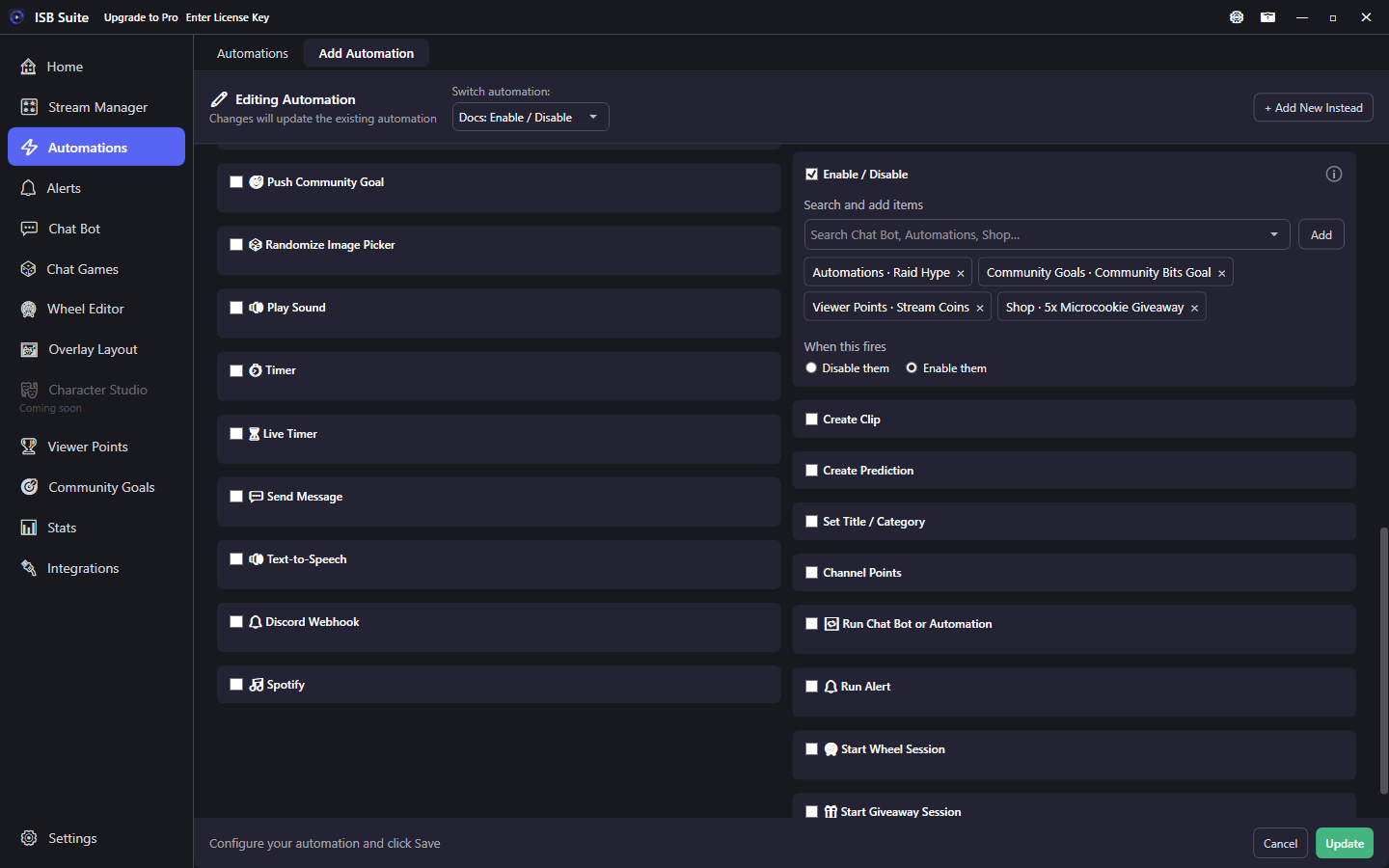
Enable / Disable
Turn Overview items on or off.
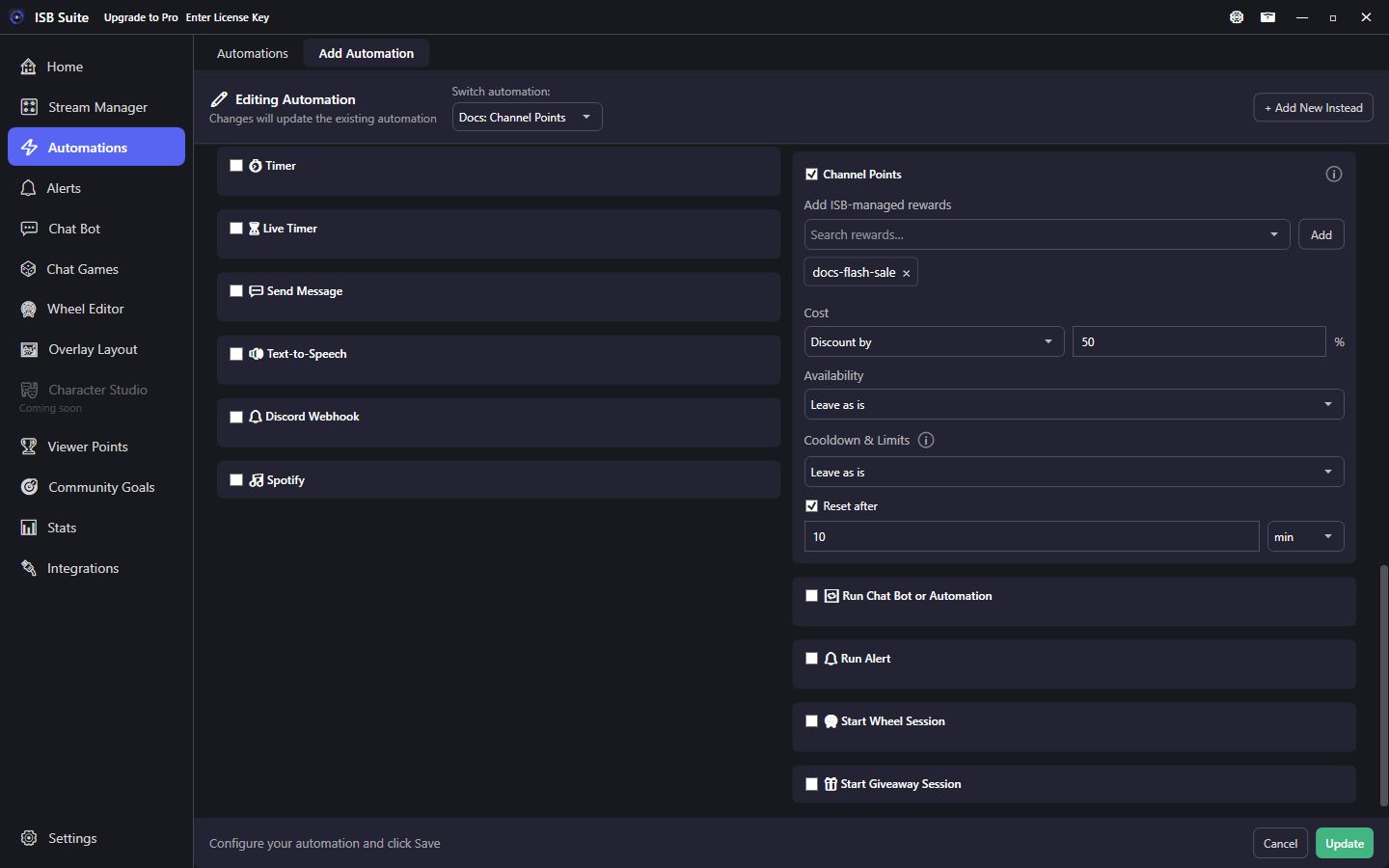
Channel Points
Discount, pause, or set cooldown; reset after a timer.
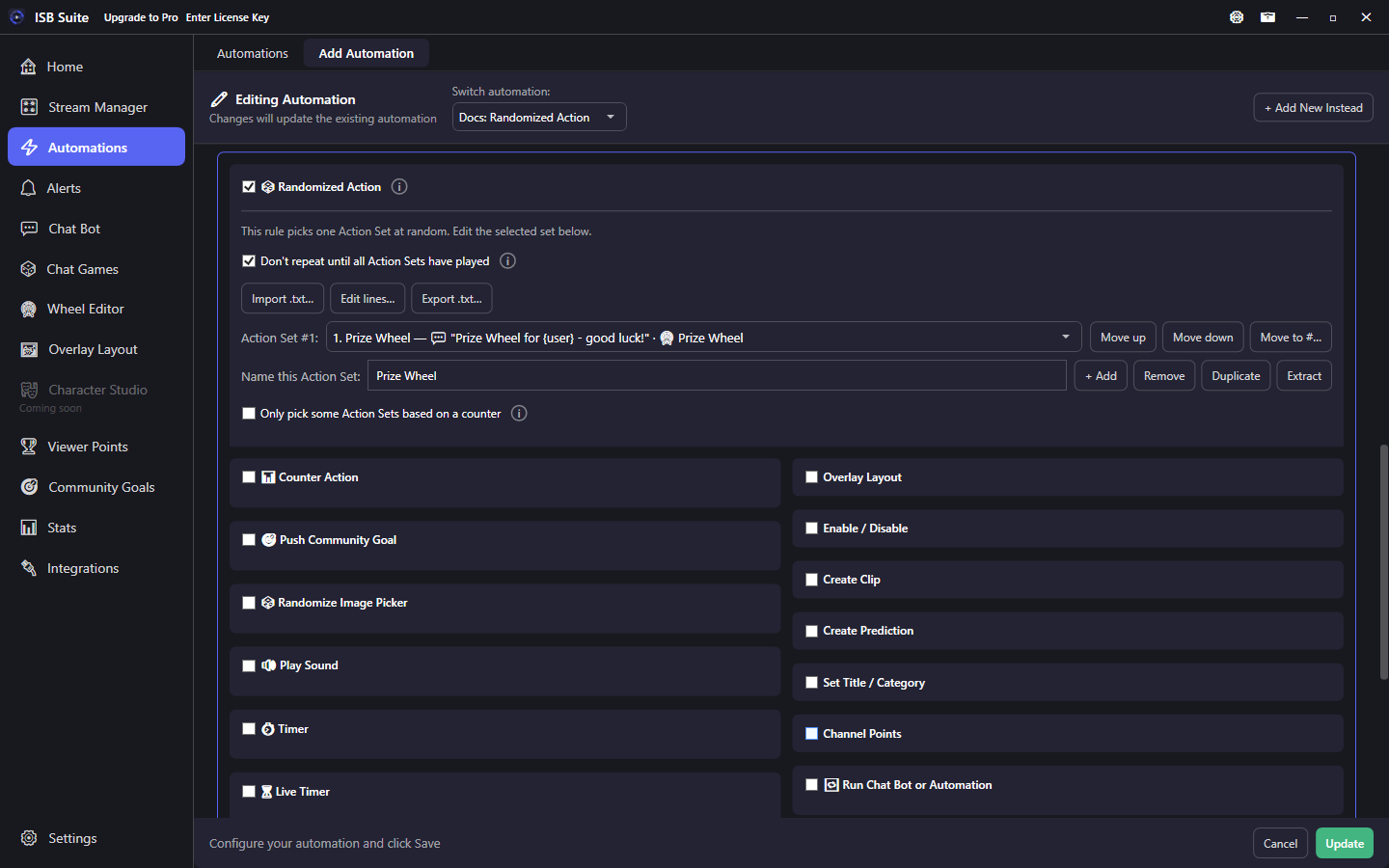
Randomized Action
Pick one of several action sets.
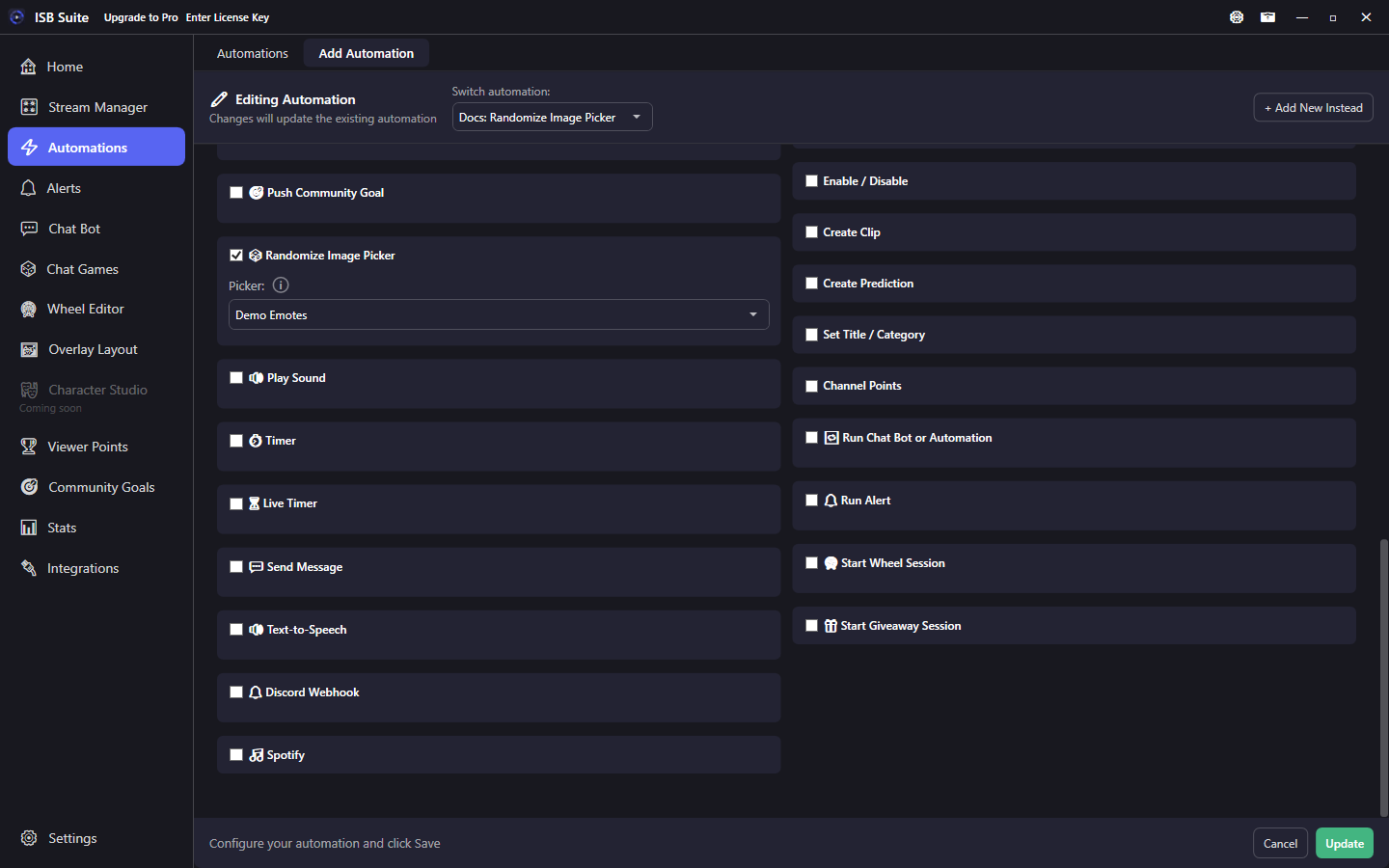
Randomize Image Picker
Reshuffle overlay picker images.
Setup tips
- Use Test / Test TTS on sound and speech actions before going live.
- Prefer one shared "hype pack" automation and call it with Run Chat Bot or Automation from several commands.
- For variety from one redeem, use Randomized Action instead of many near-duplicate rules.
- Import from Automation / Chat Bot (above Randomized Action) copies another rule's actions into the host you are editing. If Randomized Action is already on, a flat source becomes one Action Set (Send Message stays on the set; Chat Bot's parent Response field stays unused). Play Sound, giveaway winner sound, and alert images/GIFs on the payload are copied onto this rule so Test and Save work. Triggers and cooldown stay on the host. Random Image Picker and Run Alert stay linked by id (those files stay on the picker or alert). Extract on an Action Set still creates a standalone Automation and copies its sounds the same way.