
Home / Features / Actions / Overlay Layout
Overlay Layout
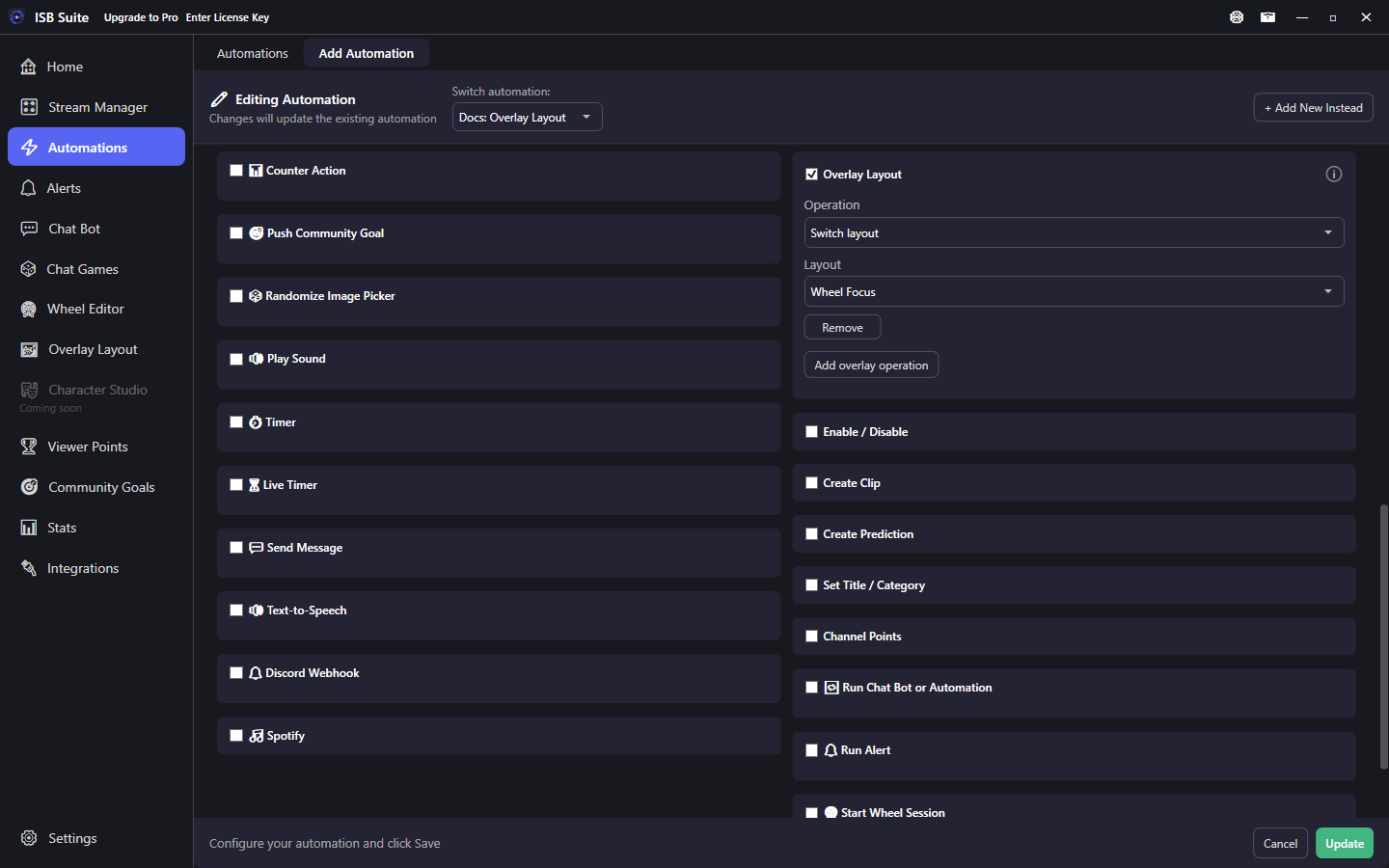
Switch the live overlay to another saved layout, or show / hide widgets on a layout, when the rule fires. Pair it with OBS Studio or Streamlabs Desktop on the same rule so the overlay and broadcast scene change together.
At a glance
- UI label: Overlay Layout.
- Add one or more operations: Switch layout or Show / hide widget.
- Picks saved layouts and widgets by name. A widget shows its Widget name when one is set, otherwise its type. Stored ids stay stable if you rename a layout or a widget.
- Layout switches use the same collection transition (fade) as hotkeys. Show / hide is instant (no fade).
- Available on Free and Pro. Free still has 2 layouts; locked layouts cannot be selected or activated.
How it works
When the parent rule fires, ISB Suite runs each Overlay Layout operation in order. A Switch layout starts immediately, before OBS or Streamlabs Desktop scene changes on the same rule finish, so the overlay transition and the broadcast scene change overlap. Show / hide sets the widget on the layout you picked (not a toggle) and saves that visibility.
If a layout or widget was deleted or the layout is locked (Free overlay limit), that row is skipped and the rest of the rule still runs. Showing or hiding a widget on a layout that is not live only updates the saved layout; the capture window changes when that layout becomes active.
Setup
- On Overlay Layout, create the layouts and place the widgets you want (for example Live, BRB, Raid).
- On the rule, enable Overlay Layout. Add a Switch layout row and/or Show / hide widget rows. Each show / hide row names its layout, the widget, and Show or Hide.
- Optional: on the same rule, enable OBS Studio or Streamlabs Desktop Set program scene or Show / hide source so both change together.
Pitfalls
- This changes ISB Suite overlay layouts and widgets, not OBS or Streamlabs scenes. Use those actions for the broadcast software.
- Show / Hide is absolute. Firing Hide twice leaves the widget hidden. Widget visibility hotkeys still toggle and are not written to disk until you save the layout.
- Hiding an Alert Box or Point Drop on the live layout means those alerts or drops will not appear until you show the widget again.
- Renaming a layout or a widget keeps the action working. Deleting a layout or widget does not - pick a new target on the rule.
- Free: extra layouts past the first two stay locked and cannot become active or have widgets shown or hidden from a rule.
Examples
- Raid -> OBS Set program scene to Raid, plus Overlay Layout Switch layout to your raid overlay.
- Channel points BRB -> Streamlabs Set program scene to BRB, plus Overlay Layout Switch layout to the BRB overlay and Hide the Alert Box on that layout.
- Mod-only Chat Bot command -> Overlay Layout Switch layout back to Live, then Show the Alert Box.