
Home / Features / Actions / Play Clip
Play Clip
Play a public Twitch clip in a Twitch Clip widget. Paste one link to replay it, or use a variable so chat, automations, and chat games can each supply a different clip. A second play replaces the one on screen. Stop clears it.
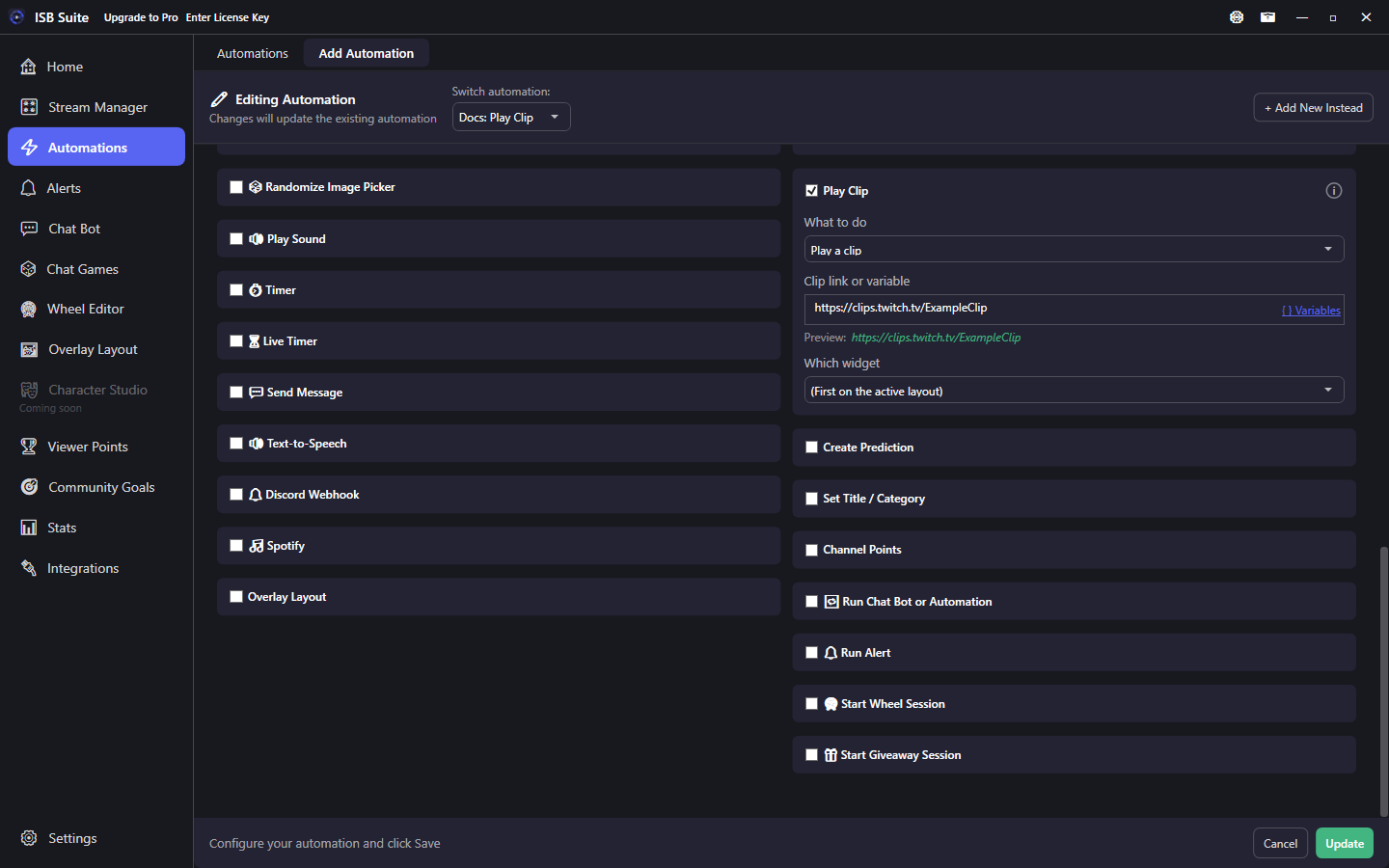
At a glance
- UI label: Play Clip.
- Needs a Twitch Clip widget on the active layout. All license tiers. Layout count is still Free = 2.
- Source is one link or a variable:
{input},{clipUrl}, or{clipId}. Leave Allow checking another viewer off so a clip link stays in{input}. - Last play wins. There is no queue. Stop the playing clip with an empty widget clears every clip that is showing.
How it works
The widget is only the screen region. This action decides what plays. A pasted URL always replays that clip. {input} plays the chat text from a command. {clipUrl} or {clipId} plays the clip Create Clip just made on the same fire. Play runs after Create Clip so those tokens are filled.
A bad link, a leftover variable, or a non-Twitch address is logged and the widget stays hidden. It does not replace a clip that is already showing. A deleted or embed-blocked clip fails the same way. A file past the size limit is logged with its size and skipped the same way. The channel does not need to be live.
Setup
- On Overlay Layout, add a Twitch Clip widget and save. Use Test Play there with a link if you want to check the box.
- Enable Play Clip on the Actions card. Choose Play a clip, and enter a link or a variable.
- Which widget stays on (First on the active layout) unless you pick a named widget. Stop the playing clip uses the same choice. Empty means every playing clip.
- Volume and output channel live on the widget, same as Browser Source.
Back to back
A new Play replaces the clip in that widget, even if the previous one has not finished. The same link starts over. Stop hides it. Command cooldown and permission are what limit spam. There is no queue and no separate skip hotkey.
Examples
- Chat command
!clipwith source{input}plays the link the viewer typed. - One automation with a fixed clip URL replays that clip every time it fires.
- Create Clip plus Play Clip source
{clipUrl}shows the clip you just made. - A second Play Clip set to Stop the playing clip clears the widget.