
Home / Features / Actions / Streamlabs Desktop
Streamlabs Desktop
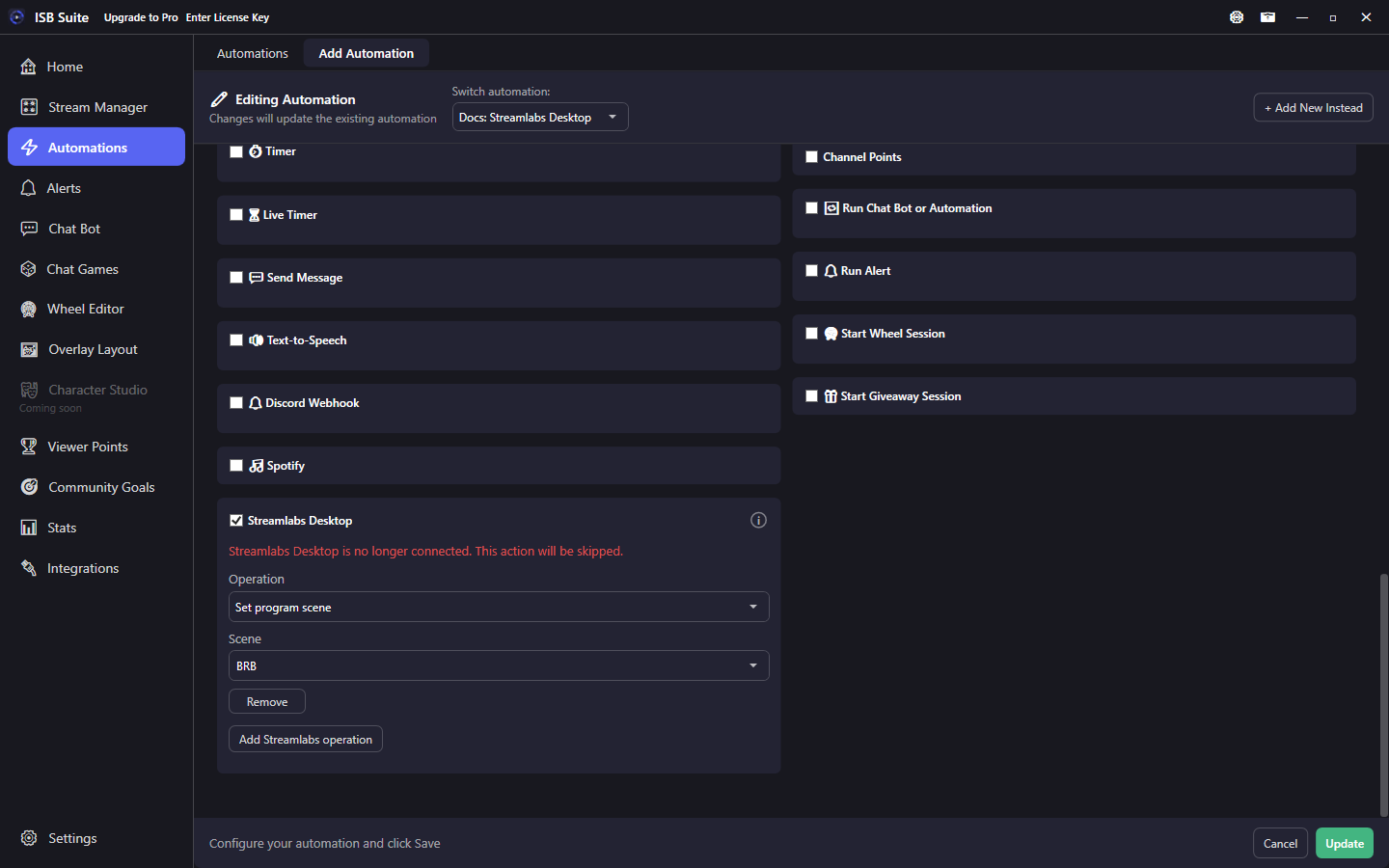
Talk to Streamlabs Desktop on this PC when the rule fires. After setup under Integrations, the action card stays available even if Streamlabs is closed. Disconnect hides the empty card until you Connect again. Scene and source names are saved as text. Volume is 0-100%.
At a glance
- UI label: Streamlabs Desktop.
- Set up Streamlabs under Integrations and Connect (Settings > Remote Control, Allow third party connections). After setup, the action card stays available so you can set scene names even if Streamlabs is closed that day. Disconnect on the Integrations card hides the empty action card until you Connect again, including after you close ISB Suite. Rules that already have a Streamlabs action keep the card if you Disconnect, with a notice that the action will be skipped. ISB Suite never starts Streamlabs for you.
- Rules you already saved keep their Streamlabs rows. If Streamlabs is closed when the rule fires, that action is skipped and the rest of the rule still runs.
- Available on Free and Pro. A failed Streamlabs request is logged and does not stop the rest of the rule.
How it works
When the parent rule fires, ISB Suite sends each enabled operation to connected Streamlabs Desktop (switch the program scene, show or hide a source, mute or unmute an input, set volume, start or stop streaming, start or stop recording). You can stack several rows on one rule (for example switch scene and unhide a source).
If Streamlabs is closed, not connected, the token is wrong, or a single row fails (missing scene, unknown source), that row is skipped and the rest of the rule still runs (sound, chat, alerts). Show / hide looks up the current scene item from the scene name plus source name at fire time. A source inside a folder is listed as Folder / Source and is shown or hidden on its own. Rules you already saved that name a source on the scene keep using that scene-level item.
Start / Stop stream and record check whether Streamlabs is already live or recording, then toggle only if needed. Starting a stream that is already live will not stop it.
With a delay Timer on the same rule, Streamlabs waits until that countdown ends (same timing as Send Message and OBS).
Setup
- In Streamlabs Desktop: Settings > Remote Control (some builds: Mobile > Third Party Connections). Turn on Allow third party connections. Copy the port (default
59650) and API token. Do not show the token on stream. - On Integrations, Streamlabs Desktop: Set Up Streamlabs opens a window for host, port, API token, and Auto Connect. Connect there. Use Reconfigure later to change those fields.
- On the rule, enable Streamlabs Desktop, pick an operation, and fill scene / source / input names. Combos list live names when connected; you can still type a name Streamlabs does not have open right now.
Operations
- Set program scene: scene name.
- Show / hide source: scene name, source name, and Show or Hide. A source inside a folder is listed as
Folder / Source. The folder itself stays in the list, so you can still show or hide the whole folder. - Mute / unmute input: input name and Mute or Unmute.
- Set input volume: input name and volume as 0-100% (not OBS dB).
- Start stream / Stop stream.
- Start recording / Stop recording.
Pitfalls
- This is Streamlabs Desktop Remote Control, not OBS Studio WebSocket. The OBS card will not talk to Streamlabs.
- Start stream will go live if Streamlabs accepts it. The editor warns: use with care.
- ISB Suite does not launch Streamlabs. Open Streamlabs and turn on Allow third party connections first.
- Keep host at
127.0.0.1unless you know you need another machine. - Hiding a folder hides every source inside it. Hiding one source inside the folder leaves the rest of the folder visible.
- This action does not replace Window Capture of the ISB Suite overlay. Capture setup stays on Download - Capture.
Examples
- Raid -> Set program scene to your raid layout, then unhide a "thanks for the raid" source.
- Channel point redeem -> Show
Folder / Alertso only that source inside the folder appears. - Mod-only Chat Bot command -> Mute Desktop Audio, or switch to a BRB scene.
- Stream ending command -> Stop recording (prefer this over Start stream unless you mean to go live).