
Automations
Connect Twitch and YouTube events and custom commands to actions: wheels, sounds, chat, Discord, counters, giveaways, alerts, TTS, timers, randomized sets, and chains into Chat Bot or other automations.
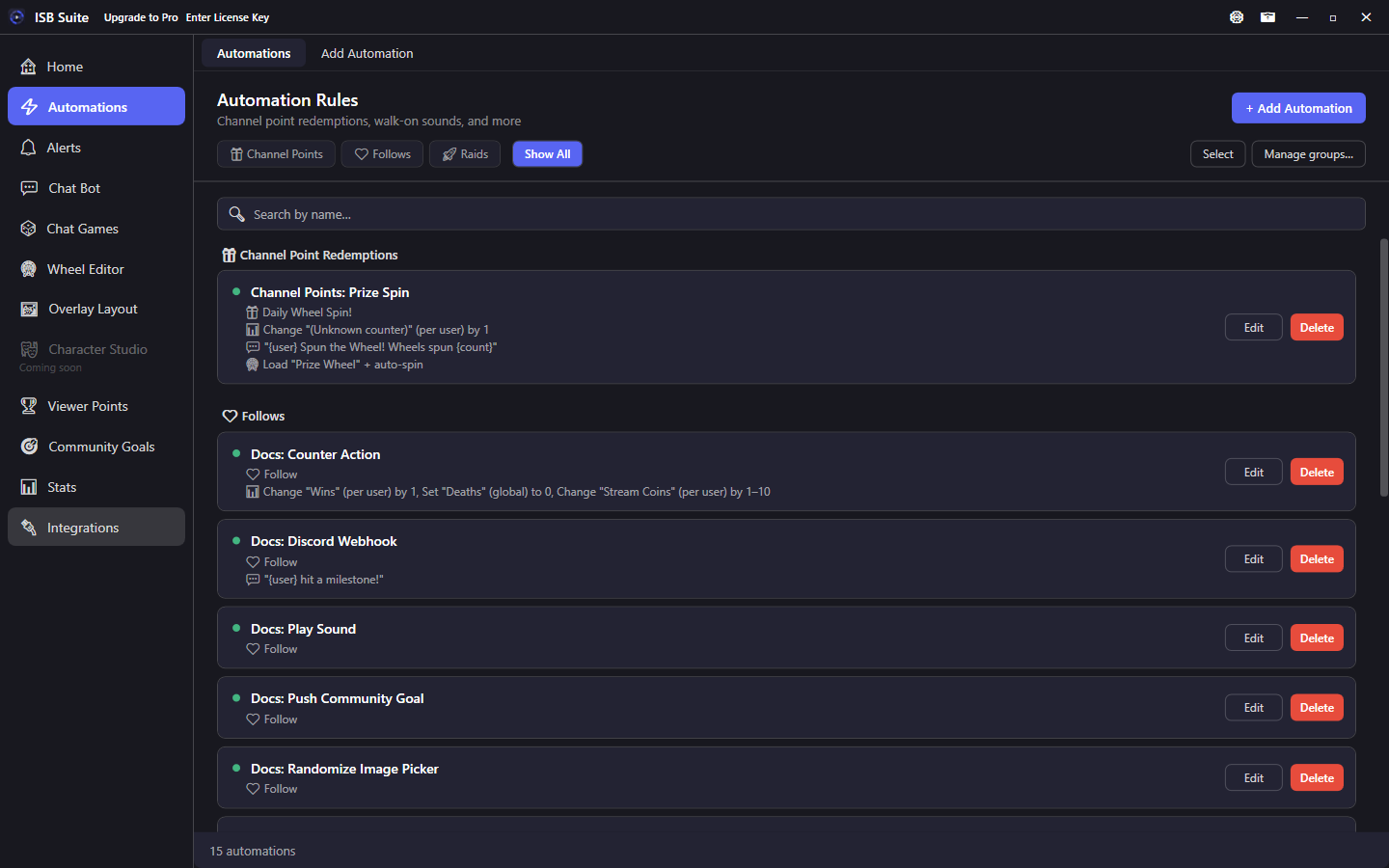
At a glance
- Free: 15 automations. Full table on Free and Pro.
- One automation can have multiple triggers. Same rule engine as Chat Bot - use Automations for EventSub and multi-action rules.
- With Twitch and YouTube both connected, Run on checkboxes limit that automation to one chat. When both are checked, Send Message can post in both chats. Off posts where the run started. See YouTube.
- Cooldown: None, Global, or Per User, plus optional burst (N uses within a window then a longer cooldown; the normal duration can be off) and per stream limits.
- Related: Actions, Alerts, Wheel, Message variables, Use cases.
Overview
Automations live in the Automations tab. Overview pages support instant name search and optional custom groups (named groups, chip filters; ungrouped items list first). Each row has a green (enabled) or grey (disabled) light. Click the light to turn the rule on or off; a legend at the top of the list explains this.
Leaving Add/Edit with unsaved changes (or switching to another automation) shows Save, Don't Save, or Cancel. Opening a form and leaving without edits does not prompt. Form Cancel discards without asking.
Chat Bot vs Automations: both tabs share the same trigger and action building blocks. Prefer Chat Bot for a simple custom !command or timed chat message. Prefer Automations for Twitch or YouTube events (channel points, bits, Super Chat, raids, follows, and so on), long action chains, or an advanced rule that should fire from a command and other triggers together. A Chat Command trigger on an Automation is allowed (including command-only) but is not the usual way to make a reply command. Those commands also appear on Chat Bot Overview as reference cards; Edit opens Automations. Either tab can call the other with Run Chat Bot or Automation.
Triggers
Multi-trigger support: one automation can respond to multiple different trigger types at once.
| Trigger | Details |
|---|---|
| Channel Point Redemption | Pick from your live Twitch catalog (binds reward ID) or Any redemption. Type the exact title if Twitch is disconnected; ID still auto-binds after the first matching redeem |
| Walk-on Sound | First chat message per stream; blank username = everyone; named = specific viewer; both can fire; optional only when live |
| First-Time Chatter | Once the first time a viewer chats (not each stream). After they have sent a message, they are not first-time again. Twitch and YouTube are saved separately. Existing viewers already in your data stay off the list after an update. Optional only when live. For starting currency, add a Viewer Points earn rule of the same type |
| Bits / Cheer | At least or exact amount (chat cheers only) |
| Power-Up | Bits spent on Gigantify, Celebration, Message Effect, or custom Power-Ups; at least or exact amount. Viewer-points Bits earn still counts those bits. Community goals count them when Power-Up is among the selected Twitch Data sources |
| Super Chat / Super Sticker / New Member / Member Milestone / Membership gifts | YouTube only; not Bits or Subs. Hidden until Sign in with Google. See YouTube |
| Subscription Gifter | At least or exact gift count (gifter is {user}) |
| Subscription Gift Receiver | Once per recipient from chat gift notice; recipient is {user}, gifter is {gifter} |
| New Subscription | Any tier or Tier 1/2/3 |
| Resubscription | Any, or a tier and/or months. Months can be At least, Exactly, or Every X (67 waits until 70 for every 10). Blank months matches any resub |
| Follow | Any new follow |
| Watch Streak | Every Twitch watch-streak chat banner. Leave the length blank for every streak, or set At least, Exactly, or Every X (109 waits until 110 for every 10). {amount} is the streak length when Twitch sends one, not the interval. {input} is the viewer's attached chat text, not the banner sentence. Hiding the chat banner does not stop the trigger |
| Raid | At least or exact viewer count (blank / Any for every raid). Send Message /shoutout {user} fires Twitch's official shoutout |
| Hype Train Start | Once when the train begins. Level Up does not fire on start |
| Hype Train End | At least or exact level (blank / Any Level for every end); levels can go well past 5 (emote unlocks continue at 10 / 25 / 50 / 100+) |
| Hype Train Level Up | Fires once per level increase, including levels Twitch skipped. At least, Exactly, or Every X (every 2 fires at 2, 4, 6, and later even levels). Blank matches any level-up. Hype Train End stays At least or Exactly |
| Goal Achieved | Any goal type or filtered type string |
| Ad Break | Any duration or specific length; optional chat warnings before the ad; optional welcome-back message when ads end |
| Shoutout Received | Any shoutout from another broadcaster |
| Stream Went Live | Once per broadcast: new stream session, or first hydrate after flag-only live (not on reconnect or mid-stream app restart with the same stream id) |
| Spotify Song Changed | The connected Spotify account starts playing a different song. Use Send Chat Message Now playing: {spotifyTrack} by {spotifyArtist}. The line keeps that song even if the next one starts before chat sends. The song already playing when you open ISB Suite or connect Spotify is not announced. Pause, resume, and the same song again are quiet. Podcasts and local files are not included |
| Custom Chat Command | Your !command with permission, aliases, Match anywhere, and Don't trigger from the broadcaster. Cooldown and limits are the automation's (one block for every trigger). Also listed on Chat Bot Overview. Use Chat Bot for a simple reply command |
| Counter Tier Reached | Viewer or channel crosses upward into a configured tier; once per tier gained if several thresholds cross in one increment |
| Counter Value Changed | Once per change; filter increase / decrease / either; optional counter filter. Watch-time updates do not run this trigger |
| Community Goal Reached | Goal hits its limit; optional goal filter |
| Live Timer Ended | Countdown hits zero, or a count-up Live Clock reaches its max. Optional Timer Widget filter. Manual !endtimer abort does not fire |
| Chat Message Match | Specific chatter message pattern with <amount> becomes {amount} |
| Timer / Interval | Repeating interval |
Count each unit: Bits, Power-Up, Subscription Gifter, Raid, Hype Train, Tiltify, and Chat Message Match can expand one event into multiple runs (off by default; live preview in the editor). Count-each runs share one cooldown and per-stream limit slot for that source event.
Actions
Automations use the shared Actions editor (same cards as Chat Bot, shop items, and Chat Games). Labels below match the app checkboxes. Open each guide for setup steps, options, and a screenshot of that editor.
| Action | Details |
|---|---|
| Start Wheel Session | Load a preset; auto-spin on by default |
| Play Sound | Queue audio; optional bypass sound queue |
| Send Message | Twitch chat with variables |
| Discord Webhook | Post to named webhooks on Integrations |
| Spotify | Pause, resume, skip, shuffle, repeat, queue, play now, or play a playlist on the official Spotify app after Connect |
| OBS Studio | Switch scenes, show or hide sources, mute, volume, stream, or record after setup |
| Streamlabs Desktop | Same operations for Streamlabs Desktop after setup; volume is 0-100% |
| Send Keybind | Tap one key combination on this PC. The focused app, or the app that owns that hotkey, receives it |
| Counter Action | Change by or Set to; number, counter, or range |
| Start Giveaway Session | Timed viewer entry giveaway |
| Run Alert | Play a managed Alerts-page alert |
| Text-to-Speech | Speak Send Message and/or custom TTS text |
| Timer | Delay other actions; optional Timer Widget (not Subathon) |
| Live Timer | Drive a Live Clock on a Timer Widget. Countdown or count up (Starts at + per-trigger table) |
| Randomized Action | Pick one of several action sets |
| Run Chat Bot or Automation | Chain into another rule; keeps chatter context |
| Enable / Disable | Turn Overview items on or off from a rule |
| Channel Points | Discount, pause, or set cooldown on ISB-managed rewards; reset after a timer |
| Push Community Goal | Add progress; optional trigger amount |
| Randomize Image Picker | Reshuffle overlay picker images |
Cooldown and limits
Every automation can combine a time cooldown (None / Global / Per User) with per stream limits (max fires globally and/or per user; 0 = unlimited) - the same structure as chat commands. Optional burst: if the command is used N times within a window you set (for example 5 times in 30 seconds), a longer cooldown starts. The normal per-use duration is independent and can be off. Slow use outside the window does not trigger it. Limits reset when a new stream session starts (same boundary as walk-ons). Separate optional chat replies for on cooldown vs hit limit.
- Count each: one source event = one cooldown / limit slot; expanded runs share that admit.
- Multi-cross fan-outs (counter tiers, hype train level jumps, community goal completions): each crossed unit is its own event and uses its own slot.
- Per-recipient gift subs and multi-unit Tiltify reward claims: each recipient / unit admits separately. A global cooldown can stop later units of a bomb - prefer Per User or None for bomb-heavy rules.
Channel Point redemptions: Twitch still accepts the redeem and charges points. ISB Suite only skips running the automation when blocked. Reject or refund is not supported yet.
Chat command options
Type the command the way viewers will send it in chat, including a leading ! (for example !spin). Empty command-name fields show a !command hint. Other prefixes such as ?help still work; the app does not auto-add !.
Custom Chat Command triggers support the same Advanced Settings pattern used across the app:
- Permission: Everyone, Followers, Subscribers, VIPs, Moderators, or Broadcaster.
- Aliases: alternate names that fire the same rule. Longer matching aliases win; leftover text becomes
{input}. - Match anywhere in message: command can appear mid chat (for example
/me !discord). Space-boundary rules still apply (!spinwill not match inside!spinwheel). Off by default. - Don't trigger from the broadcaster or linked bot: this command will not fire from your Twitch account or a linked bot account (prefix or mid-message). Same rule either way you send chat. Off by default.
- Allow checking another viewer: first leftover word is a viewer (
@user).{user}becomes that person; leftover text is{input}. Off by default so!love pizzakeeps pizza as{input}. Cooldown and permission still apply to the typer; use{caller}for them. - Cooldown and per stream limits: the automation's rule-level block (one cooldown for every trigger on that rule), with optional chat replies.
Also see Chat commands.
Advanced patterns
- Walk-on sounds: First Message Per Stream. Blank username greets everyone once; named username is a special walk-on. Blank and named can both fire. Enable Only When Live to skip setup screens.
- First-time chatter: fires once per viewer for their first chat, not each stream. Use a Viewer Points First-Time Chatter earn rule to grant starting currency.
- Stream Deck: create a broadcaster-only custom command, then send that chat line from a Stream Deck Twitch Chat button.
- Discord: add named webhooks on Integrations, then use the Discord Webhook action (one rule can post to multiple webhooks).
- Spotify: Connect under Integrations, then enable the Spotify action (pause, skip, shuffle, repeat, queue, play now, or play a playlist). Viewers can also use built-in
!srand!remove. - OBS Studio: Set up and Connect under Integrations. After setup, the OBS Studio action card stays available even if OBS is closed that day (scene lists may be empty; you can still type names). Disconnect hides the empty card until you Connect again, including after you close ISB Suite. Rules that already have an OBS action keep the card if you Disconnect or clear the password, with a notice that the action will be skipped. OBS 28+ with WebSocket 5; ISB Suite does not start OBS.
- Streamlabs Desktop: Set up and Connect under Integrations. After setup, the Streamlabs Desktop action card stays available even if Streamlabs is closed that day. Disconnect hides the empty card until you Connect again, including after you close ISB Suite. Rules that already have a Streamlabs action keep the card if you Disconnect, with a notice that the action will be skipped. Volume is 0-100%. ISB Suite does not start Streamlabs.
- Chains: Run Chat Bot or Automation keeps original chatter context across hops (max 20; loops are blocked). Alerts use Run Alert.
- Cascading wheels: entry action or Run Chat Bot or Automation loads a second wheel. See Wheel - Cascading and Use cases.
Share a setup
Each automation card has Export. The same button is on Chat Bot commands, Chat Games, alerts, shop items, a Viewer Points currency, and a saved wheel. It is also on a saved list command, a community goal, a point drop, and an overlay layout. Import Package on Chat Bot, Chat Games, alerts, Automations, Viewer Points, and a saved wheel opens any package, including one of those.
Select rows and choose Add to package. A bar at the top keeps those setups while you move between pages. Export package writes them as one file. Clear empties the bar. Export on a single card can save that setup, or Add more setups and package it with setups from other pages.
Export lists what is in the package before you pick a file: each setup, each media file and its size, missing files, browser addresses, and clip test links. The same sound used on several wheel slices is listed once. The suggested file name starts with ISB. Every export says that balances, progress, queues, join lists, webhooks, and logins stay on this PC, and names the ones this package actually has. Sounds and images are the file only. A viewer the setup is aimed at, such as a walk-on, stays. A saved list or a point drop that an action turns on or off comes along as setup, without the list entries. Export on the saved list, the goal, or the point drop packs that setup on its own. A point drop also brings the currency it belongs to, not the other drops or shop items. Run Chat Bot or Automation brings that command. A Chat Bot row for a goal, a shop item, a currency, or a point drop brings that setup too. An image picker, a timer, or a goal also brings the overlay layout that shows it. A wheel brings every layout that has a wheel widget, and a point drop brings every layout that has a point-drop widget. A Play Clip aimed at one clip widget brings that layout. A layout brought in for one of those keeps only the widgets that setup uses. Export on an overlay layout packs that whole scene. A picker, timer, or goal on it comes along. The contents list and the import preview name each setup that still needs a webhook, a scene, a hotkey, a channel-point reward, or a sound channel. Update clears those again on that copy. A channel-point reward is saved by its title. Import uses a reward you already have with that title, or creates it when the package has the cost and the other settings. A Play Clip link stays. When the layout is added, the clip follows the new clip widget. Otherwise it uses the first clip widget on the layout. A sound or image is added to the library, and the setup uses the file name that landed. Update keeps the ids from the last import, and a widget or wheel slice added on this PC stays. Save stays off when a file is over 250 MB, the package is over the size cap (2 GB on Free, 25 GB on Pro), or it has more than 200 setups.
Importing the same file again asks whether to update the copy this PC added last time or add another copy. Update keeps balances, progress, queues, and the date the item was created here. It writes the packaged setup onto that copy and rewrites counter and goal names inside the package so they point at the names that will resolve. Add another copy creates new items. If every item from that import was deleted, the next import is a new copy. A package that was edited after export is refused.