
Home / Features / Actions / Spotify
Spotify
Control the Spotify app already open on your PC. ISB Suite never plays Spotify audio itself. Connect under Integrations first (Spotify Premium required).
At a glance
- UI label: Spotify.
- Connect under Integrations (your own Developer app + Client ID, no secret). The Spotify action and Chat Bot
!sr/!removestay hidden until you Connect. - Keep the Spotify desktop or mobile app open and play something once so a device is active.
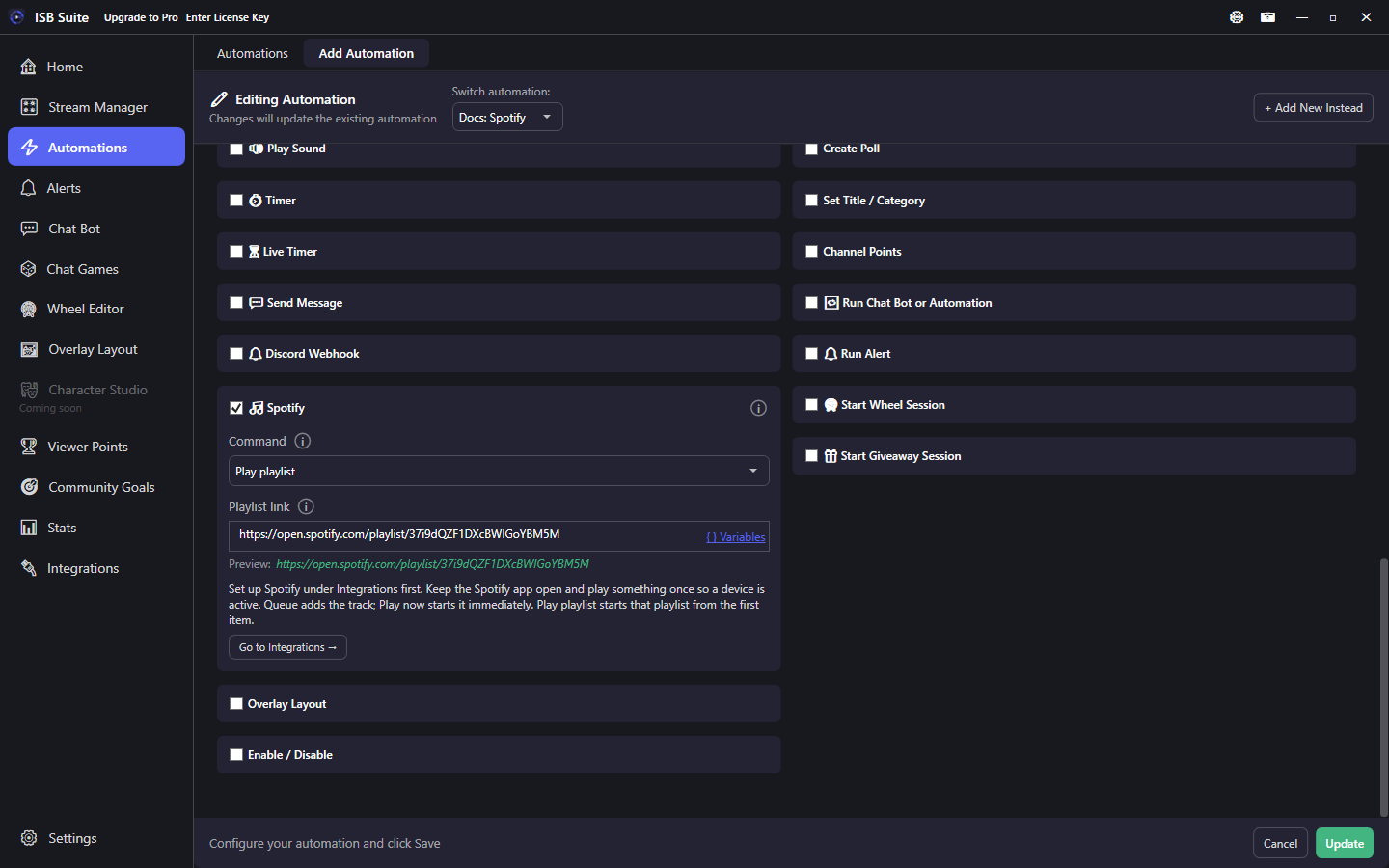
- Play playlist starts that playlist on the active device. Paste one playlist link. It does not search by name.
- Viewers can also queue with built-in
!srand undo with!remove(see Chat commands).
How it works
When the parent rule fires, ISB Suite sends a Player command to the official Spotify app (pause, resume, skip, shuffle, repeat, queue, play now, play a playlist, or Pause Then Resume At End). A Spotify error (not connected, Free account, no active device, or a playlist the account cannot open) is logged and does not stop the rest of the rule (sound, chat, alerts still run).
Queue adds a track behind what is playing. Play now starts that track immediately. Both accept a song name, an open.spotify.com/track link, or a spotify:track: URI. Message variables such as {input} resolve the same way other action fields do.
Play playlist starts a playlist link on the active device, from the first item, and replaces what is playing. Shuffle, repeat, and volume stay as they are. Paste one link (open.spotify.com/playlist or spotify:playlist:). A playlist name is not searched. {input} works the same way as other action fields.
Pause Then Resume At End pauses as soon as this rule starts (before Play Sound), then resumes when this rule's sound, TTS, alert overlay, and auto-spin wheel have finished. It does not wait for a Timer (the Timer delays the whole payload), a giveaway until a winner, or a chat game. Two overlapping rules keep Spotify paused until both have finished.
Setup
- On Integrations, finish Set Up Spotify and Connect with Spotify. Playback needs a Spotify Premium account.
- Open the Spotify app and play something once so a device is active.
- On the rule, enable Spotify, pick a command, and for Queue / Play now fill Song or Spotify link. For Play playlist paste Playlist link.
Commands
- Pause / Resume / Skip next / Skip previous.
- Shuffle: check Shuffle on, or leave it off to disable shuffle.
- Repeat: Off, Track, or Context.
- Queue / Play now: song search or a track link. Album and playlist links are not supported. Blank song field cannot save.
- Play playlist: one playlist link. Starts at the first item and replaces what is playing. Shuffle, repeat, and volume stay as they are. A name is not searched. Blank link cannot save.
- Pause Then Resume At End: pause immediately, resume when this rule's clip, TTS, alert, or auto-spin is done. Walk-on setup: First Message + Play Sound (bypass queue) + this command. Play playlist is a separate rule if a clip and a playlist both need to run.
Pitfalls
- Development Mode apps only work for Spotify accounts you add under User Management on the Developer Dashboard.
- If Spotify is closed or idle, commands fail with a no-active-device message until you play something once.
- Spotify Free accounts cannot be controlled (Premium required).
- For viewer requests, prefer built-in
!sr/!removeinstead of a custom Chat Command that only runs this action (Chat Bot already has permission, cooldown, and a confirm template). - Play playlist does not clear song requests. Outstanding
!srrows stay until that track is observed playing, the 6-hour age-out, or the next time you open ISB Suite. A playlist track that matches a live request counts as that request. A removed request is still skipped. Other rows keep their cap slots. - When Playlist link is
{input}, set that trigger to Moderator or Broadcaster. Anyone allowed to fire the rule can start any playlist the connected account can open. - Shuffle already on can start the playlist somewhere other than the first item. Repeat Track loops the first item.
- This command is not a general "run anything at the start / end of an automation" slot. It only waits for sound, TTS, alert, and auto-spin on this rule.
Examples
- Channel point redeem -> Queue
{input}so the redeem text is the song name. - Mod-only Chat Bot command -> Skip next when chat is tired of a song.
- Raid hype -> Play now a known track URI.
- Mod chat command
!playlistwith{input}-> Play playlist, permission Moderator. - Walk-on clip -> Pause Then Resume At End + Play Sound (bypass queue) so Spotify does not clash with the clip.