
Home / Features / Actions / Play Sound
Play Sound
Play a local audio file when the rule fires. Control volume, output channel, and whether the clip waits in the Home Sound Queue.
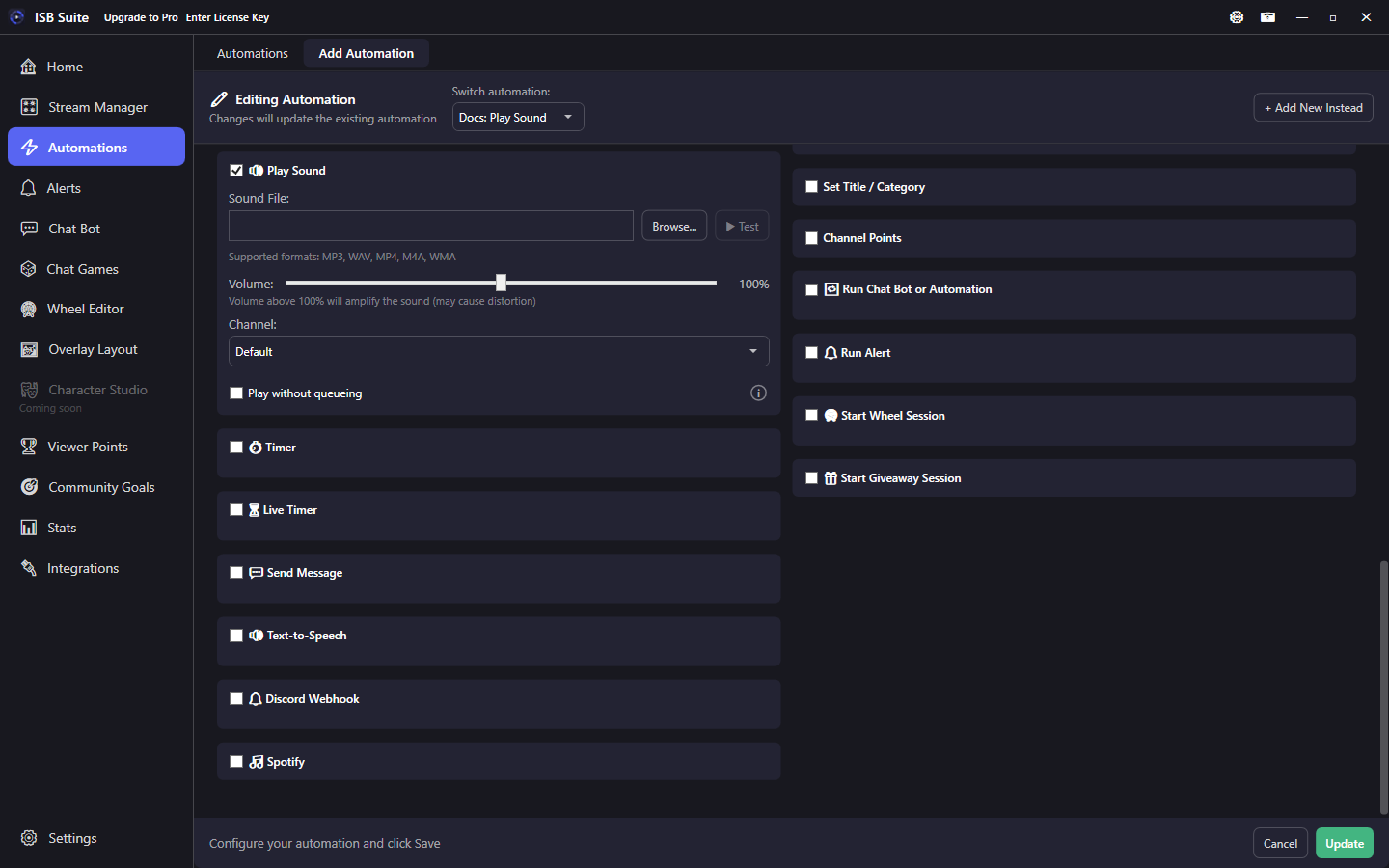
At a glance
- UI label: Play Sound.
- Volume 0 to 200% (above 100% amplifies and may distort).
- Formats: MP3, WAV, MP4, M4A, WMA.
- Play without queueing overlaps instead of waiting in line.
How it works
On fire, the chosen file is sent to the audio path for the selected Channel. By default it joins the Stream Manager Sound Queue so clips play one after another. Use Test in the editor to preview at the current volume without firing the whole rule.
Setup
- Enable Play Sound.
- Browse a new file, or Library to reuse one already saved. Clear detaches it from this setup. The copy in the Media Library stays. See Media library.
- Set volume and channel, then Test.
- Turn on Play without queueing only when overlaps are intentional.
Import from Automation / Chat Bot and Extract copy the sound file onto the destination rule. Test and Save should work without re-browsing the file. Random Image Picker and Run Alert stay linked by id and do not copy those images.
Sound queue and bypass
- Queued (default): the clip waits its turn on the Home Sound Queue. Good for walk-ons and long reactions so they do not stack into noise.
- Play without queueing: plays immediately every time the rule fires; overlapping is allowed. Use for short stingers and raid hits that must never wait.
- Wheel entry sounds still play at spin time on their own path - they are not the same as this general queue.
Channels
Output Channel maps to the audio buses you define under Settings (Audio Output Channels - for example Default vs headset). Route stream-facing stingers to the bus that goes into OBS; keep Test on a private channel while tweaking.
Examples
- First Chat Message walk-on -> Play Sound, bypass off, so greetings stay in line. Add Spotify Pause Then Resume At End if a song is playing in the Spotify app (see Spotify).
- Raid automation -> Play Sound with bypass on so the sting always hits immediately.