
Home / Features / Actions / Enable / Disable
Enable / Disable
Search by type or name, add as many Chat Bot commands, Automations, shop items, alerts, and other Overview items as you want, then Enable or Disable that whole list when the rule fires.
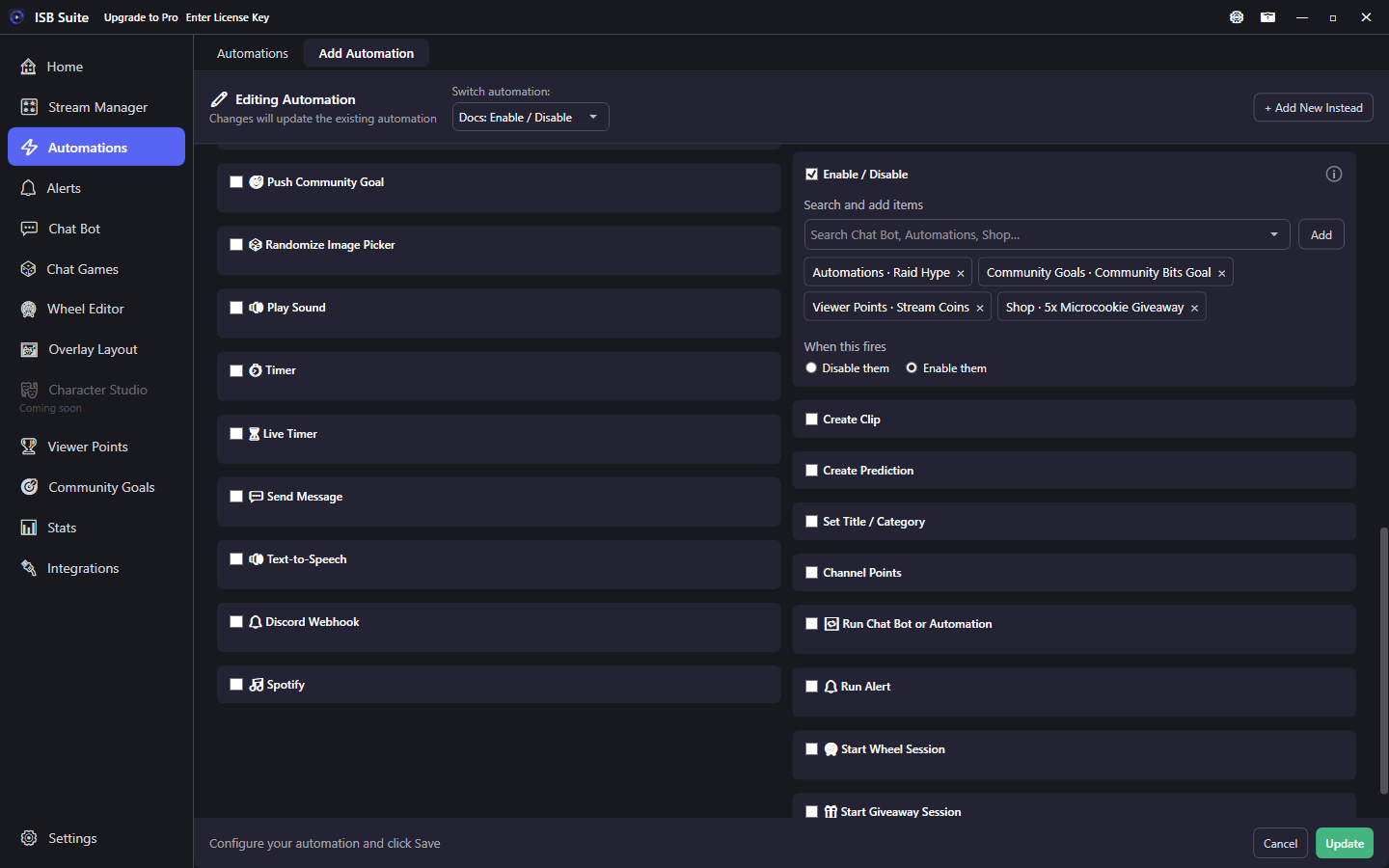
At a glance
- UI label: Enable / Disable.
- Flips the same Overview status lights you click by hand.
- One mode for the whole card: Enable them, or Disable them.
- Not the same as Run Chat Bot or Automation (that fires a target).
How it works
When the rule fires, each added item is turned on or off immediately (same moment as Counter Action and Live Timer), even if a delay Timer is also on the rule. Missing or locked items are skipped. The rest of this rule still finishes if you disable the rule itself.
Setup
- Enable Enable / Disable on the Actions card.
- Search by type (Chat Bot, Automations, Shop) or by name, then click Add for each item.
- Choose Disable them or Enable them.
What you can pick
Anything with an Overview on/off light: Automations, Chat Bot commands and built-ins, Chat Games, Alerts, shop items, Viewer Points currencies, point drops, Community Goals, and Saved Lists.
Examples
- Going live -> Enable a set of hype commands and shop items.
- Raid incoming -> Disable noisy Chat Bot commands for a few minutes, then Enable them on another rule.
- Mod command
!quiet-> Disable several automations at once.