
Home / Features / Actions / Randomized Action
Randomized Action
Define several Action Sets on one rule. Each time it runs, one set plays - random, or no repeat until every set has played. Optionally pick which sets can play using a counter.
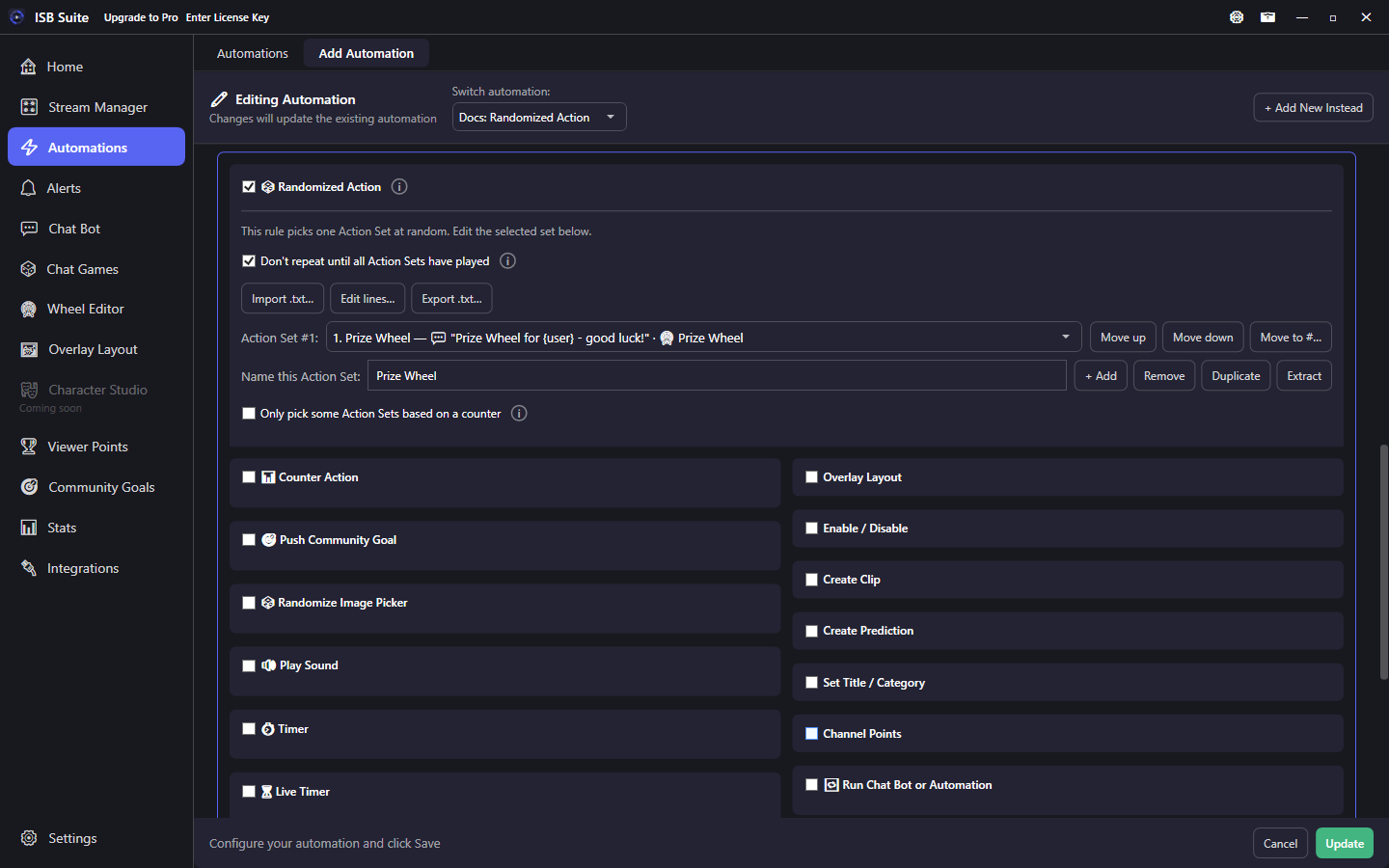
At a glance
- UI label: Randomized Action (above the main Actions grid).
- Each set is a full Actions payload (sound, chat, wheel, and so on).
- Modes: uniform, or Don't repeat until all Action Sets have played. Don't repeat hides when counter ranges are on - the eligible list can change each fire.
- Optional: Only pick some Action Sets based on a counter - ranges pick from set numbers, overlap combines then picks one, and If nothing matches covers misses.
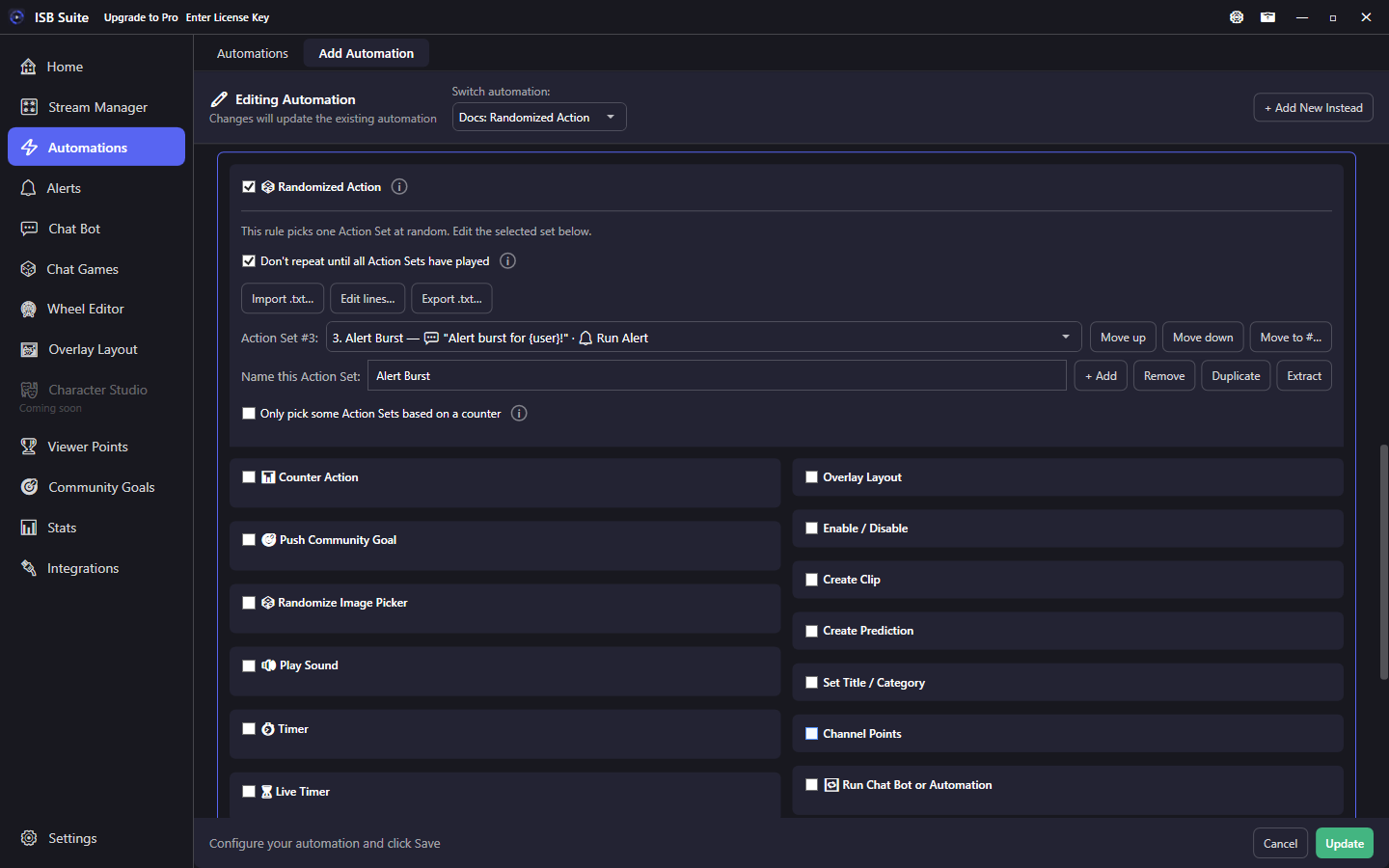
- Import .txt / Edit lines / Export .txt sit above the Action Set picker. Add, Remove, Duplicate, and Extract sit on the name row. Move up, Move down, and Move to # sit on the Action Set # row. See Import, edit, and export lines.
- Nested Randomized Action inside a set is stripped - keep randomness on the parent only.
- Chat, TTS, Discord, and alerts on the picked set can print its name with
{actionSet}. - Global Action Set above the selected set runs those actions on every set. Nothing added leaves it off. Check an action to add it, and uncheck it in that list to remove it.
How it works
When Randomized Action is enabled, the parent rule no longer runs one flat action list. Instead it picks one named Action Set each time it runs and plays that set's Actions. Sets are searchable in the picker. Use this for rotating hype lines, stingers, or mystery wheel loads from a single redeem or command. {actionSet} in that set's chat, TTS, Discord, or alert text is the name picked for this run. A blank name leaves the spot empty.
Global Action Set, above the selected set, adds actions that run on every Action Set. Counters, goals, Live Timer, and Enable / Disable run first (the shared rows, then the set). Messages, sounds, and the rest wait with the set's timer, then the shared action finishes before the set. Uncheck it in that list to remove it. A set with no actions of its own is still drawn when Global Actions will run, and {actionSet} is that set's name. A counter range that matches nothing, Skip the Action Sets, and Randomized Action turned off do not run them. A copy of the same action left on a set still runs as well.
Setup
- Enable Randomized Action at the top of Actions. The first-time card is pick this set, name it, and + Add another if you need more. + Add starts that new set with Send Message off and an empty message until you turn Send Message on or type a line. Turning Randomized Action on keeps the Send Message already on the flat editor.
- Edit the selected set's Actions below the card (Send Message, Play Sound, Start Wheel Session, and so on).
- Optional: check Don't repeat until all Action Sets have played (hidden while counter ranges are on).
- Use Import .txt, Edit lines, or Export .txt above the picker for a list of chat lines (see Import, edit, and export lines). Add, Duplicate, and Extract sit on the name row. Move up, Move down, and Move to # sit next to Action Set #.
- Optional: check Only pick some Action Sets based on a counter for a compact ranges card under the tile (see Limit by a counter).
To reuse an existing setup, use Import from Automation / Chat Bot above Randomized Action. A randomized source copies its Action Sets; a flat Chat Bot or Automation becomes one Action Set so Send Message stays on the set (not the Chat Bot parent Response field). Play Sound files are copied onto this rule. Extract (on the name row) creates a standalone Automation for reuse and copies that set's sounds onto the new rule.
Import, edit, and export lines
Use Import .txt, Edit lines, and Export .txt above the Action Set picker. They work with Send Message only: one non-empty line becomes one Action Set. A line that is exactly [Send Message Disabled] adds a set with Send Message off. Import copies the file into the rule. ISB Suite does not keep watching that .txt on disk, so later edits to the file do nothing until you import again. UTF-8. Empty lines are skipped. Commas, variables, and duplicate lines are kept. Hundreds of rotating lines still share the same Twitch chat rate limit.
Import .txt
Click Import .txt, pick a file, then review it in the Import lines dialog. You can still edit the text, choose Append or Replace, and optionally copy extras from the Action Set that was selected.
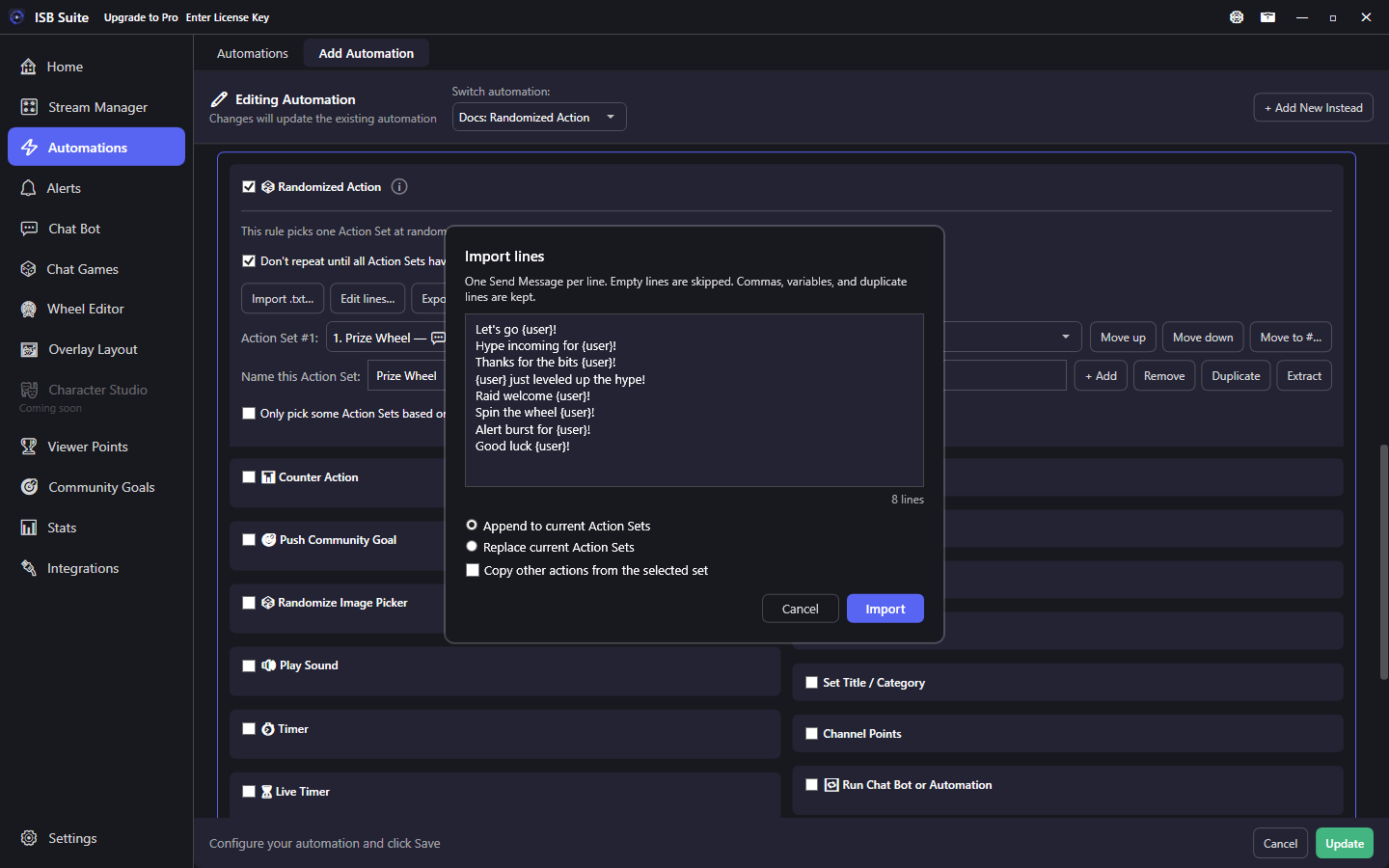
- Optional: select an Action Set first if you want imported lines to copy that set's extras (sound, TTS, wheel, counters). The copy checkbox is disabled until a set is selected.
- Click Import .txt. A file picker titled Import Action Set lines opens (*.txt, or any file).
- After you pick a file, an Import lines dialog shows the file text so you can still edit it. The line count at the bottom is how many Action Sets will be created.
- Choose Append to current Action Sets (keep what you have) or Replace current Action Sets (wipe them first).
- Optional: check Copy other actions from the selected set. Each imported line gets that set's extras, then Send Message is overwritten with that line. A line that is exactly
[Send Message Disabled]keeps those extras, turns Send Message off, and leaves the stored message in place. - Click Import. Importing 50 or more lines asks for a second confirm. Replace also warns if any current set has actions besides Send Message (those extras would be dropped).
An empty file (or only blank lines) shows No lines to import and never opens the dialog.
Edit lines
Edit lines opens the Action Set lines window from the sets you already have. You do not need a file first. Search, add, or import more lines here, then double-click a line to jump to that set's Actions and attach a sound, TTS, or wheel.
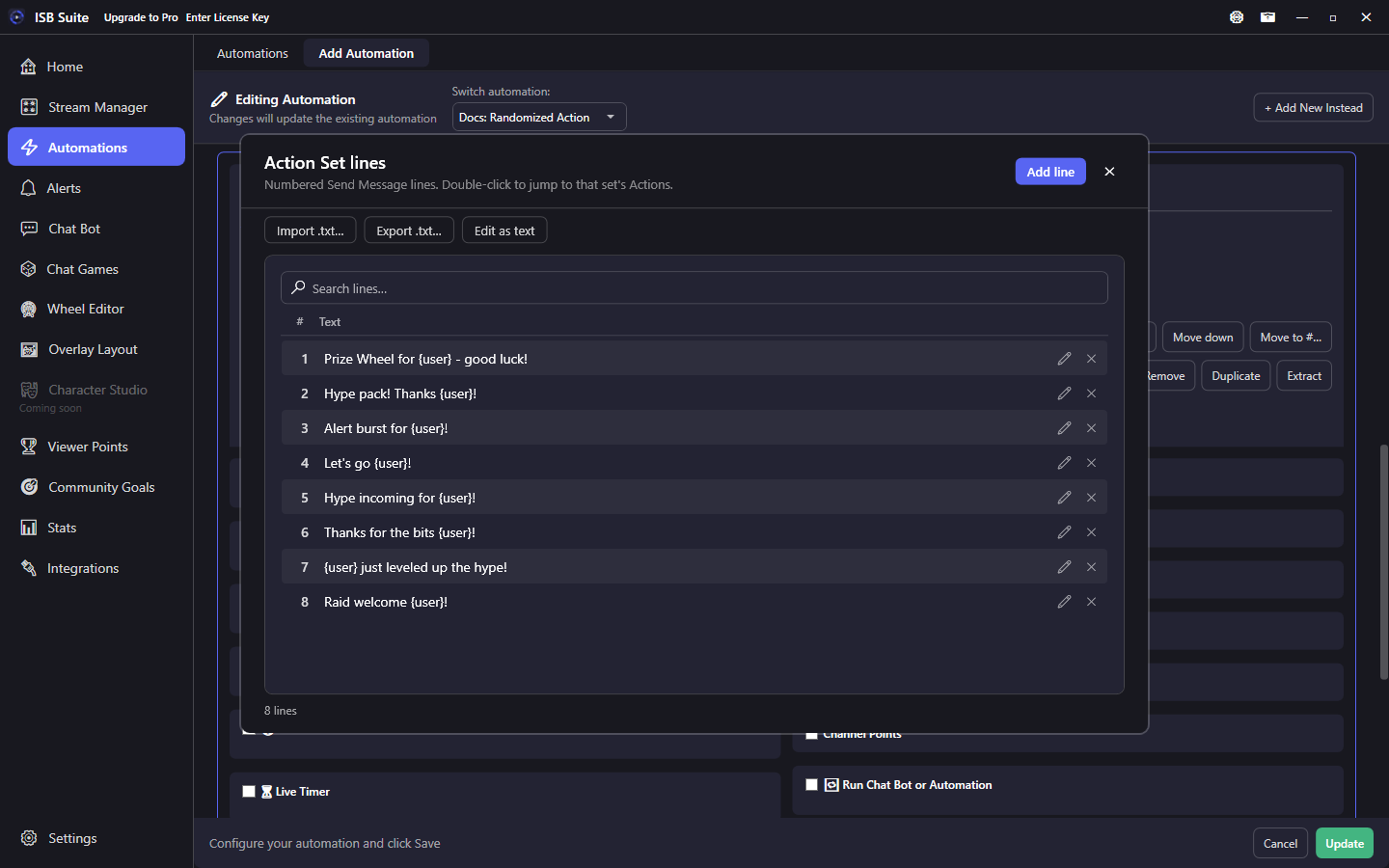
- Search the list. Click a line to edit it in place, or Add line for a new set.
- Double-click a line to close the window and jump to that set's Actions (attach a sound, TTS, or wheel on that set only).
- Ctrl+click and Shift+click select more than one line, then Delete.
- The same Import .txt / Export .txt buttons are in this window.
- Edit as text shows one line per set. A set with Send Message off is
[Send Message Disabled], even when a draft is still stored. Apply text writes that order back and leaves that set off. A real line enables Send Message and stores that line. Extra lines become new sets. Show list returns to the searchable list without applying. To send the words[Send Message Disabled], write\[Send Message Disabled]. If counter conditions are on, Apply (and Replace import) asks you to confirm - set numbers in those conditions follow the new order.
Export .txt
Export .txt writes Send Message templates for sets where Send Message is on, one per line (file picker titled Export Action Set lines, default name action-set-lines.txt). Sets with Send Message off are skipped, and the file does not use [Send Message Disabled] as a placeholder. A set that is sending those words is written as \[Send Message Disabled] so importing the file keeps Send Message on. If none have a Send Message, export is refused.
Action Sets
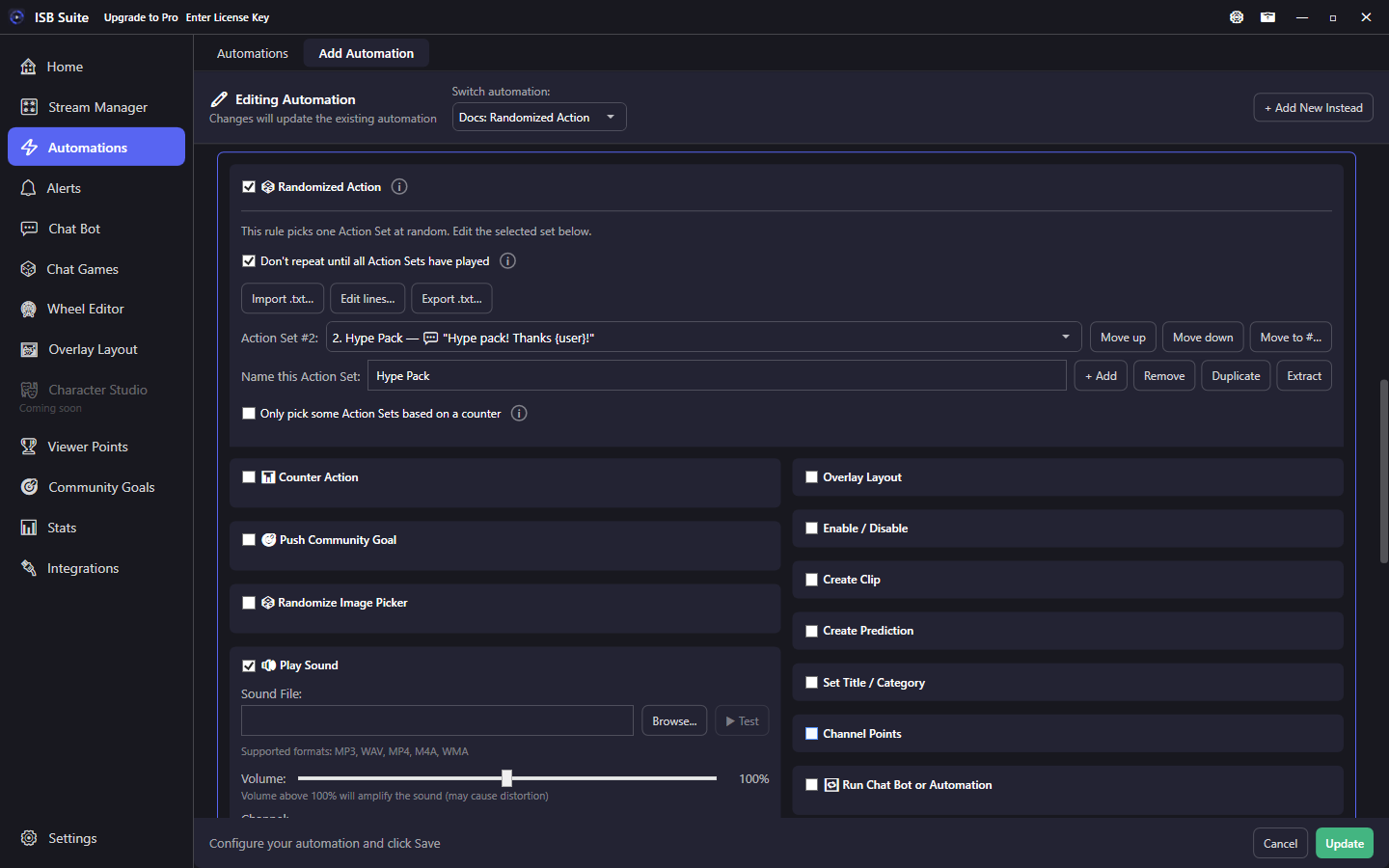
Each set is a complete Actions editor. Switch sets in the picker to edit that outcome. The picker shows a number before the name (7. Prize Wheel) so counter ranges can point at set 7. Use Move up, Move down, or Move to # next to Action Set # to change that order. If ranges are on, moving a set asks you to confirm - those numbers follow the live list. One redeem can land on a wheel, a sound+TTS pack, or an alert - without duplicate rules.
Limit by a counter
Optional. Check Only pick some Action Sets based on a counter on the Randomized Action card. A compact card opens under the tile. Choose a counter (global or per user). Each range is From / To plus Pick these Action Sets (1-20, 45, or a mix). Click Save to pin that range as a card. Cards sort by count, so 1-10 sits above 1-50. Edit a card to change it. If two ranges both match, those Action Sets are combined, then one is picked. This is not Dice: matching Dice bands all fire; matching ranges do not run two payloads. If nothing matches is a separate backup: it is not the same list as the range row. Timing and fallback details sit on the InfoTips.
If two ranges cover the same count, those Action Sets are combined, then one is picked. Example: 1-50 plus 1-10 plus 25-50 means count 25 picks from both the 1-50 and 25-50 lists. Cover 0 in a range if you want new / unused counters to stay in a common group. If no range includes 0, count 0 uses If nothing matches.
If nothing matches
Required whenever ranges are on. Used when the counter is not in any range, or a match lists no playable Action Sets (out-of-range numbers, or every listed set has no actions of its own while Global Actions will not run). Never falls through to every Action Set just because a match resolved empty.
- Play any Action Set (default) - always plays something. This can include rare prizes.
- Play only these Action Sets - safe / consolation lines only.
- Skip the Action Sets - skip the random payload. The redeem, cooldown, and chat command still count. Confirm once when you choose this.
When the count is read
The counter is read when an Action Set is chosen. Counter actions on that set run after, so they do not change this pick. New counters are usually 0. A Timer or system fire with a per-user counter and no viewer uses If nothing matches.
Modes
- Uniform (default): every set has the same chance every time.
- Don't repeat until all Action Sets have played: shuffle-bag style - every set plays once before any set repeats. This option is hidden when Only pick some Action Sets based on a counter is on, because the pick list can change with the count.
Use cases
- Mystery prize redeem - Channel points -> three sets: Start Wheel Session on Prize Wheel, a sound+TTS hype pack, and Run Alert - with no-repeat so viewers cycle the pool.
- Raid variety - Raid automation -> several Play Sound + Send Message sets so back-to-back raids do not feel identical.
- Rotating chat lines - Import a .txt of hype lines (file picker, then the Import lines dialog), or open Edit lines from the sets you already have, then search and double-click a line to attach a sound or TTS.
- Shop roulette - Viewer Points item -> sets that each Start Wheel Session on a different preset plus a unique chat line.
- Loyalty jackpot - Link a visit or bits counter. Early counts pick from common sets 1-20; a late range adds a rare set. Overlap combines those lists, then one set plays.