
Chat Bot
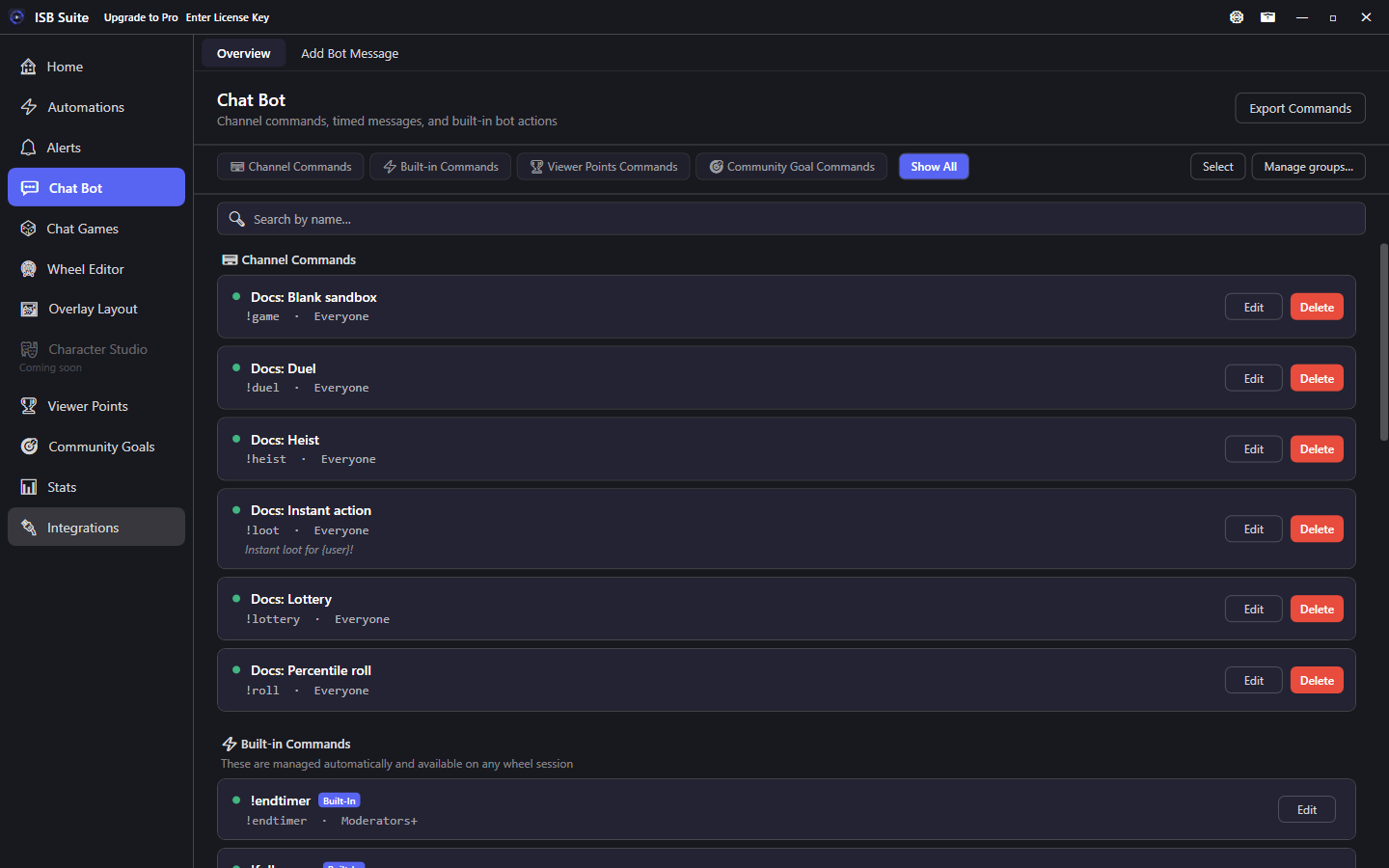
Custom !commands, timed messages, and aliases in the Chat Bot tab - same Actions engine as Automations, focused on chat-driven rules.
At a glance
- Free: 25 Chat Bot commands, plus 3 Saved Lists (quotes / notes / todos). Full table on Free and Pro.
- Same trigger and action building blocks as Automations - pick the tab that matches how you think about the rule.
- Custom
!commandswith permission, aliases, Match anywhere, Don't trigger from the broadcaster or linked bot, and Allow checking another viewer on the card; cooldown and per stream limits under Show Advanced. - Overview Export Commands writes a CSV of every command card on this page (channel commands, timed messages, built-ins, Chat Games, Viewer Points, Community Goals, Saved Lists, Live Timer), including aliases in the Description column.
- Export on a command card and Import Package share a setup. See Share a setup.
- Built in commands appear here for editing where applicable. Full list: Chat commands. Variables: Message variables.
Same engine as Automations
Chat Bot is not a separate runtime. Rules you create here use the same triggers, actions, cooldowns, aliases, Match anywhere, Randomized Action, Timer, Live Timer, Run Alert, Enable / Disable, and Run Chat Bot or Automation chaining as the Automations tab. Chat Bot Overview search matches a command name or any of its aliases, and a command with aliases shows a short alias line on its card. Custom groups work like other list pages. Each command card has a green (enabled) or grey (disabled) light. Click the light to turn that command on or off; a legend at the top of the list explains this.
Leaving Add Bot Message with unsaved changes shows Save, Don't Save, or Cancel. Opening the form and leaving without edits does not prompt. Form Cancel discards without asking.
Chat Bot replies stay on the platform the command was typed (Twitch or YouTube). Timed messages post to chats that are live in the current ISB session (a YouTube-only day does not post on Twitch). Discord posts use the Discord Webhook action on Integrations. YouTube connect, !link, and permissions: YouTube.
When to use which
| Prefer | When |
|---|---|
| Chat Bot | Custom !commands and timed or scheduled chat lines are the main job; you want built-ins (join, spin, shoutout, song request, watch time, and similar) in one overview |
| Automations | Twitch EventSub events (channel points, bits, raids, follows, and so on) drive the rule, a long action chain, or one rule that should fire from a !command and other triggers. Do not use Automations just to create a simple reply command |
| Either | You need chains - call the other tab with Run Chat Bot or Automation (up to 20 hops; original chatter variables preserved) |
For a simple command that also plays a sound, stay on Chat Bot. Use Automations when you want that command bundled with other triggers (or a long event workflow) under one cooldown.
Command options
Type the command the way viewers will send it in chat, including a leading ! (for example !spin). Empty command-name and alias fields show a muted !command / !alias hint. Other prefixes such as ?help still work. The app does not auto-add !.
Custom commands keep permission, aliases, Match anywhere, Don't trigger from the broadcaster or linked bot, and Allow checking another viewer on the main card (with info tips). Cooldown and per-stream limits stay under Show Advanced with the other actions. Send as sits under Run on. It appears only when a bot is linked, and only on a custom reply (not a randomized reply, and not Follow Age, Watch Time, Shoutout, or Song Request). Bot is the default. !editcommand keeps the choice; !addcommand stays Bot.
Custom commands support:
- Permission levels: Everyone; Followers (followers, subs, VIPs, mods, broadcaster); Subscribers (subs, VIPs, mods, broadcaster); VIPs (VIPs, mods, broadcaster); Moderators (mods and broadcaster); Broadcaster only; Specific User(s). A role can also include named users who do not meet that role (for example Moderators plus a regular viewer).
- Aliases: alternate names that fire the same command. Viewers can type any alias; the longest matching alias wins when several could match. Leftover text after the match becomes
{input}. - Match anywhere in message: optional whole-word match mid chat (for example
/me !discord), not only at the start. Longest matching command still wins. Space-boundary rules apply (!spinwill not match inside!spinwheel). Off by default. - Don't trigger from the broadcaster or linked bot: this command will not fire from your Twitch account or a linked bot account (prefix or mid-message). Same rule either way you send chat. Off by default. If a command's own chat keeps firing it (about four times in a minute), ISB turns this on and saves it. Viewers can still use the command. You and your linked bot will not, until you turn it off.
- Allow checking another viewer: first leftover word is a viewer (
@user).{user}becomes that person; leftover text is{input}. Off by default so!love pizzakeeps pizza as{input}. Cooldown and permission still apply to the typer; use{caller}for them. - Cooldown: None, Global, or Per User, with optional burst (N uses within a window then a longer cooldown; the normal duration can be off) and optional on-cooldown chat reply.
- Per stream limits: max fires globally and/or per user (
0= unlimited), with optional hit-limit chat reply. Limits reset when a new stream session starts.
Community Goal check and contribute commands, Viewer Points commands, Chat Game start/join commands, Saved Lists, and Automation Chat Command triggers also appear on the Chat Bot overview where applicable. Those cards show the same short alias line, and Overview search finds them from an alias. Each row has the same enable/disable light as other Chat Bot cards. Edit opens that feature's settings (Automations for a bundled command). Disabling an Automation reference card turns off the whole automation. Arg-only built-ins such as !addgoal, !removegoal, !endtimer, !cleartimer, !addcommand, !editcommand, !enablecommand, and !disablecommand stay out of the Run Chat Bot or Automation picker. Contribute is not a Run Automation nested target. Built-in !editcommand still cannot change Automations.
Mods can create or update a basic Chat Bot reply from chat with !addcommand / !editcommand (aliases !addcom / !editcom). Add fails if the name exists; edit updates response text only. Chat confirms with Added {name}: {response} / Updated {name}: {response} (customize in Chat Bot). Example: !addcom !project Today's project is... > Added !project: Today's project is... See Chat commands.
Mods can turn a Chat Bot custom command on or off with !enablecommand / !disablecommand (aliases !enablecom / !disablecom). One name only. Chat confirms with Enabled {name} / Disabled {name}. These commands cannot change built-ins, Automations, Chat Games, Alerts, or themselves. A command that is off can be turned back on.
Export Commands
On Chat Bot Overview, Export Commands saves a CSV (bot-commands.csv) of the same commands shown on the page. Columns: Type, Command, Description, Permission, Cooldown, Enabled.
- Includes Channel Commands, Timed Messages, Built-in Commands, Chat Game join/start, Automation Chat Commands, Viewer Points, Community Goal add/remove plus per-goal check/contribute, Saved List Read and Add, and Live Timer Commands.
- Aliases are not extra rows. The overview card shows a short Aliases line, and search finds that card from an alias. The CSV lists them in Description as
Aliases: !foo, !bar. - Timed Messages use Type
Timed Messagewith the interval in Command (for exampleEvery 5m). Saved Lists export both Read and Add so mods have both chat triggers. - This file is a list for docs or Nightbot-style copies. It is not an import.
Saved Lists
Saved Lists are a generic numbered text store for quotes, notes, todos, or anything similar. Free allows 3 lists (unlimited entries each); Pro is unlimited lists. They use their own Free limit and do not consume a Chat Bot command slot.
- Set one Command (for example
!quote): that is the Read trigger (bare = random, + number = that entry). Add autofills as!quote add(editable) with glued alias!quoteadd. - Optional Fire on a timer on Read posts a random entry on an interval (same reply template). Match anywhere and Don't trigger from the broadcaster or linked bot are on Read Advanced Settings and apply to both Read and Add. Each has Advanced Settings (aliases, permission, cooldown). Defaults: Read = Everyone, Add = Moderators. Enable/disable the whole list from the Chat Bot Overview card. Interval posts follow Timed messages quiet-chat settings.
- Reply templates are editable (blank = silent). Defaults use
{number}and{entry}. Optional capture: local date, Twitch category ({game}), and added-by. - Entry numbers stay stable by default (gaps after delete; best for quotes). Turn on Renumber on delete in list settings for dense 1...N lists (todos), or use Renumber on the Lists tab to compact once.
- On the Lists tab: search, add/bulk-add entries (checkbox in Add entry), export CSV/text, renumber (when not auto-renumbering), and Pop out to a separate window for another monitor. That window stays open when you minimize the main app.
- Set up and edit list commands on Add Bot Message (check Saved list). Read/Add each have Advanced Settings (aliases, permission, cooldown). Chat edit/remove of entries is not in v1 (UI only).
Create a list from Chat Bot > Lists > + Add Chat Bot list, or check Saved list on Add Bot Message.
Timed and event messages
- Post scheduled or interval-driven messages with variable substitution.
- By default, the next interval is skipped when recent chat is only timed posts (Chat Bot, Automation timers, and Saved List timers share this). A human line on Twitch or YouTube counts. App echoes and the linked bot do not. The first timed line of a session still posts. Change this under Settings > Timed messages: turn the skip off, require more chat lines, or turn on Allow a cluster of different timers so each message may post once even if another just posted.
- Attach the same event triggers available in Automations when a chat line should also react to stream events.
- Use variables such as
{user},{time},{top5Counter:CounterName}, and goal tokens. Full list: Message variables.
Live Timer Commands
The Chat Bot overview has a Live Timer Commands section for !pausetimer, !resumetimer, !addtime, !removetime, and !settime. !endtimer and !cleartimer stay under Built-in Commands (!endtimer ends a Live Clock or skips a delay Timer; !cleartimer hides an ended look). See Live Timer and Chat commands.
ISB Suite command
Built-in !ISB (aliases !software, !chatbot, and !ISBSuite) is off until you turn it on under Chat Bot > Built-in Commands. When someone uses it, chat gets a short line and a link to this site. The same card also posts that line every 30 minutes while you are live, in both Twitch and YouTube chats. Default: This Channel uses ISB Suite for chat bot commands, games, viewer points, and more! https://thadestroy.github.io/ISBSuiteReleases/docs/. Edit the response, name, and aliases on that card. Permission defaults to Everyone. It does not use a Free chat command slot. See Chat commands.
Song request
Built-in !sr (alias !songrequest) queues a song on the Spotify app after you Connect under Integrations. The command cards stay hidden on Chat Bot Overview until that Connect. Default permission is Everyone. Chat Bot holds the command name, aliases, cooldown, and confirm template ({user}, {track}, {artist}). Per-viewer queue caps by permission level (default 5; 0 = none; leave blank for unlimited) are on the Spotify card under Integrations (Song Request). Blank !sr posts a usage line. At the cap, chat gets the at-cap reply ({cap}).
Built-in !remove (alias !removesong) pops that chatter's most recently requested song (a stack: two requests, two removes, last in first out). Only their own songs. Spotify cannot delete a queued song, so the request stays in Next in Queue until it would play; ISB Suite then mutes and skips it. If that track is already playing, it is skipped immediately. See Chat commands and the Spotify action for pause/skip/queue from automations.
YouTube
After Sign in with Google, Chat Bot hears YouTube live chat. Replies stay on YouTube until you choose otherwise. With both Twitch and YouTube connected, the command card has Run on checkboxes so a command can skip one chat. When both are checked, Response has Send to both Twitch & YouTube chats. Off posts where the command was used. On posts in both. One checked box sends only to that chat. Built-in !link is on Built-in Commands and stays on every connected chat. It joins a YouTube @handle and a Twitch login into one ISB account. The card's Response is what bare !link says in chat. Permissions and lurker rules: YouTube.
Actions from Chat Bot
Beyond Send Message, a Chat Bot rule uses the same shared Actions editor as Automations (wheel, sound, Discord, counters, giveaway, Run Alert, TTS, Timer, Live Timer, Enable / Disable, Randomized Action, Run Chat Bot or Automation, Push Community Goal, and more). Open the Actions hub for per-action setup pages.