
Home / Features / Actions / Set Title / Category
Set Title / Category
Change the Twitch stream title and/or category when a rule fires. Leave a field blank to keep the current value.
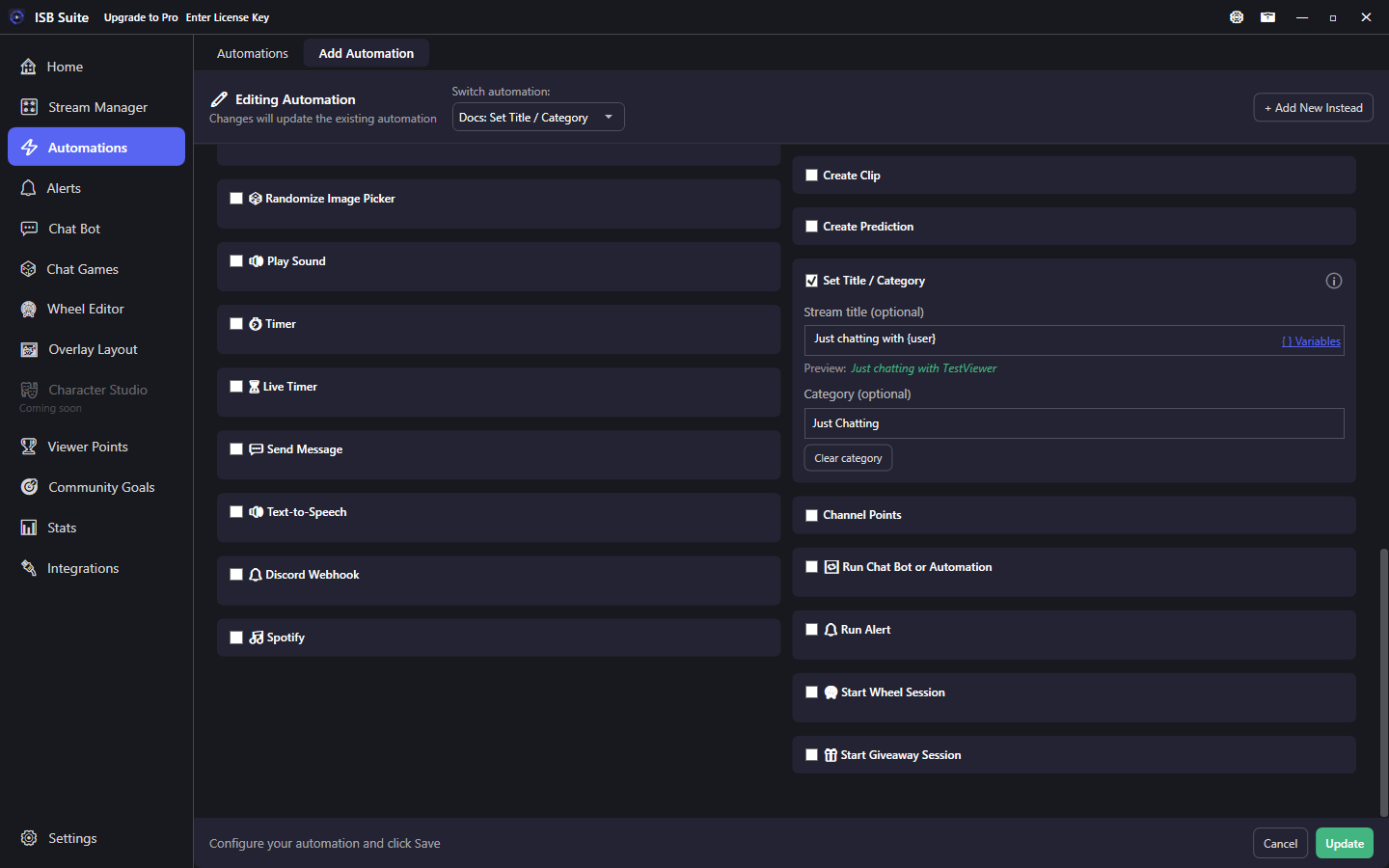
At a glance
- UI label: Set Title / Category.
- Helix Modify Channel Information (
channel:manage:broadcast). Re-authenticate Twitch once if you connected before this feature. - Title is optional (max 140 characters after variables resolve). It uses the same message variables as Send Message (including trigger tokens such as
{input}). Category search uses Twitch's category list. - At least one of title or category must be set when the action is on.
How it works
When the rule fires, ISB Suite patches the live channel information. A Helix error (missing scope, AutoMod title, invalid category) is logged and does not stop the rest of the rule. Tags, language, and content labels stay on Stream Manager stream-info Edit - this action is title and category only.
Setup
- Connect Twitch under Integrations (grant broadcast permission when prompted).
- Enable Set Title / Category.
- Type a title (variables allowed) and/or search for a category. Use Clear category to remove the game.
Examples
- Chat command
!justchatting-> Set Title / Category to Just Chatting. - Stream went live -> Set title
{user}'s stream is live(or your usual show title).