
Home / Features / Integrations
Integrations
Manage connections from the Integrations page. Twitch is the only integration most streamers need. YouTube is a beta simulcast (request API access on Discord first). Everything else is optional.
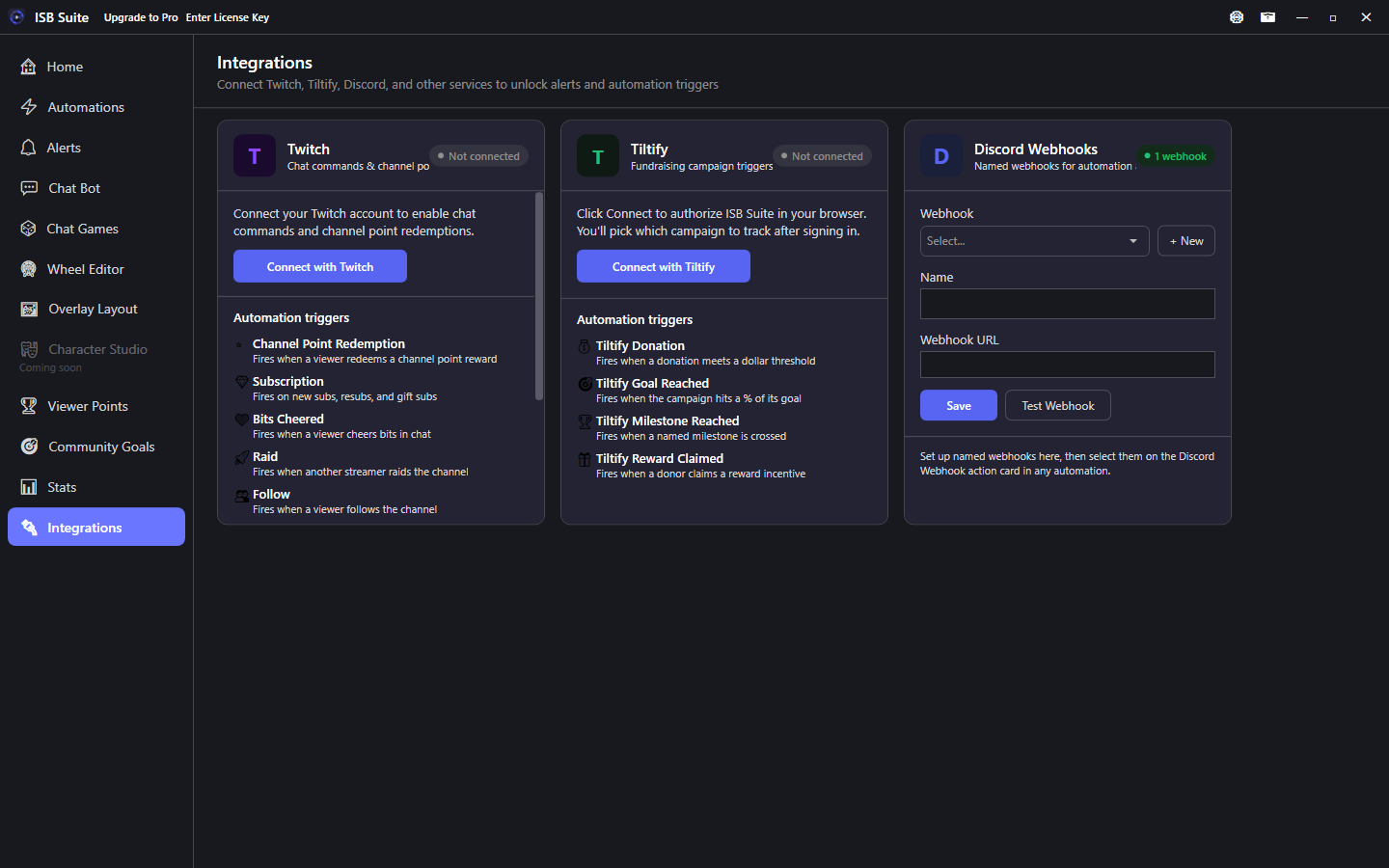
At a glance
- Twitch: device-code OAuth for chat and EventSub.
- YouTube (beta): request API access on Discord, then Sign in with Google. Full guide: YouTube.
- Optional bot account for outbound chat (Free).
- Discord: named webhooks under Integrations, then Discord Webhook action on rules.
- Spotify: guided setup (your own Developer app + Connect). Automations use the Spotify action; viewers can
!sra song after Connect and!removetheir last request. - OBS Studio: connect the built-in WebSocket (OBS 28+). Automations use the OBS Studio action to switch scenes, show or hide sources, mute, stream, or record.
- Streamlabs Desktop: connect third-party Remote Control (port 59650 + API token). Separate from the OBS card. Automations use the Streamlabs Desktop action to switch scenes, show or hide sources, mute, set volume (0-100%), stream, or record.
- TTS uses your Amazon Polly account (Integrations). Standard voices such as Brian, Amy, and Matthew. Amazon bills that account.
- Audio output channels (buses for sounds/alerts/TTS) live under Settings, not on this page.
- Skip the alert, sound, wheel, giveaway, chat game, or TTS that is playing from a global hotkey under Settings - Hotkeys, even when ISB Suite is not focused. Skipping an alert also stops that alert's TTS. Skip TTS stops whatever is speaking.
- Want another platform? Request an integration.
Twitch
- Sign in with device-code OAuth (no manual token paste).
- Chat: read commands and send bot messages.
- EventSub: channel points, follows, subs, raids, bits, hype train, goals, ad breaks, shoutouts.
- Optional dedicated bot account: link a second Twitch account so replies send as the bot while the broadcaster account stays for triggers. Available on Free. Mod the bot for higher rate limits. When both accounts are connected, Send Message and Chat Bot custom replies can choose Streamer or Bot. The default stays Bot, so existing lines do not change who speaks. When you click Connect bot, the browser must be signed into the bot - log out of your streamer account first if you just connected Twitch.
YouTube (beta)
YouTube is a beta feature. Request access to the YouTube API on Discord, then agree to the privacy policy and terms and Sign in with Google on Integrations. After connect, Chat Bot, alerts, Viewer Points, Community Goals, and Stream Manager Chat can use YouTube live chat. Full setup, !link, permissions, lurkers, and send quota: YouTube.
Discord webhooks (optional)
- Under Integrations, Discord Webhooks: add named webhooks (paste each channel webhook URL from Discord: Server Settings - Integrations - Webhooks).
- Save, then Test a webhook to confirm delivery.
- On an automation, enable Discord Webhook: pick one or more webhooks, reuse Send Chat Message text and/or write a Discord-only message.
- One automation can post to multiple webhooks at once.
- Variables resolve before send. Discord messages are capped at 2,000 characters.
- Webhook URLs should start with
https://discord.com/api/webhooks/(legacy discordapp.com URLs also work).
Migration: If you previously had a single Discord webhook, it is migrated as Default automatically. Older "send to Discord" checkboxes on Send Chat Message are converted to the Discord Webhook action.
Tiltify (optional)
Connect a Tiltify charity campaign via OAuth. Polls for donations and campaign totals. Token auto-refresh, with a reconnect window if auth expires mid-stream.
Spotify (optional)
ISB Suite sends commands to the official Spotify app on your PC (pause, skip, shuffle, queue, play a playlist). It never plays Spotify audio itself. Available on Free and Pro. Playback requires a Spotify Premium account.
Spotify does not allow ISB Suite to ship one shared app for every customer. You create a free app on the Spotify Developer Dashboard; ISB Suite walks you through it (same style as Amazon Polly setup):
- On Integrations, Spotify: Set Up Spotify.
- Create an app on the Spotify Developer Dashboard (open the link in the wizard). If you are not logged in to Spotify, log in first, then open the wizard link again.
- Paste the redirect URI shown in the wizard (
http://127.0.0.1:37892/) into the app settings. Use that exact address, not localhost. - Under User Management, add the Spotify account you stream with.
- Paste the Client ID only (no secret) and Connect with Spotify.
- Keep the Spotify desktop or mobile app open and play something once so a device is active.
- After the Client ID is saved, reconnect is one Connect with Spotify click. Disconnect clears tokens but keeps the Client ID.
- On an automation, enable the Spotify action: pause, resume, skip, shuffle, repeat, queue a track, play now, play a playlist, or Pause Then Resume At End. See the Spotify action page. Queue / Play now accept a song name, an open.spotify.com/track link, or a
spotify:track:URI. Play playlist accepts one playlist link. Message variables like{input}work. - Trigger Spotify Song Changed runs when a different song starts playing. A Send Chat Message such as
Now playing: {spotifyTrack} by {spotifyArtist}names that song. Connecting Spotify, or opening the app while a song is already playing, does not send the line. See Automations. - Viewers can request songs with built-in
!sr(alias!songrequest): a song name, optional artist, or a track link. They can!remove(alias!removesong) their last request. Chat Bot holds the command name, permission, cooldown, and confirm template. Per-viewer queue caps (default 5; 0 = none; leave blank for unlimited) are on the Spotify card under Integrations. Spotify cannot delete a queued song, so!removeskips that request when it comes up. A skip you make in the Spotify app shows on the Stream Manager song card and in{spotifyTrack}within about 10 seconds while that card is open or a request is still queued. Jumping to a removed request yourself can let it play for about 10 seconds before ISB skips it. - Development Mode apps can only be used by accounts you add under User Management (a small allowlist).
If Connect or playback fails
- Premium required: the Spotify account you Connect must be Premium. Free accounts cannot be controlled.
- No active device: open the Spotify app and play something once, then try again.
- Allowlist / 403: under the Developer Dashboard app, User Management, add the same Spotify account you stream with.
- Album links cannot be queued or played. Playlist links belong on Play playlist, not Queue or Play now.
!srstays a song name or track link. - More troubleshooting: FAQ - Spotify.
OBS Studio (optional)
ISB Suite talks to the OBS Studio WebSocket server on this PC (switch scenes, show or hide sources, mute, volume, start or stop stream or recording). It does not start OBS, and it does not replace Window Capture of the ISB Suite overlay. Available on Free and Pro.
- In OBS Studio 28 or newer: Tools > WebSocket Server Settings. Enable the server. Default host
127.0.0.1, port4455. - On Integrations, OBS Studio: click Set Up OBS. The setup window holds host, port, the password from OBS, and Auto Connect. Then Connect.
- Optional: check Connect automatically when ISB Suite starts in that window. Use Reconfigure on the card to change those fields later.
- After you save a password and Connect, automations and other editors show the OBS Studio action. The card stays available the next day even if OBS is closed. Disconnect hides the empty action card until you Connect again, including after you close ISB Suite. Rules that already have an OBS action keep the card if you Disconnect or clear the password, with a notice that the action will be skipped. Scene and source names are saved as text; if OBS is closed when a rule fires, that action is skipped and the rest of the rule still runs.
- When connected, the card lists live scene and input counts. Host, port, and password stay in Set Up / Reconfigure, not on the card. Combos stay editable so you can type a name that is not in the current catalog.
- Disconnect from the card stops reconnect, turns off Auto Connect so the next launch stays disconnected, and hides the empty OBS Studio action card until you Connect again. Connect on the card, or check Auto Connect in setup, to reconnect on launch. Connect during Reconnecting tries immediately.
- A 4.x Hello (OBS 27 / old plugin) is a setup error: OBS Studio 28+ with WebSocket 5 is required.
- Streamlabs Desktop is a different protocol and will not connect to this card. Use the Streamlabs Desktop card instead.
If Connect fails
- Confirm OBS is open and the WebSocket server is enabled.
- Match the password, host, and port from Tools > WebSocket Server Settings.
- Keep host at
127.0.0.1unless OBS is on another machine you trust. - More troubleshooting: FAQ - OBS Studio.
Streamlabs Desktop (optional)
ISB Suite talks to Streamlabs Desktop on this PC over the third-party WebSocket. Automations use the Streamlabs Desktop action to switch scenes, show or hide sources, mute, set volume (0-100%), or start or stop stream or recording. It does not start Streamlabs, and it does not replace Window Capture of the ISB Suite overlay. This is not the OBS Studio WebSocket. Available on Free and Pro.
- In Streamlabs Desktop: Settings > Remote Control (some builds: Mobile > Third Party Connections). Turn on Allow third party connections. Copy the port (default
59650) and API token. Do not show the token on stream. Leave Allow Controller app connections off unless you use the phone app. - On Integrations, Streamlabs Desktop: click Set Up Streamlabs. The setup window holds host, port, the API token, and Auto Connect. Then Connect.
- Optional: check Connect automatically when ISB Suite starts in that window. Use Reconfigure on the card to change those fields later.
- When connected, the card lists live scene counts. Host, port, and token stay in Set Up / Reconfigure, not on the card.
- Disconnect from the card stops reconnect and turns off Auto Connect so the next launch stays disconnected. Disconnect also hides the empty Streamlabs Desktop action card until you Connect again, including after you close ISB Suite. Rules that already have a Streamlabs action keep the card, with a notice that the action will be skipped.
- The OBS Studio card will not talk to Streamlabs. Use this card.
If Connect fails
- Confirm Streamlabs Desktop is open and Allow third party connections is on.
- Match the API token, host, and port from Remote Control.
- Keep host at
127.0.0.1unless Streamlabs is on another machine you trust.
Text to Speech
Speech uses your Amazon Polly account. Under Integrations, open Amazon Polly and follow the setup window to create an access key. Standard voices include Brian, Amy, and Matthew. A setup you already saved stays and asks you to connect; speech is skipped until then. Amazon bills the characters you speak.
Want another integration?
ISB Suite is an ongoing project. If there is a platform or service you would like integrated, request it by opening an issue. Feedback and ideas help shape what gets added next.