
Alerts
Design follow, sub, bits, raid, and custom alerts with appearance presets, then play them in the Alert Box on your overlay - including from Automations, Chat Bot, shop, and Chat Games via Run Alert.
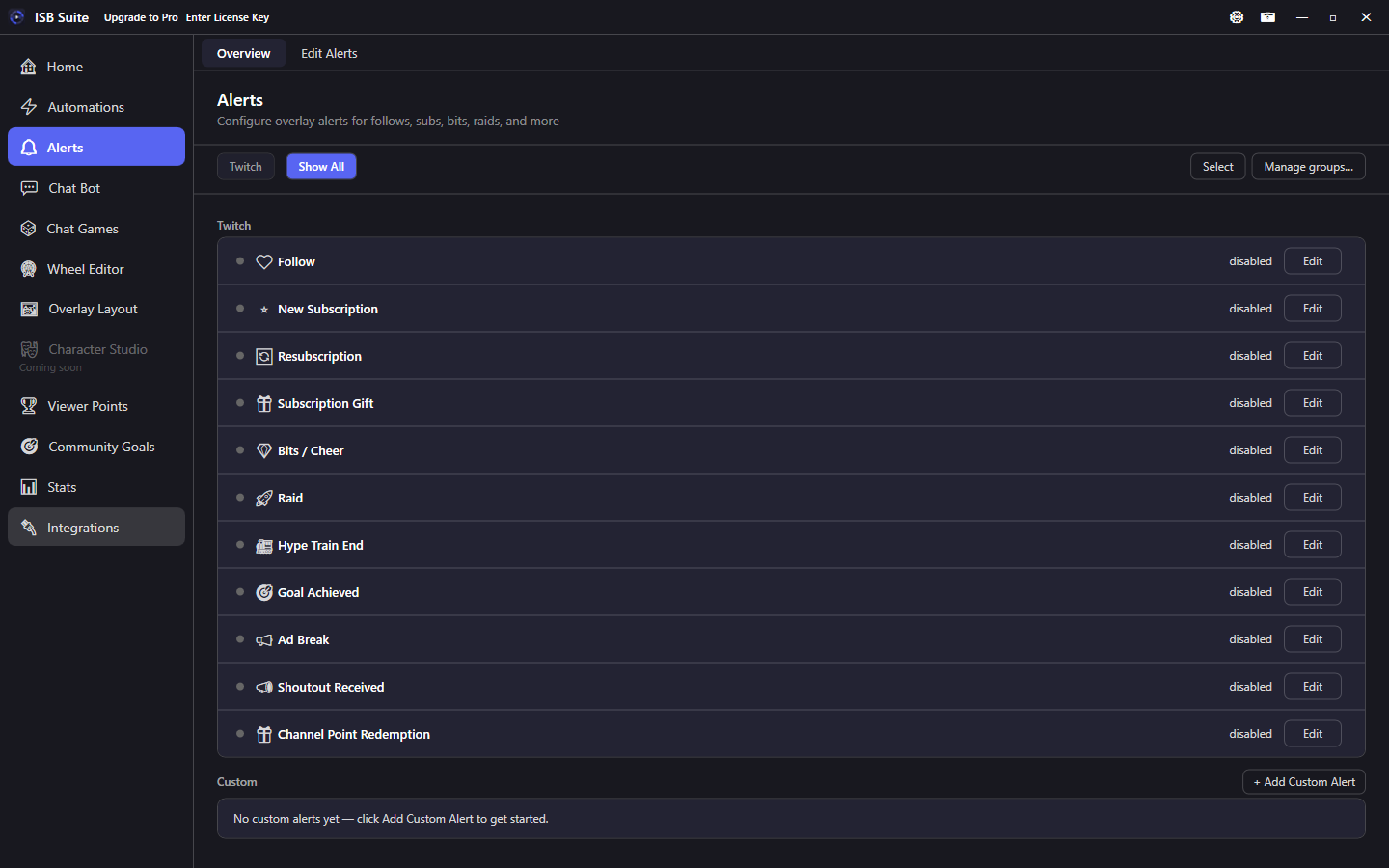
At a glance
- Free: 1 dedicated alert per built in type, 3 Custom Alerts. Full table on Free and Pro.
- Needs an Alert Box widget on the active Overlay Layout.
- When several rules match, the most specific alert fires (exact amount and dedicated rules beat catch-alls).
- Run Alert from Automations, Chat Bot, shop, and games reuses a designed alert. Related: Run Alert action, Automations, Message variables.
- Export on a built-in alert or a custom alert, and Import Package, share a setup. See Share a setup.
Twitch alert types
Follow, Watch Streak, New Subscription, Resubscription, Subscription Gifter, Subscription Gift Receiver, Bits / Cheer, Power-Up, Raid, Hype Train Start, Hype Train End, Hype Train Level Up, Goal Achieved, Ad Break, Shoutout Received, Stream Went Live, Channel Point Redemption.
Watch Streak uses {user} is on a {amount}-day watch streak!. Leave the length blank for every streak, or set At least, Exactly, or Every X (109 waits until 110 for every 10). {amount} stays the streak length.
Spotify Song Changed is on this page too. It fires when a different song starts on the connected Spotify account. The default text is Now playing: {spotifyTrack} by {spotifyArtist}.
New Subscription fires only for a first-time paid sub (chat/Activity Feed notice). Returners and gift recipients do not get a New Subscription alert. Subscription Gifter is gifter-linked (bulk count). Subscription Gift Receiver fires once per recipient with {user} = gifted viewer and {gifter} = gifter (gift bombs = one alert per recipient). Resubscription fires when the viewer shares their resub message in chat. A silent payment or badge change with no chat notice does not fire a New Subscription alert.
Image and sound each have Library to reuse a file already saved in ISB Suite, and Clear to detach that file from this alert. The Media Library copy stays. Clearing the sound turns sound off for the next alert. Volume and channel stay. See Media library.
Each type supports custom image or GIF, alert text with variables, display duration, TTS, and minimum thresholds (for example raids with 10+ viewers). Alert Text may be left blank so the overlay shows no alert-text line. Overview rows have an enable/disable light (same as Automations / Chat Bot). Green is on, grey is off; click the light to toggle. A legend at the top of overview lists explains this. Turning a type off and back on restores only the rules that were on before.
Bits / Cheer TTS and {message} fold every cheerN token in that one chat line into the event total ({amount}), so stacked cheer emotes are spoken once. Other words in the viewer note stay. Count each / per-N Bits automations are a separate setting and still run from the Twitch bits total.
YouTube alert types
Super Chat, Super Sticker, New Member, Member Milestone, Membership Gifter, and Membership Gift Receiver. These are not Bits or Subs. The YouTube section stays hidden until you Sign in with Google. New Member is first-time only. Member Milestone fires when they share it in chat. Months can be At least, Exactly, or Every X (67 waits until 70 for every 10); blank matches any milestone. {amount} is the YouTube display string (for example $5.00 or months / gift count), not bits. Free still allows 1 dedicated rule per type. Full rules: YouTube.
Appearance
Appearance is configured per alert:
- Layout, fonts (live preview), colors, highlight, drop shadow, text delay, and fade timings.
- Save and load reusable style presets (copy on apply).
- Motion: enter/exit animations (Fade, slides, Scale, Bounce, and from a screen edge) and text enter (Fade, Slide up, Typewriter). Screen-edge options travel between that edge and the alert box. Enter (ms) and Exit (ms) are the travel time.
- Preset vs Manual image/text positioning with offset sliders (percent of the Alert Box).
- Side by side Layout | Motion | Preview columns with inline Test Alert (motion, GIF, sound, and TTS). A GIF plays while that test is on screen, and the resting preview stays a still. Mute sound on that preview skips the alert sound file; animation and TTS still play. In Capture Window on that preview also plays that test on the Capture Window, including the parked window OBS captures. Viewers see and hear it. Sound and speech play once, on the Capture Window, when the queue is running, the window is open, and an Alert Box is visible. Otherwise the test stays in this preview. Live alerts stay the same.
- Main Text and Subtext style editors sit side by side when the alert type supports subtext; they stack if the edit pane is narrow.
- Overflow content soft fits (uniform scale down) so image and text stay visible; preview matches the live overlay.
Expand an alert and choose Import to copy image, sound, alert text, text-to-speech, and appearance from another alert. The list is searchable by name. Subtext is included when this alert type shows a viewer message. Name, enable, trigger, and chat response stay on the alert you are editing. Image and sound are copied into that alert's own files.
Custom Alerts
Create alerts for trigger types that are not covered by the built-in per-type sections, from the Custom Alerts section on the Alerts page:
| Trigger | Details |
|---|---|
| Community Goal Reached | When a community goal hits its limit |
| Counter Tier Reached | Counter crosses into the next configured tier |
| Counter Value Changed | Counter goes up, down, or either way (once per change). Watch-time updates do not run this trigger |
| First Chat Message | Walk on / catch all on a viewer first message |
| First-Time Chatter | Once the first time a viewer chats (not each stream). After they have sent a message, they are not first-time again. Twitch and YouTube are saved separately. Existing viewers already in your data stay off the list after an update. Optional only when live |
| Chat Command | Your own !command (aliases, Match anywhere, permission, cooldown, limits) |
| Timer | Interval or countdown driven alert |
| Action Only (Run Alert) | No event trigger; only plays when an Actions surface uses Run Alert |
Custom alerts support the same overlay options as built in alerts (image/GIF, sound, alert text, TTS, and chat response).
First Chat, First-Time Chatter, and Chat Command alerts can use Run on when Twitch and YouTube are both connected. When both are checked, their chat response can post in both chats. Off posts where that alert run started. Other custom alerts, including Action Only, do not. Built-in alerts send that chat line to the platform that triggered them. See YouTube.
Run Alert
On Automations, Chat Bot, Viewer Points shop items, Chat Games, and other Actions surfaces, enable Run Alert and pick any Alerts page alert (built-in types, Custom Alerts, or Action Only). When the parent rule fires, that alert plays with the parent event context ({user}, amounts, and so on). The chosen alert must be enabled; its own cooldown and limits still apply. The Run Alert target list uses the same searchable dropdown as Randomized Action sets and Run Chat Bot or Automation.
Queued alerts play one at a time in the Stream Manager Alert Queue.
Legacy style note
Older alerts without a saved style keep the previous default look. Opening Appearance and saving (or applying a style preset) stores the new layout, motion, and typography for that alert going forward.