
Home / Features / Overlay Layout
Overlay Layout
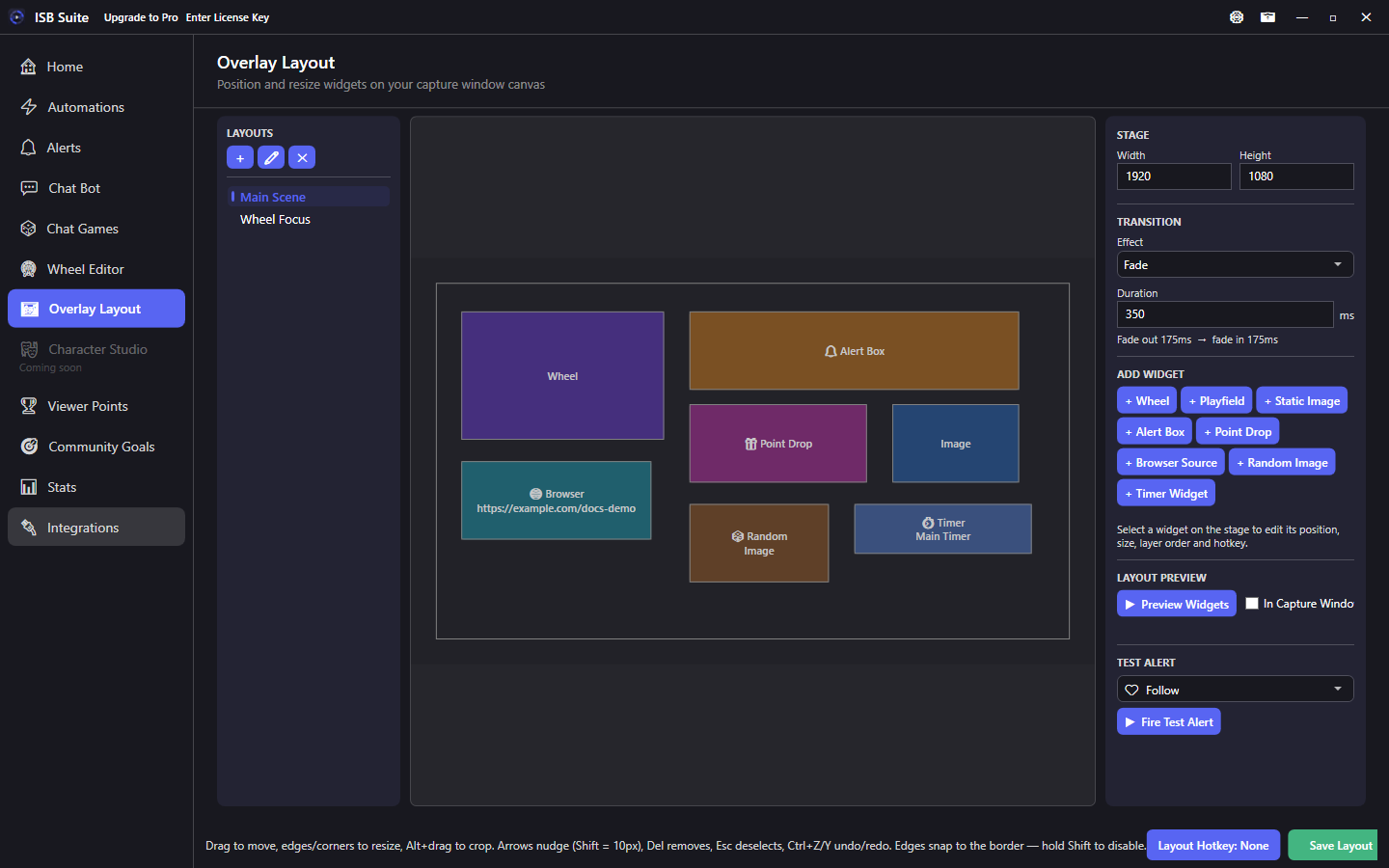
Design what gets captured by your streaming software using a drag-and-drop stage editor. Open a widget page for placement, properties, and how that widget pairs with Actions and other features.
At a glance
- Nothing appears on stream until you add a Window Capture of ISB Suite - Capture. See Download.
- Default stage 1920x1080 (custom sizes supported).
- Widgets: Wheel, Alert Box, Point Drop, Static Image, Browser Source, Random Image Picker, Timer Widget, Goals, Chat Box, Twitch Clip.
- Free: 2 overlay layouts. Full limits on Free and Pro.
Layout management
- Create multiple named layouts (for example Main Scene, Wheel Scene, Just Chatting).
- Switch from the list, assign a global hotkey per layout, or use the Overlay Layout action on an automation to switch layouts or show / hide widgets (pair with OBS / Streamlabs Set program scene).
- All widgets in the active layout render on the capture stage.
- Duplicate (beside Add) copies the selected layout and its widgets into a new one named “Name copy”, then “Name copy 2”. The copy has its own ids, a blank layout hotkey, and its own image files. Widget show/hide hotkeys stay. The same Free layout cap as Add applies; at the cap, nothing is created.
- Export shares the selected layout. A picker, timer, or goal placed on it comes along. See Share a setup.
- Leaving Overlay Layout with unsaved edits (or switching layouts) shows Save, Don't Save, or Cancel. Opening a layout and leaving without edits does not prompt.
Widgets
Open a card for how that widget works, properties, pairing tips, and use cases.
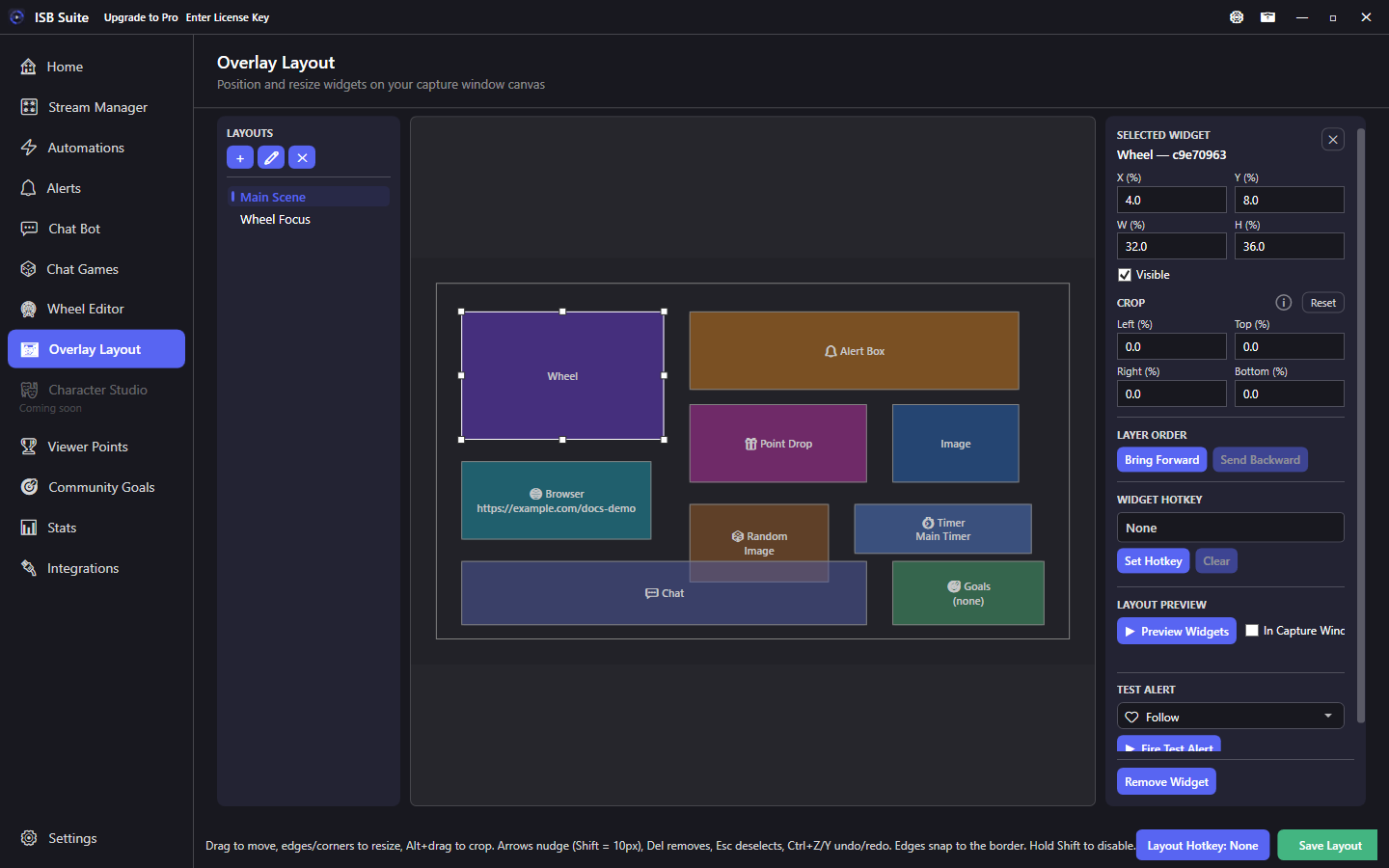
Wheel
Where the spinning wheel renders.
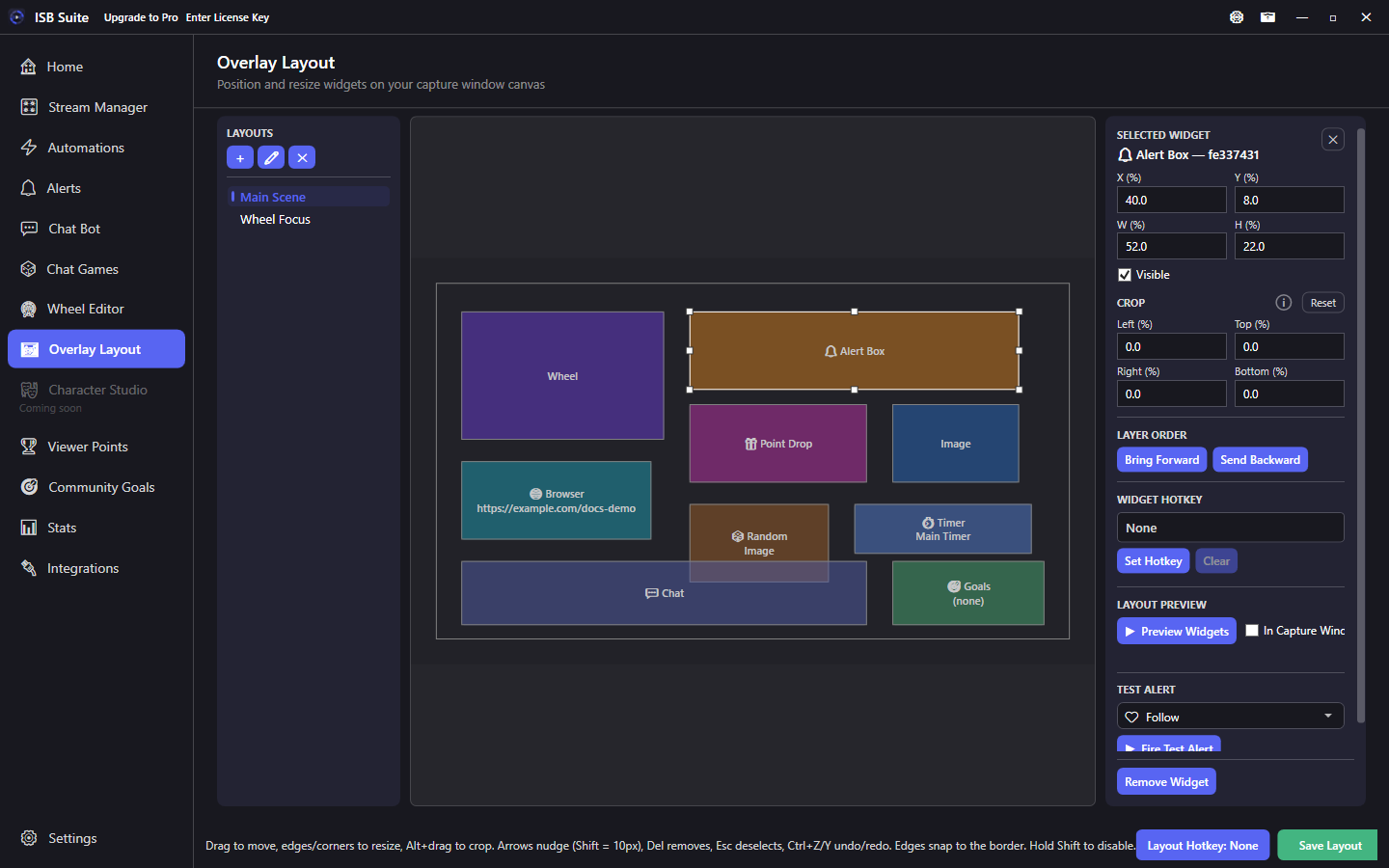
Alert Box
Region for stream event alerts.
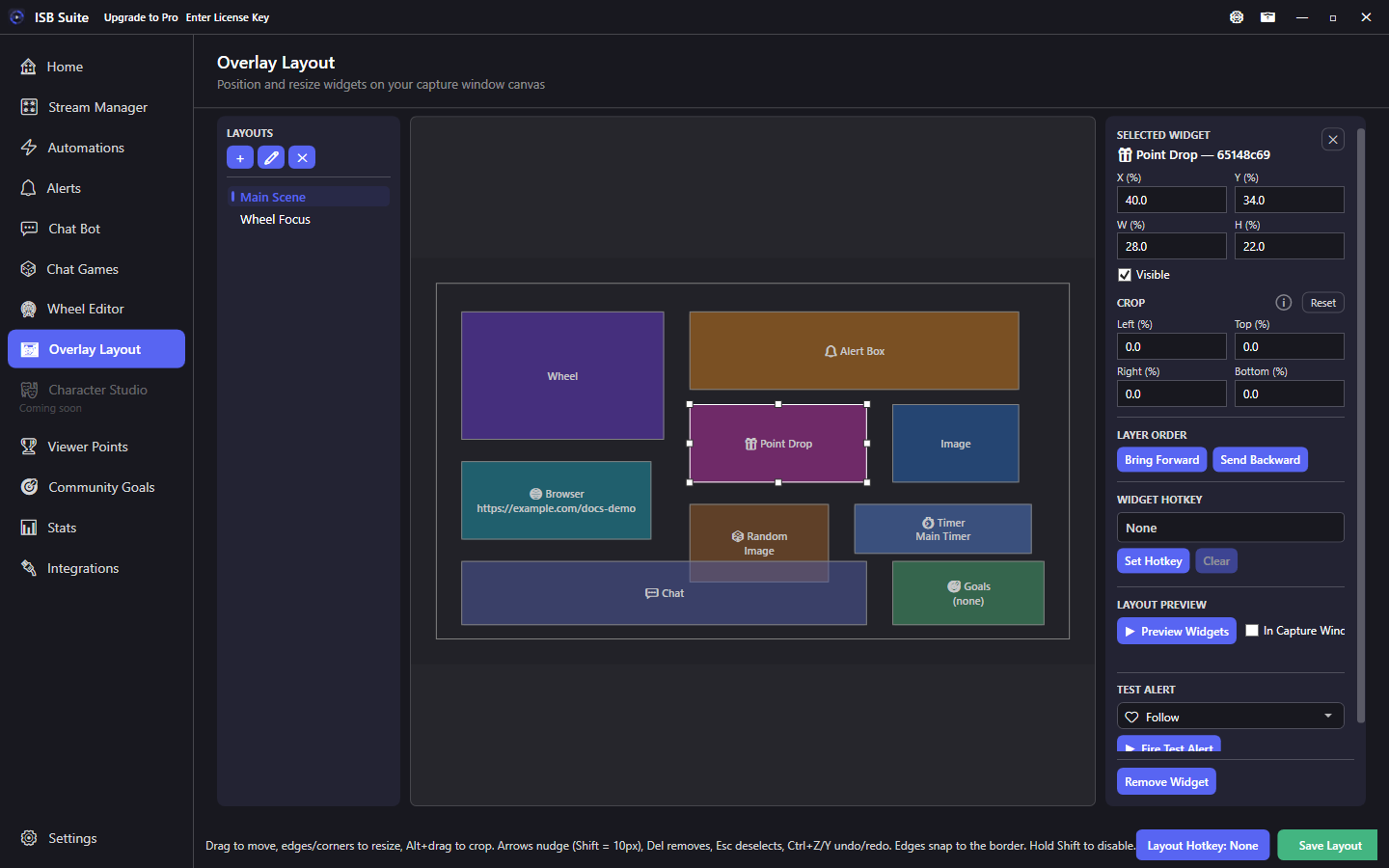
Point Drop
Drop images when a drop is active.
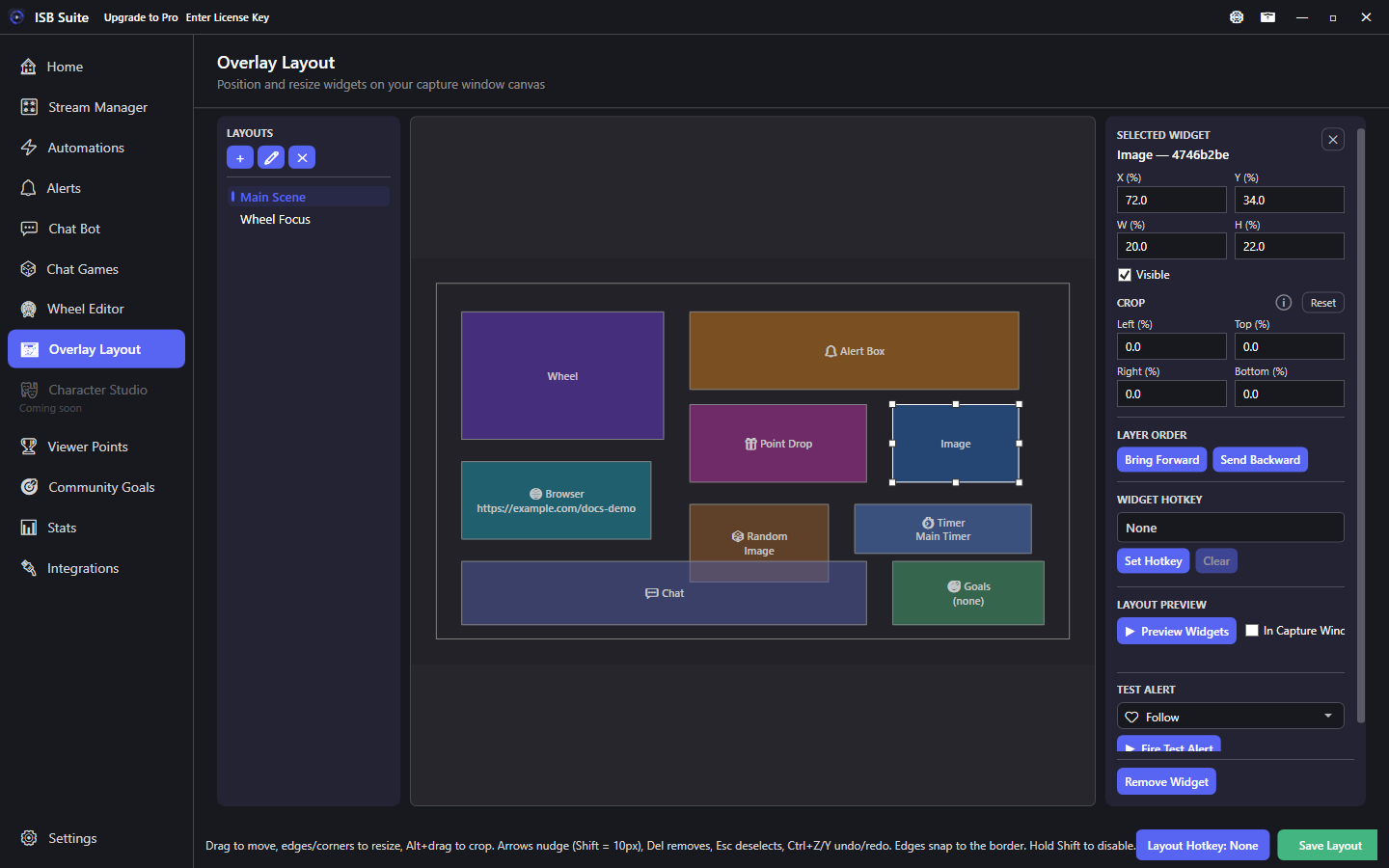
Static Image
Logos and fixed art on the stage.
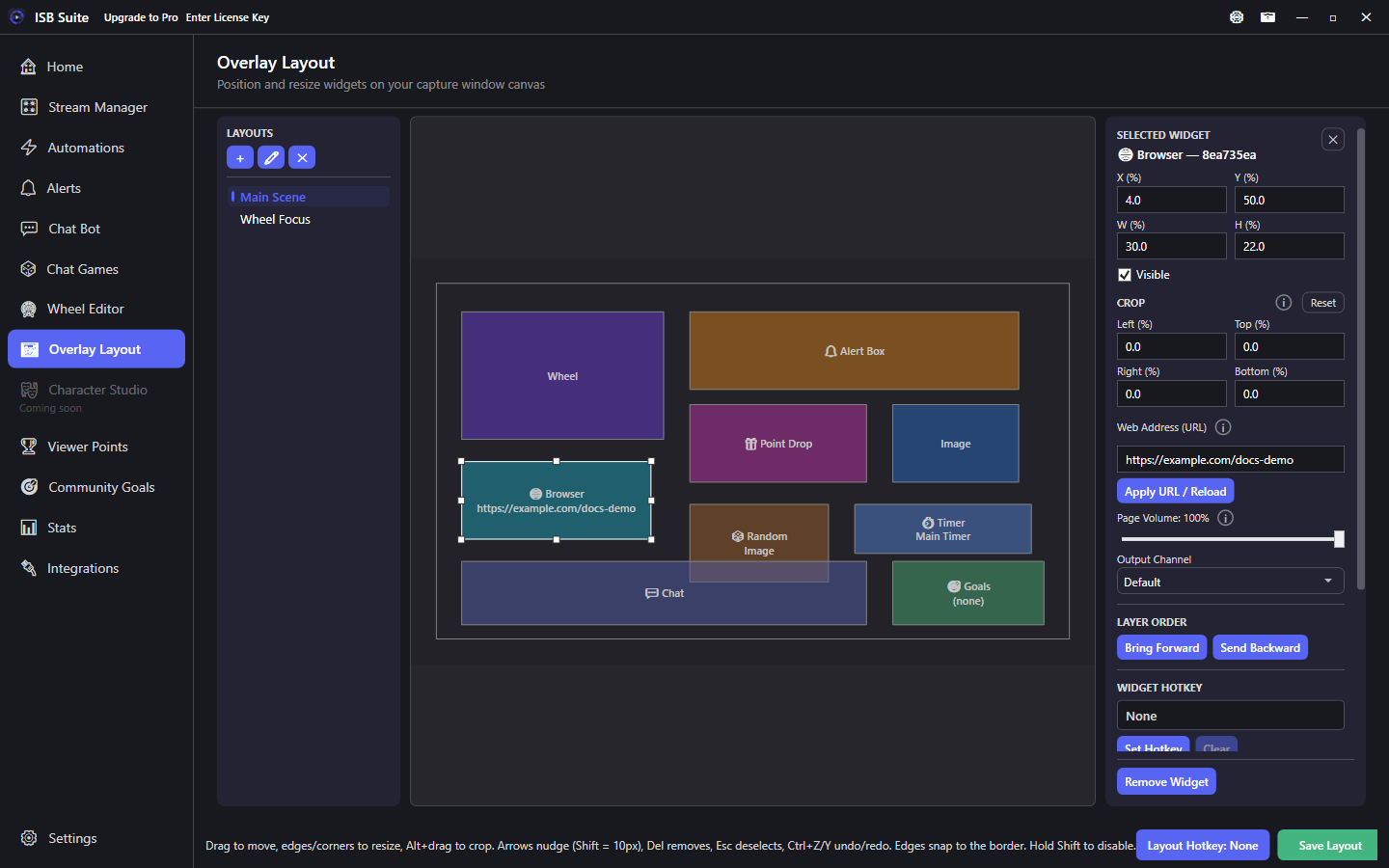
Browser Source
Live web page URL in the capture.
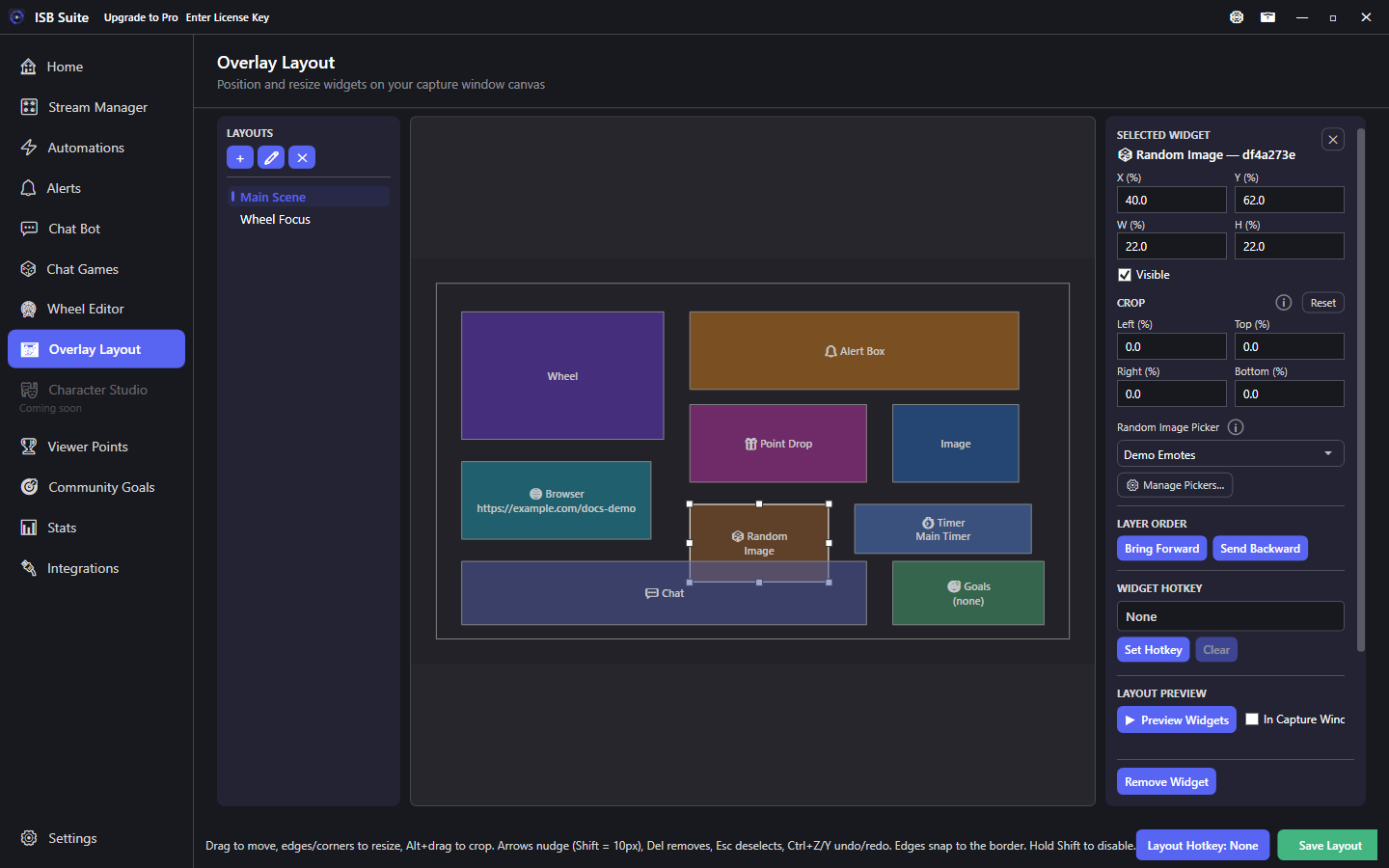
Random Image Picker
Bound picker images; re-roll via Actions.
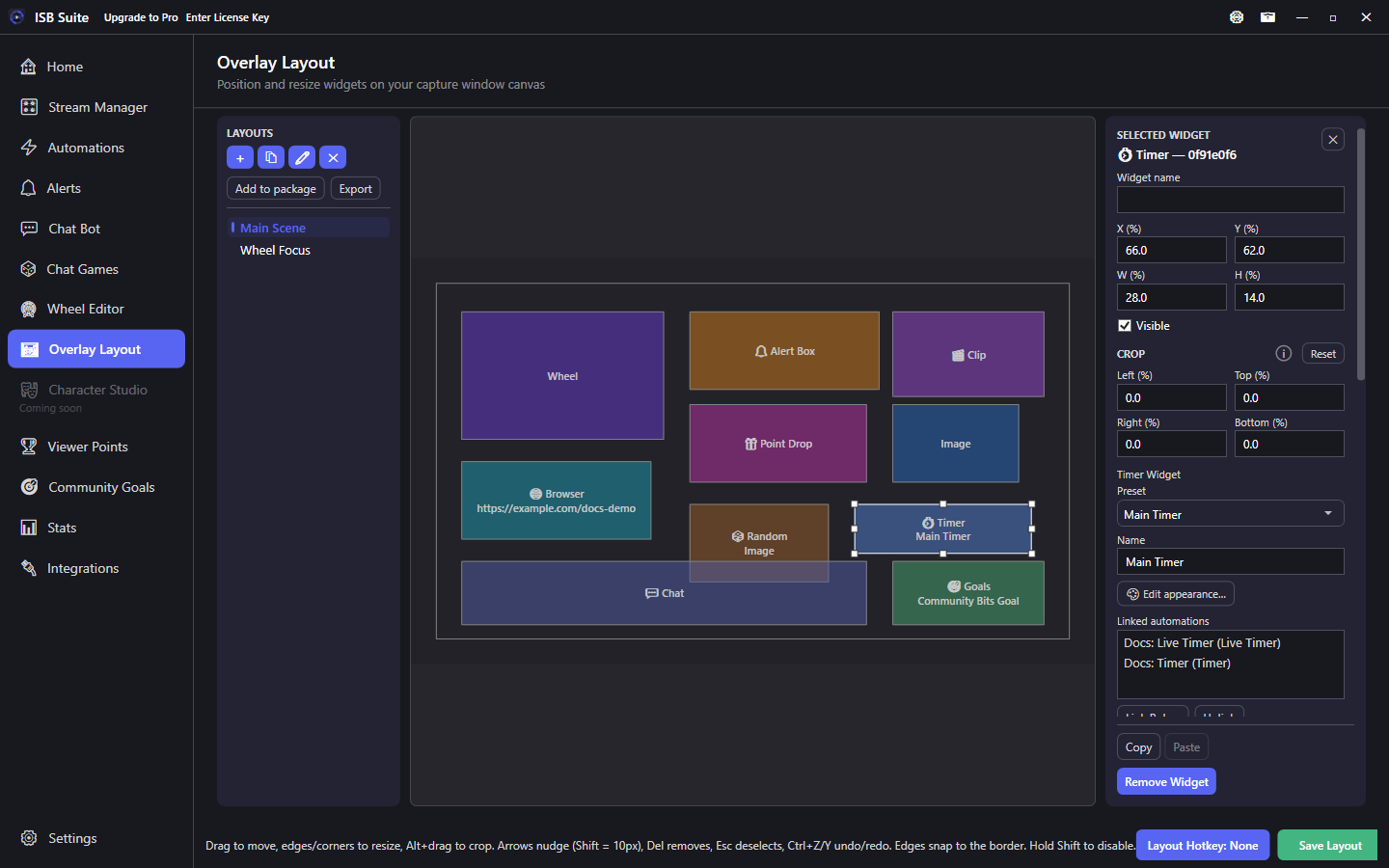
Timer Widget
Delay Timer, or a Live Clock that counts down or up.
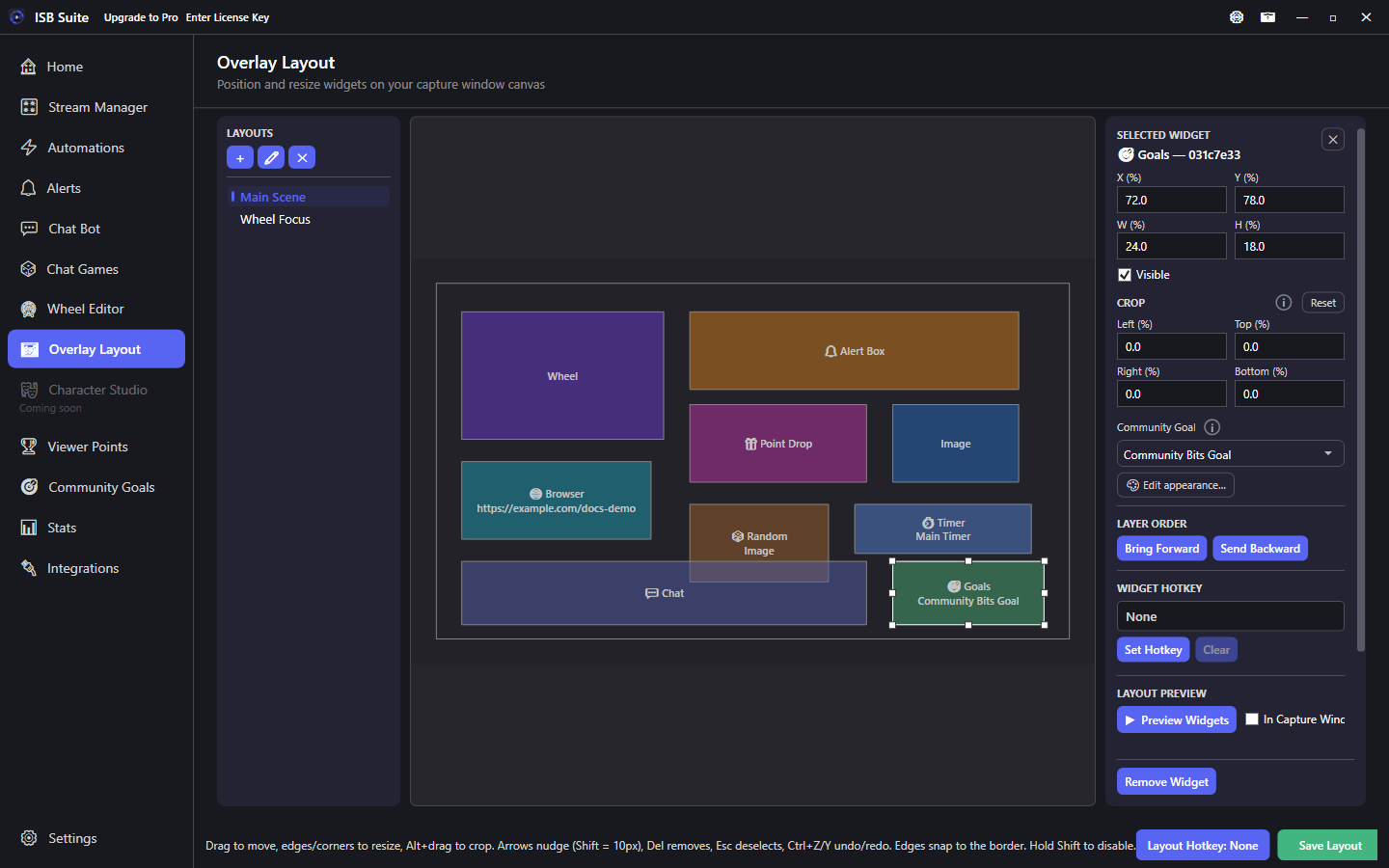
Goals
Live Community Goal progress bar on the stage.
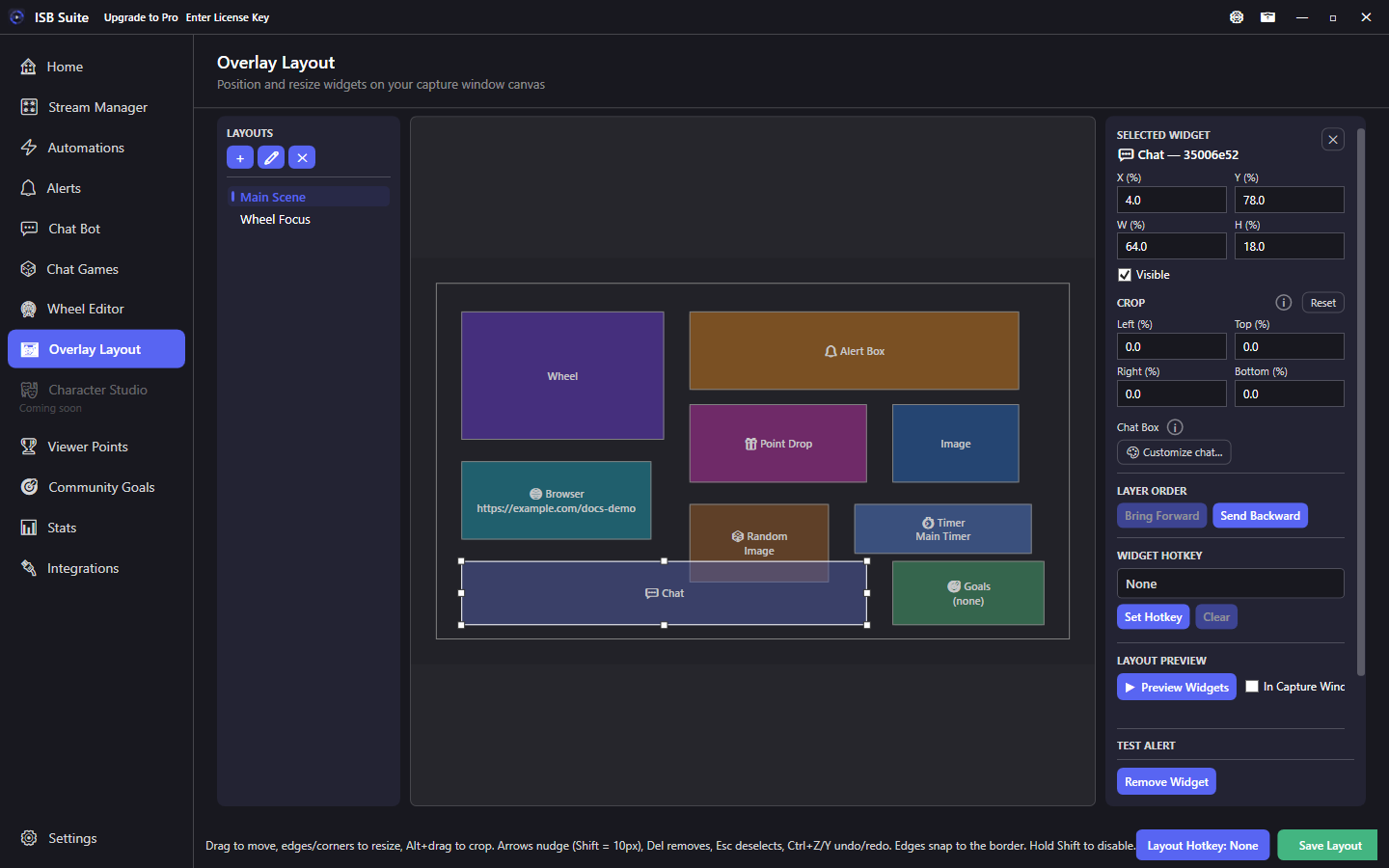
Chat Box
Live Twitch and YouTube chat on the capture stage.
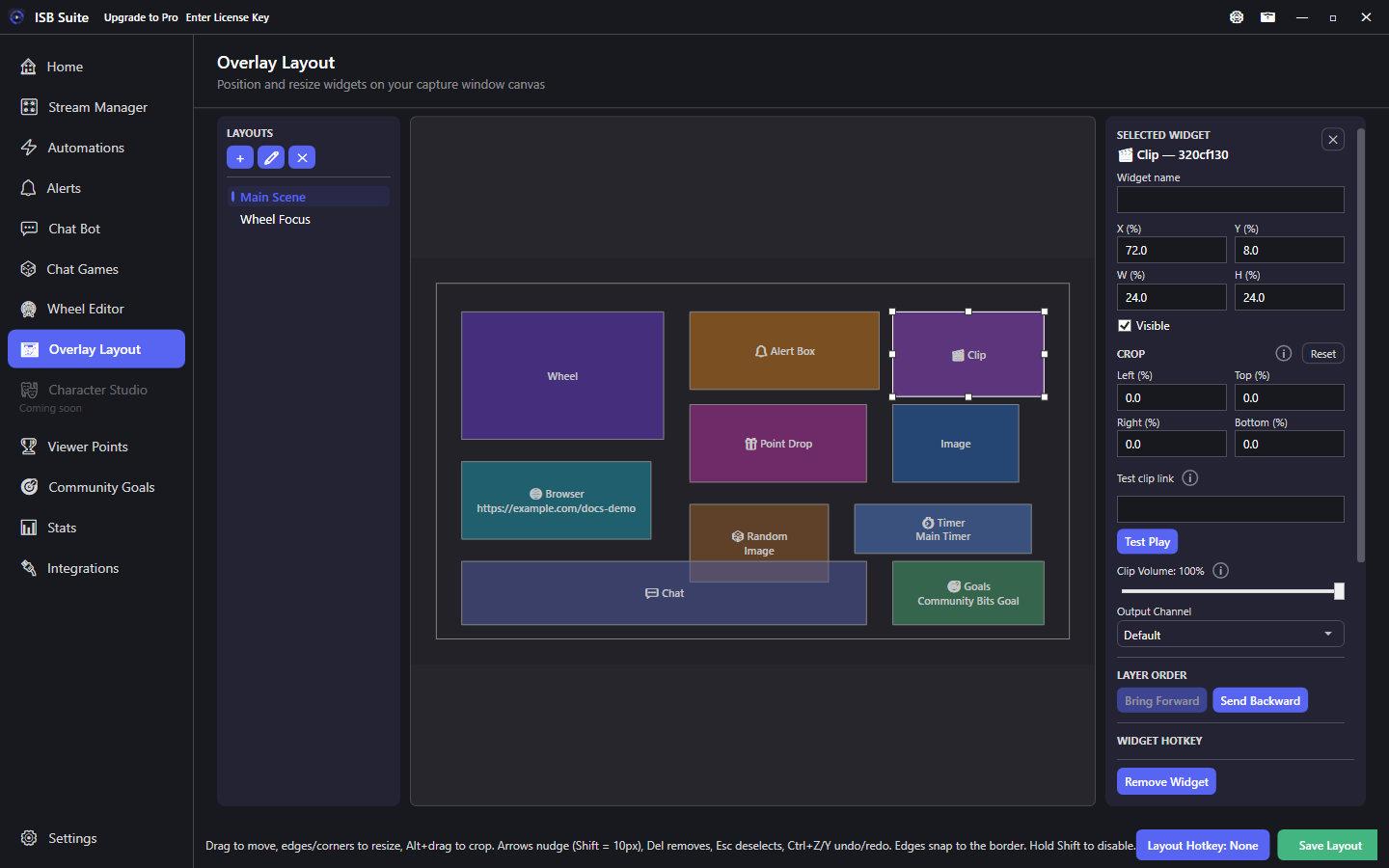
Twitch Clip
Region where a Play Clip action shows a Twitch clip.
Stage controls
- Click to select; resize handles on all 8 sides; drag to reposition.
- Set visibility per widget, or assign a hotkey to toggle during stream.
- Preview Widgets / In Capture Window shows live renders.
- Alt+drag to crop. Arrows nudge (Shift = 10px). Del removes. Esc deselects. Ctrl+Z/Y undo/redo.
- Copy and Paste (or Ctrl+C / Ctrl+V) place a copy of the selected widget on the layout that is open, including a different overlay. Pasting onto the same layout nudges it and clears its show/hide hotkey. Alert Box and Point Drop stay one per layout.
- Edges snap to the border - hold Shift to disable snap while dragging.
Shared widget properties
Every selected widget exposes the same transform and stage controls in the right panel:
- Widget name - optional label so two Browser or Image widgets are easy to tell apart. Leave it blank to keep the default name. Show / hide widget uses this name after you save the layout. Clearing the box restores the default.
- X / Y / W / H (%) - position and size relative to the stage.
- Visible - hide without deleting; pair with a widget hotkey for mid-stream toggles.
- Crop - Left / Top / Right / Bottom percentages (Alt+drag on the canvas, or type values).
- Layer order - Bring Forward / Send Backward when widgets overlap.
- Widget hotkey - toggle that widget's visibility.
Widget-specific options (URL, preset, image path, picker binding) appear below those shared controls.
Layout transitions
Configure animated transition effects when switching between layouts so scene changes feel intentional on the capture stage. Keep heavy Browser Source widgets off layouts you flip often if CPU is tight.