
Home / Features / Overlay Layout / Alert Box
Alert Box
The Alert Box is the region where Alerts-page designs play on your overlay. On-screen alerts and Run Alert need this widget on the active layout.
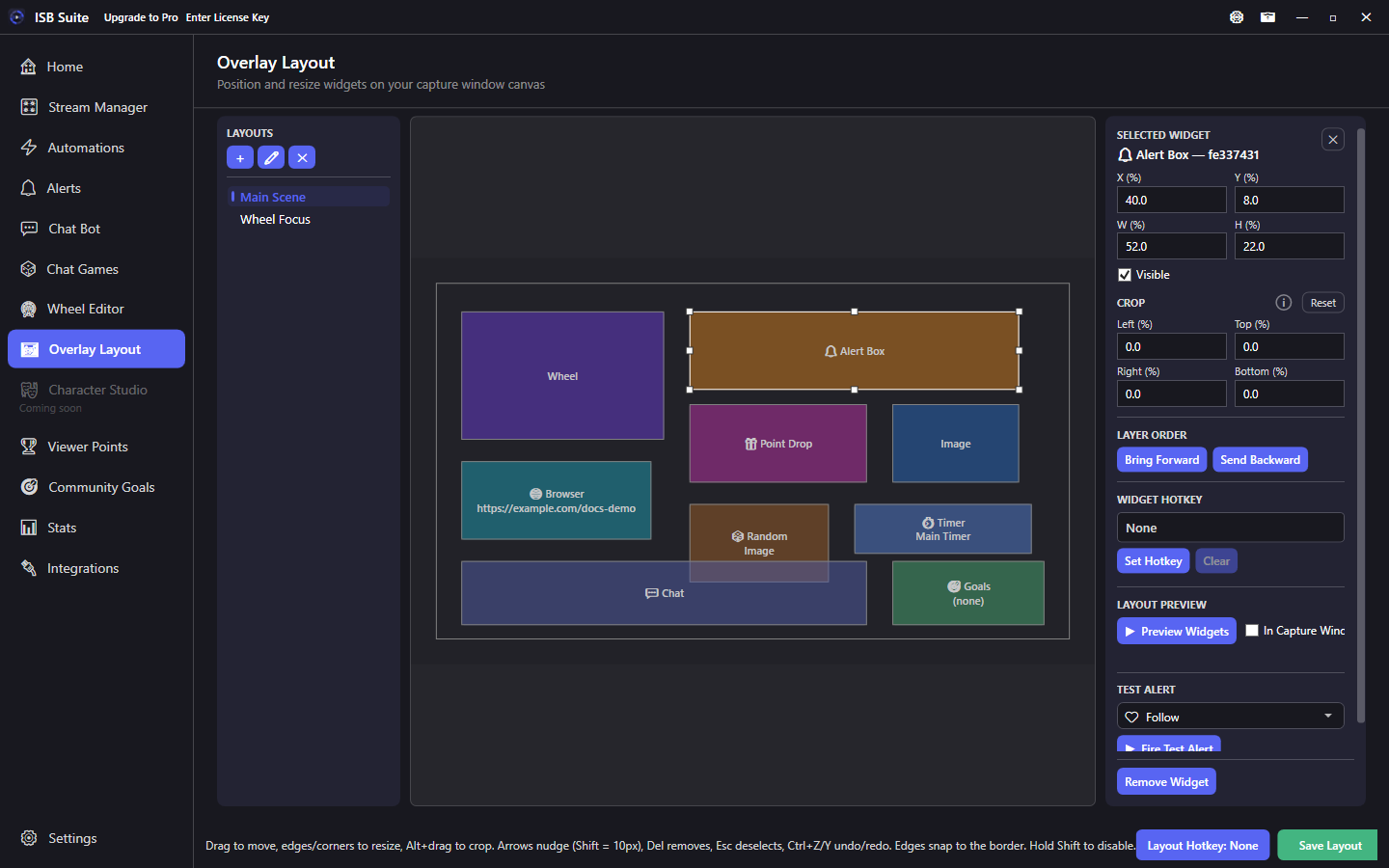
At a glance
How it works
Designs created on the Alerts page (built-in types, Custom Alerts, Action Only) render inside this box when they play. Automations, Chat Bot, shop items, Chat Games, and Run Alert all reuse that same region.
Image and text offsets in an alert are percentages of the Alert Box size - resizing the widget scales where those elements land.
Setup
- Add an Alert Box widget and size it for your alert art (often upper third or a side panel).
- Design alerts on the Alerts page; preview with the widget visible.
- Trigger alerts from stream events, shop, Chat Games phases, or Run Alert.
- Save the layout and confirm capture includes the box.
Options
- Transform / crop / visibility / hotkey: same shared stage controls as other widgets.
- There is no separate "alert picker" on the widget - which alert plays comes from the Alerts page and the rule that fired.
- Layer order matters when Alert Box overlaps Wheel or Browser Source.
Tips
- If alerts never appear, confirm the widget is on the active layout and Visible is checked.
- Preset vs Manual image/text offsets are percent of the Alert Box size - redesign after large resizes.
- Keep one primary Alert Box; duplicate layouts if you want a different alert region for a special scene.
Use cases
- Follow / sub / raid - Built-in alerts play in the box with no extra Actions.
- Game win sting - Chat Games Win phase -> Run Alert into this box.
- Just Chatting layout - Larger Alert Box, Wheel hidden, for talk segments.