
Home / Features / Overlay Layout / Static Image
Static Image
Place any image or logo on the capture stage - branding, frames, or scene decoration that stays put until you swap the file or layout.
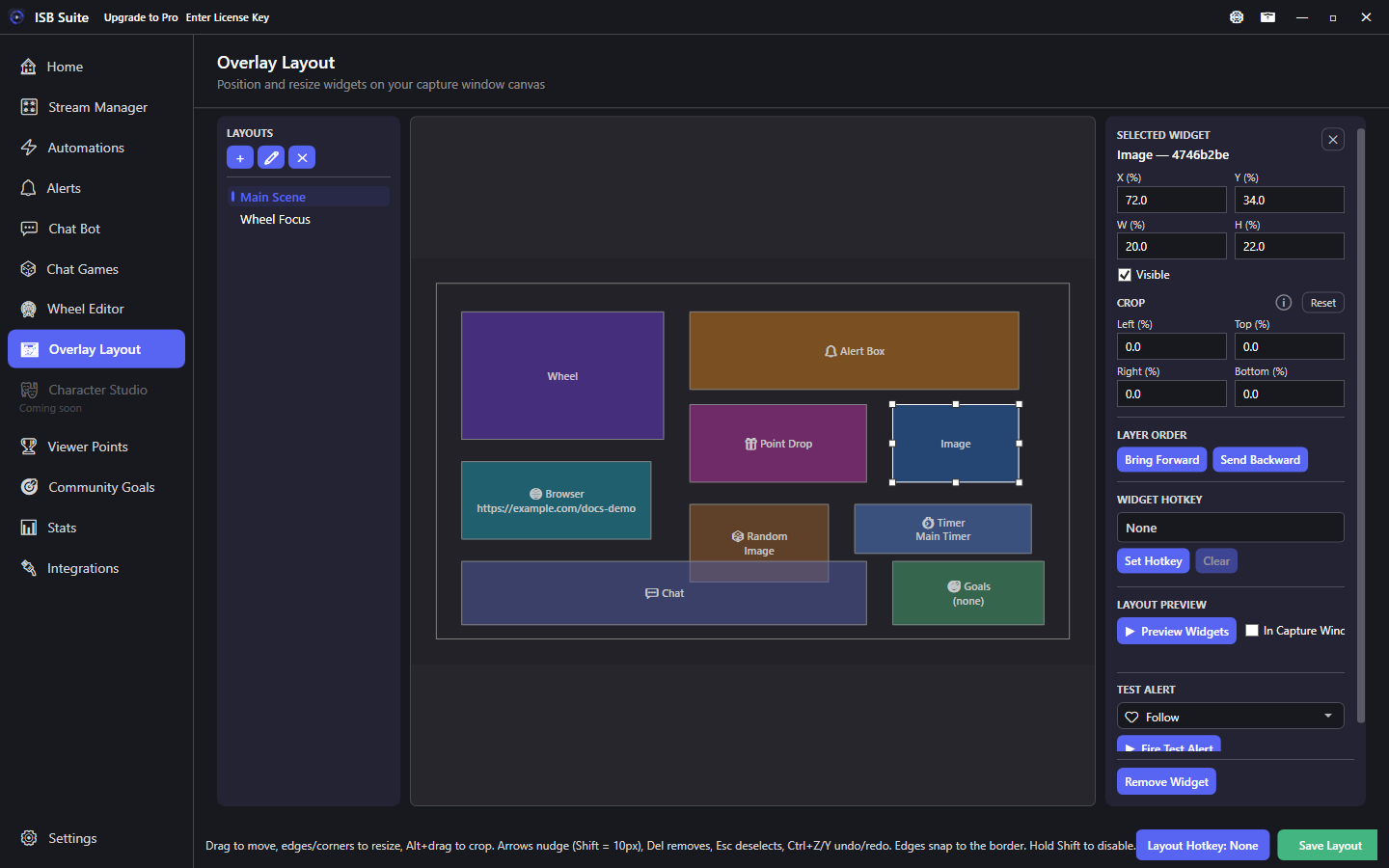
At a glance
- Widget: Static Image.
- Does not change at runtime unless you swap the file, crop, or layout.
- Use a widget hotkey to toggle branding mid-stream.
- Related: Random Image Picker for rotating art.
How it works
Static Image renders one file inside its rectangle. It is for logos, frames, and fixed decoration - not for random pools (use Random Image Picker) or live web pages (use Browser Source).
Setup
- Add a Static Image widget.
- Choose the image with browse or + Image from Library, then size it on the stage. See Media library.
- Crop if the asset has extra transparent padding.
- Optionally bind a visibility hotkey if you toggle the logo during stream.
- Save the layout.
Options
- Image path: the file shown in the widget.
- Transform / crop / visibility / hotkey / layer order: shared stage controls.
- Prefer transparent PNGs for logos so the stage behind stays clean.
Tips
- Keep logos above or below Alert Box deliberately with layer order.
- For art that should re-roll, use Random Image Picker instead.
- Duplicate the widget if you need the same logo in two places on one layout.
Use cases
- Corner logo - Always-on brand mark on Main Scene.
- Sponsored frame - Full-bleed frame image with a hotkey to hide it between segments.
- Scene badge - Different Static Image per layout (BRB vs Live).