
Home / Features / Overlay Layout / Timer Widget
Timer Widget
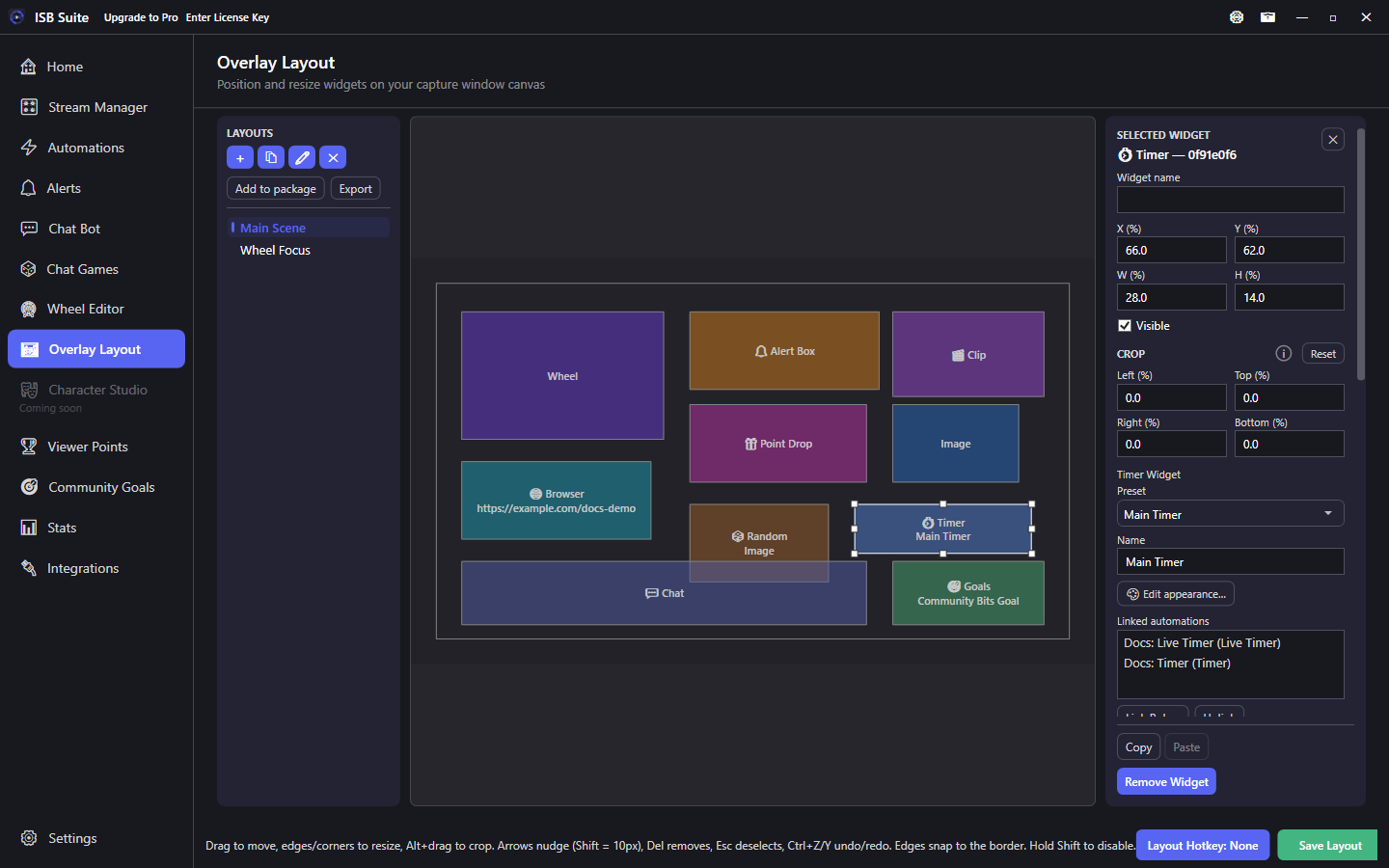
Place a named Timer Widget on your overlay for delay-queue countdowns or a Live Clock (Subathon). Open Edit appearance for counting, paused, and ended looks. Automations drive the clock with Timer or Live Timer.
At a glance
- Widget: Timer Widget.
- Delay Timer: link the same preset on the Timer action.
- Live Clock: drive with Live Timer.
- Edit appearance sets counting, paused, and ended text. Size follows the widget height.
How it works
A Timer Widget shows the active countdown for a named preset on your capture stage. The same widget type covers two jobs:
- Delay Timer - a rule's Timer action waits, then runs deferred actions. The widget shows that wait.
- Live Clock - a clock driven by Live Timer. Countdown or count up. Overlay Layout can Start / Set / Pause / Resume / End; mods use chat commands to adjust time.
Setup
- In Overlay Layout, add a Timer Widget and create or select a named preset.
- Click Edit appearance for counting, paused, and ended text. Size still follows the widget height.
- For delays: enable Timer on a rule and link this preset.
- For subathons: enable Live Timer on an automation and pick this preset.
Options
- Preset / Name: display name used with chat commands (
!endtimer,!addtime, and so on). - Edit appearance: counting, paused, and ended text, optional labels, and an optional panel. The same preset shares that look on every layout.
- Live Clock: direction (countdown or count up), optional max, accept adds while paused (see below).
- Transform / crop / visibility / hotkey: shared stage controls.
- On the delay Timer action, choose None (background only) for a wait with no overlay digits.
Appearance
Click Edit appearance on the selected Timer Widget. Changes apply as you edit. Every placement of that preset shares the look.
- Counting - the digits while the Live Clock is running, and while a delay timer is counting.
- Paused - optional own font and color, plus an optional line under the time. Off uses the counting look. A running clock covers a paused delay.
- Ended - a custom ended look keeps the widget on screen when the Live Clock ends and nothing is queued. With that look off, it hides, and the ended label is unavailable. Show The Time can leave only the label, only the clock, or both.
!cleartimeror the layout Clear button dismisses that look. A delay that is still going stays on screen in the counting or paused look. - Panel - transparent with no outline unless you turn those on. Text size follows the widget height.
- Time and label placement - Inside, above, below, left, or right of the box. Inside is the default, so existing timers stay centered.
- Text positioning - Preset uses the placement only. Manual adds a nudge from -50% to +50%, and you can drag the time or the label on the preview.
The preview can show counting, paused, or ended while the live clock keeps running. Idle on the layout canvas still shows 0:00:00 until a clock or delay is active.
Live Clock
Live Clock counts down or counts up on this preset. Automations add or start time via Live Timer. Overlay Layout can Start, Set, Pause, Resume, and End. Set uses the duration box and only changes a clock that is already running or paused.
- Direction: Countdown or Count up for the next Start. A running clock keeps its direction until End.
- Accept adds while paused: when on (default), add, remove, and set still apply while paused.
- Max: optional cap. Countdown cannot grow past it. Count up ends, and can fire Live Timer Ended, when elapsed reaches it. Leave it blank and a count-up clock runs until End.
- Live Timer Ended: countdown hits zero, or count up reaches Max. Manual End and
!endtimerdo not fire that trigger. Remove on a count-up clock floors at 0:00 and keeps running.
Delay Timer behavior
- Multiple rules can share one preset; they queue so only one delay countdown runs at a time.
- Counter Action and Push Community Goal still apply immediately while the delay runs.
- Sound, chat, TTS, wheel, giveaway, and alerts wait until the countdown ends.
!endtimeron a delay countdown skips deferred actions; it does not run them early.
Chat commands
- Delay or Live Clock:
!endtimer {name}(Built-in Commands). A custom ended look stays on screen; otherwise the clock clears. Does not fire Live Timer Ended.!cleartimer {name}hides that ended look. - Live Clock:
!pausetimer,!resumetimer,!addtime,!removetime,!settimeunder Chat Bot - Live Timer Commands.
Full list: Chat commands.
Use cases
- Subathon - Live Clock countdown + Live Timer. Mods extend with !addtime.
- Count up - same Live Clock set to Count up. Pause, add, and
!settimemove the elapsed time. Set Max when that clock should finish. - Heist window mirror - Chat Games Open phase starts a delay Timer so overlay shows time left alongside Countdown Warnings in chat.
- Background delay - Timer action with None (background only) when you need pacing without on-screen digits.
Related: Live Timer, Timer action, Use cases (Subathon Countdown).