
Home / Features / Overlay Layout / Goals
Goals
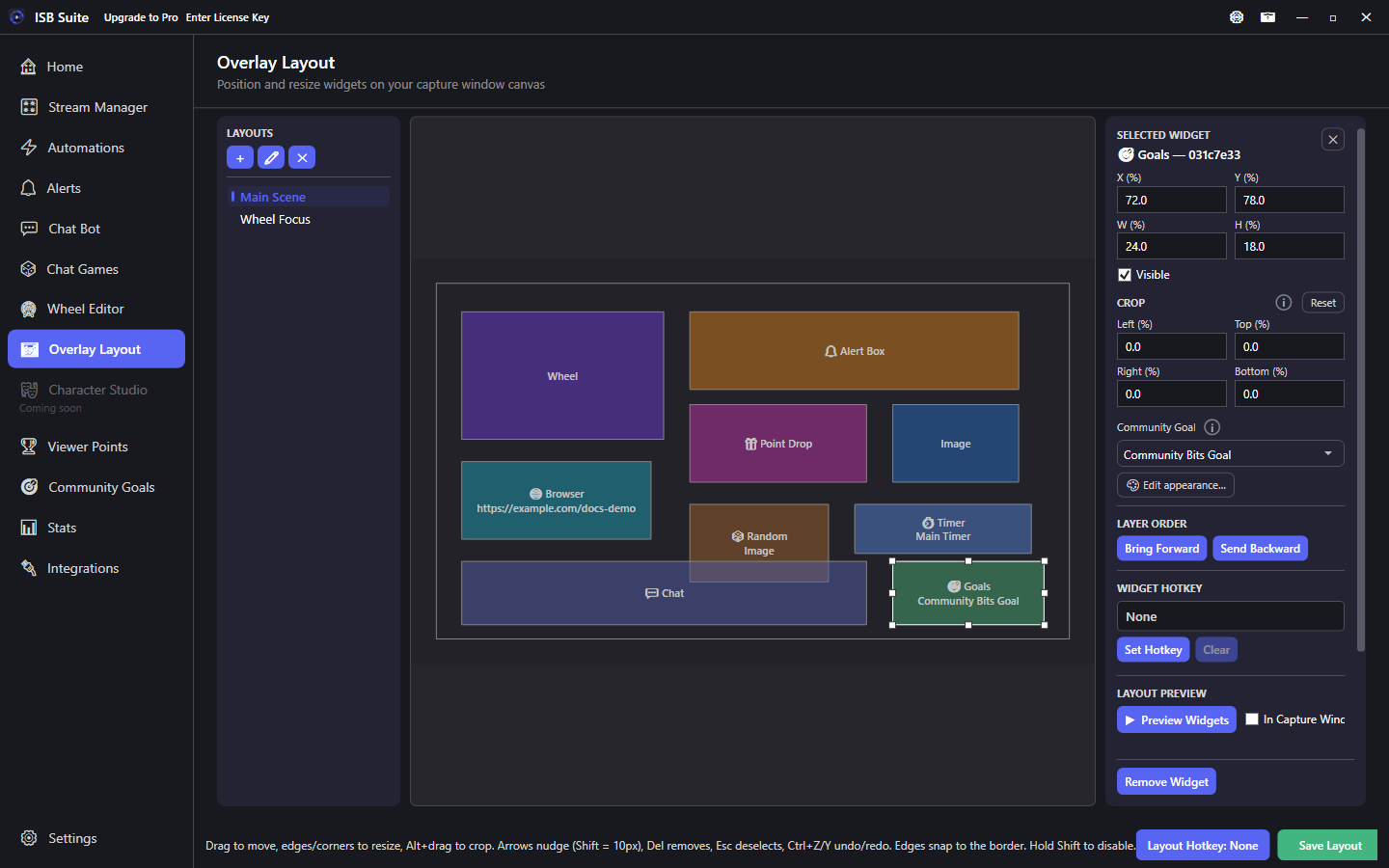
Place a Goals widget on your overlay to show a live Community Goal progress bar. Bind any Community Goal, then customize layout, bar colors, amount format, and typography per placement.
At a glance
- Widget: Goals.
- Shows live progress from a Community Goal (name, amounts or percent, fill bar).
- Layouts: Standard, Condensed, or Bar only.
- Appearance is per placement - the same goal can look different on another layout.
How it works
The Goals widget is a placement on your Overlay Layout. It does not create a new goal - it displays an existing Community Goal. Progress, limit, enable, and lock state come from that goal; the widget stores only position, size, which goal to show, and visual style.
Setup
- Create or enable a Community Goal on the Community Goals page (bits, subs, follows, chat match, live totals, or manual).
- Open Overlay Layout, select a layout, and click + Goals Widget.
- Select the widget and choose the Community Goal in the properties panel.
- Save the layout. Add a Window Capture of ISB Suite - Capture in OBS if you have not already.
Appearance
Click Edit appearance on the selected Goals widget. Changes apply as you edit (no separate Save in the dialog).
- Layout - Standard (title, bar, amounts), Condensed (single row), or Bar only.
- Show title / Show amounts - toggles for Standard and Condensed (ignored for Bar only).
- Amount format - numbers (
current / limit) or percent of progress. - Title / amount placement - layout default, above, below, left, right, or over the bar.
- Text positioning - Preset (placement only) or Manual offsets (-50%...+50%). In Manual, drag title or amounts on the appearance preview. The preview builds at your widget's Capture size so it matches the live stage.
- Bar thickness and fill / track colors - color picker for on-stream look. The shared picker includes an Opacity slider and Clear (transparent); use Clear on bar fill to hide the fill while the track still shows. Optional bar outline is opaque, with its own color and thickness (1-12 px).
- Title and amount text - font, size, weight, color, and shadow (same text style editor as Alerts). Timer appearance uses that editor too; timer size still follows the widget height.
Locked or disabled goals still appear on the stage but look dimmed so viewers can see the goal is paused.
Live updates
The bar and labels update when the Community Goal accumulates, decrements, resets, or when you rename, disable, or delete the goal. If the bound goal is deleted, the widget shows an unknown-goal placeholder until you pick another.
Use cases
- Bits / sub drive - put a Standard bar under your Alerts so chat sees the milestone fill live.
- Compact HUD - Condensed or Bar only in a corner for a cleaner scene.
- Multi-layout branding - same goal on Main and BRB layouts with different colors or thickness.
Related: Community Goals, Push Community Goal, Overlay Layout.