
Home / Features / Overlay Layout / Wheel
Wheel
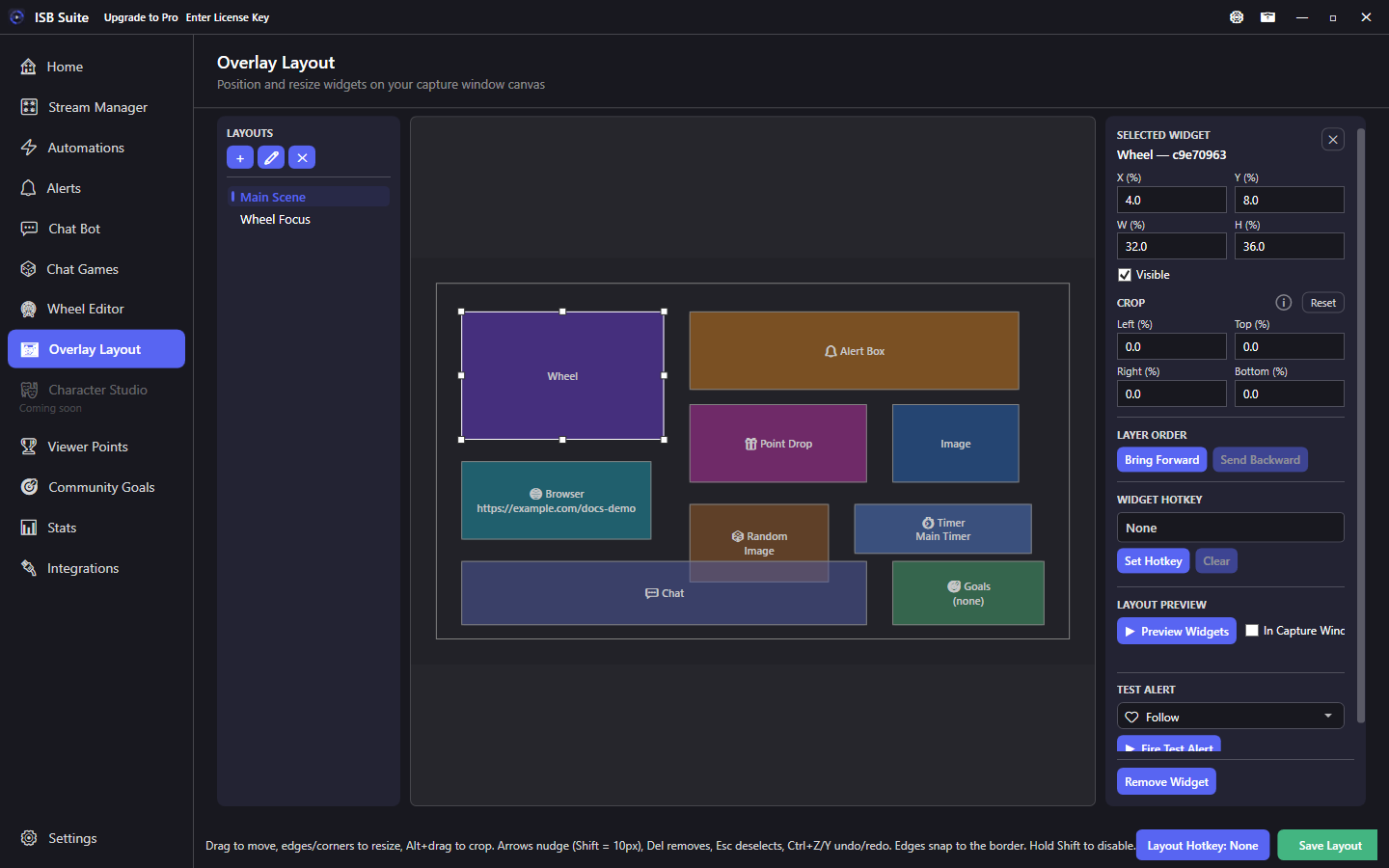
Place the Wheel widget where the spinning wheel should appear on your capture stage. Without it on the active layout, spins still run in the app but viewers will not see them in capture.
At a glance
- Widget: Wheel.
- Required for on-stream wheel spins to be visible in capture.
- Shared transform, crop, visibility, and widget hotkey controls.
- Related: Wheel, Start Wheel Session.
How it works
The Wheel widget is the on-stage render target for Wheel Editor presets and Start Wheel Session Actions. Presets, entries, and spin rules live on the Wheel feature; this widget only controls where that graphic appears in ISB Suite - Capture.
Setup
- Add a Wheel widget to the active layout.
- Size and position it where you want the wheel on stream (often a corner or center stage).
- Confirm Window Capture includes that region - see Download.
- Start sessions from Wheel Editor, the Stream Manager Wheel card, or Start Wheel Session.
Options
- Transform: X / Y / W / H percentages of the stage.
- Visible and Widget hotkey: hide the wheel between spins without removing it.
- Crop: trim empty margins if your wheel art has padding.
- Layer order: keep the wheel above static logos when they overlap.
Tips
- Keep one Wheel widget on your main layout; duplicate layouts if you need different placements per scene.
- A Wheel Focus layout can enlarge the wheel and hide Alert Box / Browser clutter for big spins.
- If spins happen but nothing shows, confirm the widget is on the active layout and Visible is checked.
Use cases
- Main scene wheel - Compact corner widget on Main Scene for frequent redeems.
- Spotlight layout - Hotkey to a Wheel Focus layout with a large centered wheel for finales.
- Hidden until spin - Widget hotkey or layout switch so the wheel only appears when a session starts.
Related: Overlay Layout overview, Start Wheel Session.