
Home / Features / Overlay Layout / Chat Box
Chat Box
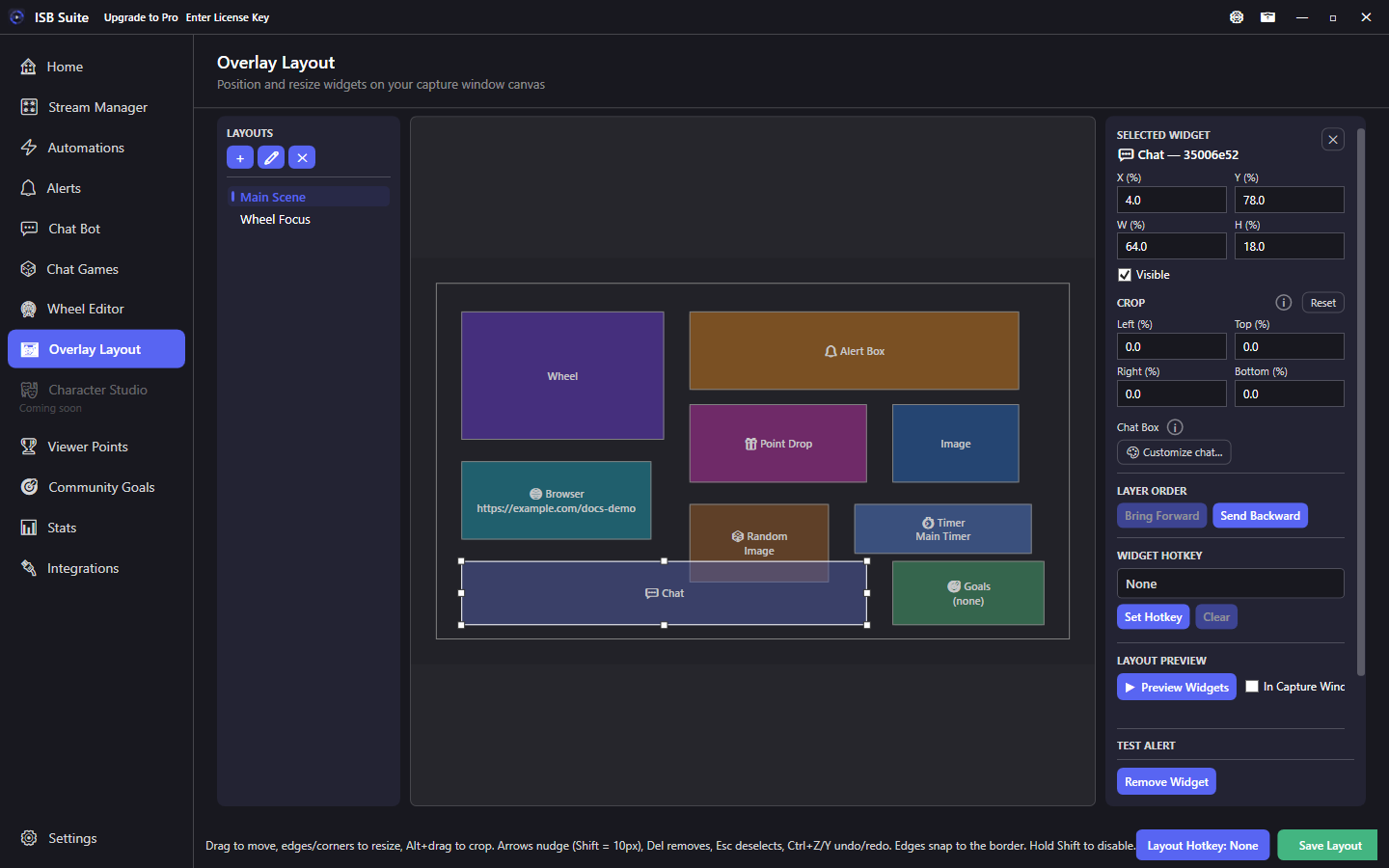
Place a Chat Box on your overlay to show live Twitch and YouTube chat in capture. Pick how messages enter, then customize typography, panel, badges, extra emotes, and the same filters Stream Manager uses.
At a glance
- Widget: Chat Box (all license tiers).
- Live chat from the same transcript as Stream Manager (Twitch and YouTube).
- Motions: Stack, Horizontal (sideways stack), or Latest message only.
- Appearance is per placement - two Chat Boxes can look different on the same layout.
How it works
The Chat Box is a placement on your Overlay Layout. It does not open a second chat connection. Messages come from the same live transcript Stream Manager uses, including YouTube chat when that account is linked. Position, size, visibility, and style live on the widget; the chat feed itself is shared. Switching layouts keeps the messages already on screen - the box fades with the rest of the overlay, the same way a wheel spin does.
Setup
- Add a Chat Box widget to the active layout and size it where chat should sit on stream.
- Select the widget and open Customize chat.
- Pick a motion, then set typography, panel fill, badges, extra emotes, and which lines to show.
- Save the layout and confirm Window Capture includes that region - see Download.
Motion
- Stack - messages pile up. Newest stays at the bottom unless you flip New messages at the top. Hide after removes a line once it has been on screen that long; Always show keeps it until the max-message cap evicts it.
- Horizontal - the same stack, sideways. New messages appear on the right and push older ones left. Overflow clips on the left. Always show, hide delay, and max messages work like Stack. Alignment is hidden because the row does not wrap.
- Latest - only the newest allowed message stays on screen. Chat delay still holds a newer line until it is due; older held lines are discarded.
Chat delay (0-900 seconds) holds a message from the time it was received until it may appear. Hide after (1-120 seconds) is per message and starts when that line becomes visible. Always show keeps a line until the max-message cap evicts it. New Chat Boxes start with Hide after (Always show off).
Appearance
- Text: one font, size (default 20), weight, color, left alignment, and optional shadow for the name and the message. Emotes match that text size. Use Twitch name color to keep IRC colors; Readable name colors lift a dark name against the panel fill.
- YouTube name colors (when YouTube is connected): YouTube does not send name colors. Default is random colors from the same palette as the wheel, or one color for every YouTube name.
- Panel: fill (or Clear) with an opacity slider, optional outline and thickness - same idea as the Goals widget. Outline stays opaque.
- Show name / timestamps / platform icons: optional prefixes on each line.
- Badges: check-dropdown of Twitch badge sets (broadcaster, moderator, VIP, subscriber, founder, bits, partner, predictions, other). Unchecked sets stay off; an empty list shows none.
- Emotes: check-dropdown for Twitch, BetterTTV, 7TV, and FrankerFaceZ from the same catalog Stream Manager uses. Animate emotes is a separate toggle; off keeps a still frame. Show GIF Keyboard is on by default; off leaves the GIF name as text.
Message looks
The Chat Box and Stream Manager chat paint the same look Twitch or YouTube put on a line. A giant emote sits on its own line. Emote Party, Rainbow Eclipse, and Cosmic Abyss wrap the message, and the Bits amount sits after the name. Highlight My Message uses a highlight behind the line. Cheers show cheer images. Twitch GIF Keyboard images show about the size of a gigantified emote, in the GIF's own shape, with rounded corners and the name on hover. They stay when Twitch emotes are off. Show GIF Keyboard off leaves the name as text. Super Chat uses the purchase-tier color, with the amount and the comment. Super Sticker shows the sticker. Member milestone chat keeps the milestone and the comment.
Animate emotes off keeps that look and a still frame. Turning off chat messages still shows one of these lines when its event family is on (Bits, Channel Points, or YouTube). Both off hides it.
Filters
Default is viewer chat plus commands and bots. The Show and Events dropdowns use the same check-list as Community Goals. Turn on Twitch, YouTube, chat messages, mod actions, and event families (subs, bits, raids, hype train, Super Chat, and the rest). Changing a filter drops lines that no longer match; it does not replay history. Two Chat Boxes share one transcript subscription and keep their own rings.
Use cases
- Just Chatting column - Stack in a side panel with Always show and a dark panel.
- Ticker - Horizontal across the lower third; new chat pushes older lines off the left.
- Spotlight - Latest only, large type, for a single featured line.
- Events only - turn off chat messages and keep subs, raids, or hype train.
Related: Overlay Layout overview, Stream Manager, YouTube.