
Home / Features / Overlay Layout / Twitch Clip
Twitch Clip
Place a Twitch Clip widget where a clip should appear on stream. The widget is only the box. A Play Clip action decides which clip plays. The capture stays blank until something plays, and it hides again when the clip ends or you stop it.
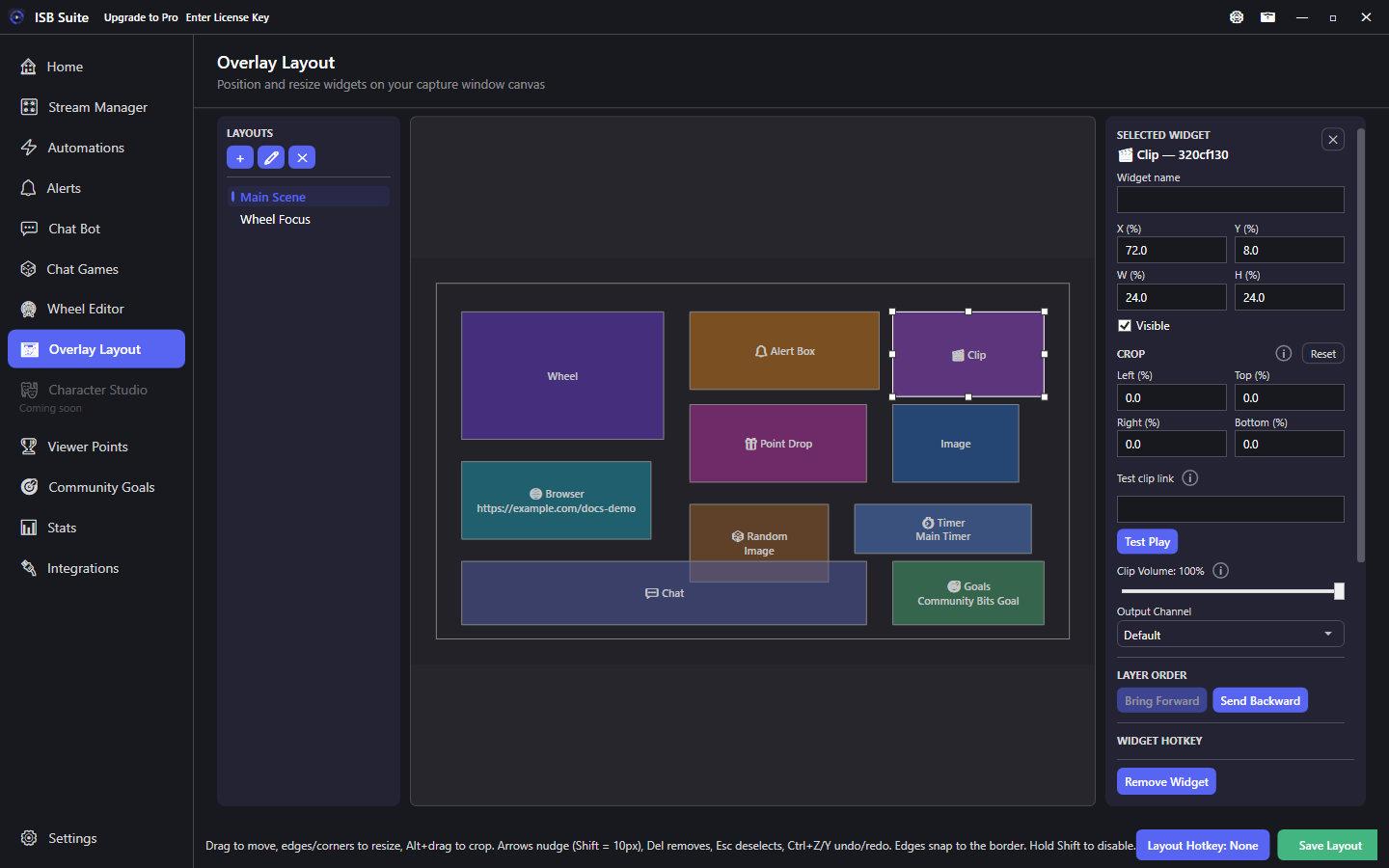
At a glance
- Widget: Twitch Clip (all license tiers). You can place more than one.
- Idle is hidden on the capture window. The editor still shows the labeled box.
- Volume and output channel match Browser Source. Test Play reads an optional link and does not play when you open the layout.
- Pair with the Play Clip action. There is no queue.
Placement
Add Twitch Clip from the widget list and size the box. It stays 16:9 when you add it. Visible is the layout toggle. Hiding a finished clip does not turn that off. Saving the layout does not start a clip.
What plays
Use Play Clip on an automation, chat command, chat game, or shop item. An empty widget target uses the first Twitch Clip widget on the active layout. A named widget plays only there. A new play replaces the clip already in that box. Stop clears it. A bad link leaves the current clip alone.
Volume and Test Play
Clip Volume and Output Channel use the same controls as a Browser Source. Test Play saves the layout, then plays the test link in this widget only. It needs a real clip link. Variables such as {input} belong on the Play Clip action. Leave the test link blank if you do not need a button check. The playing address is not stored on the widget.
Related: Overlay Layout overview, Play Clip, Create Clip.