
Home / Features / Stream Manager / Stream info
Stream info
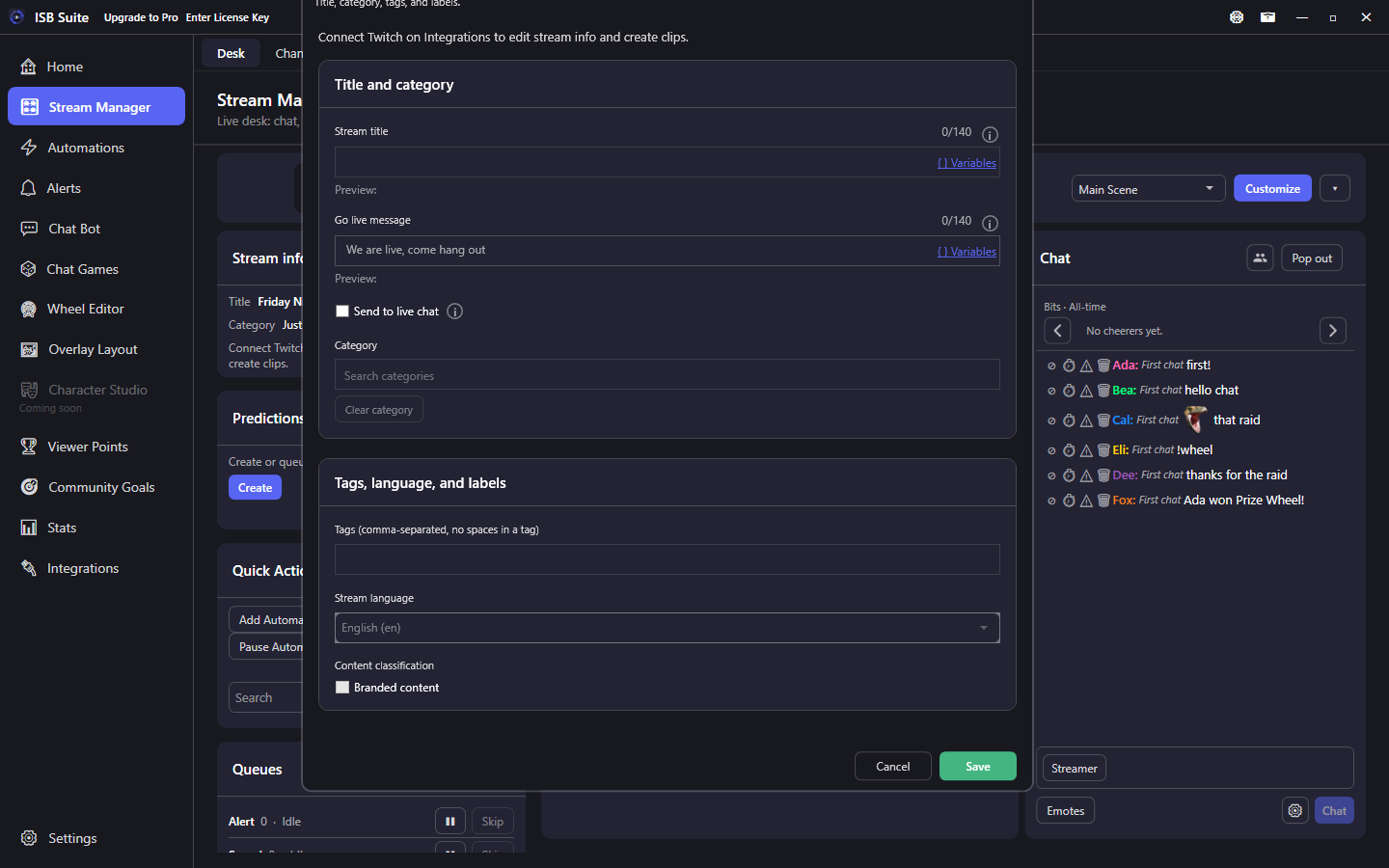
The Stream info tile shows the current title and category. Edit opens a two-card popup. Create Clip stays on the tile so you can clip while live without opening Edit.
At a glance
- Desk tile. Edit is a popup with two section cards. Clip stays on the tile.
- Title and go-live message can use ISB variables. Save is blocked if the filled-in text is over 140 characters.
- Automations can still retitle or clip via Set Title / Category and Create Clip.
Edit popup
- Open Stream Manager and wait for title and category to load on the tile.
- Click Edit. The first card is title and category. The second card is tags, language, and content labels.
- Save writes to Twitch. Cancel discards unsaved edits.
- Tags have no spaces (max 10, 25 characters each).
- Clear category removes the game on Twitch.
- Title tokens resolve when you Save. The summary and editor preview show the current values.
- Go Live Notification and Audience are Twitch dashboard-only (no Helix API).
Create Clip
While live, set clip duration and click Create Clip on the tile. You do not need to open Edit. Offline channels cannot clip.
Go-live line
The go-live line is stored for {golive} even when Send to live chat is off (default). Turn that toggle on to post the line once when the ISB session goes live (Twitch, YouTube, or whichever ISB sees first). Other chat, alert, and TTS templates can use {golive} (this line), {category} / {title}, and {uptime} (how long this session has been live, for example 1 hour 25 minutes) anytime. {game} is only for Saved Lists and shoutout targets. Twitch's follower push/email notification is dashboard-only (no API). See Message variables.